How can I create a driver-specific toolbox talk group in SafetyOne™?
The driver-specific toolbox talks are available in your SafetyOne™ account. To make them accessible via the mobile app, you will need to assign them to a project/crew.
The driver-specific toolbox talks are available in your SafetyOne™ account. To make them accessible via the mobile app, you will need to assign them to a project/crew.
However, it is a best practice to first, create a toolbox talk group in the administrator website, then assign all 52 toolbox talks to the group. This will allow you to easily assign the entire group of toolbox talks to future projects/crews.
SETUP
1. Create a toolbox talk group.
From the administrator website, click on the “SafetyOne™” section. Then click on “Toolbox Talks” and then “Templates.” Add a new group and give it a name. We recommend naming the group something like “Driver Toolbox Talks” or “Driver Default Toolbox Talks.”
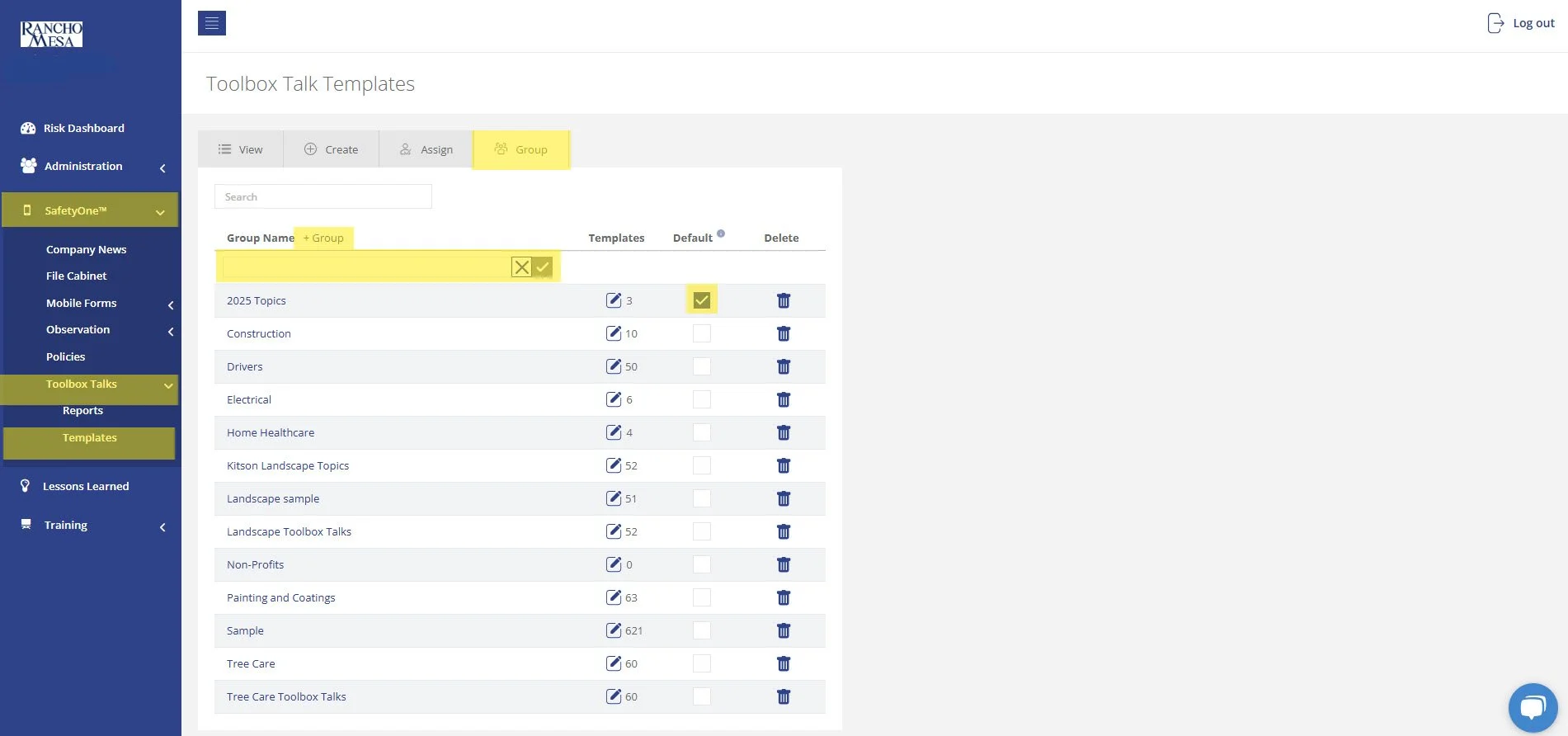
You can set the group to automatically assign these toolbox talks to all existing projects/crews by making it a default. Note, you can only have one default Toolbox Talk Group.
2. Assign toolbox talks to a group.
Now that the group has been created, assign the toolbox talks to the group. On the “Templates” page, locate the new group and click the edit button.
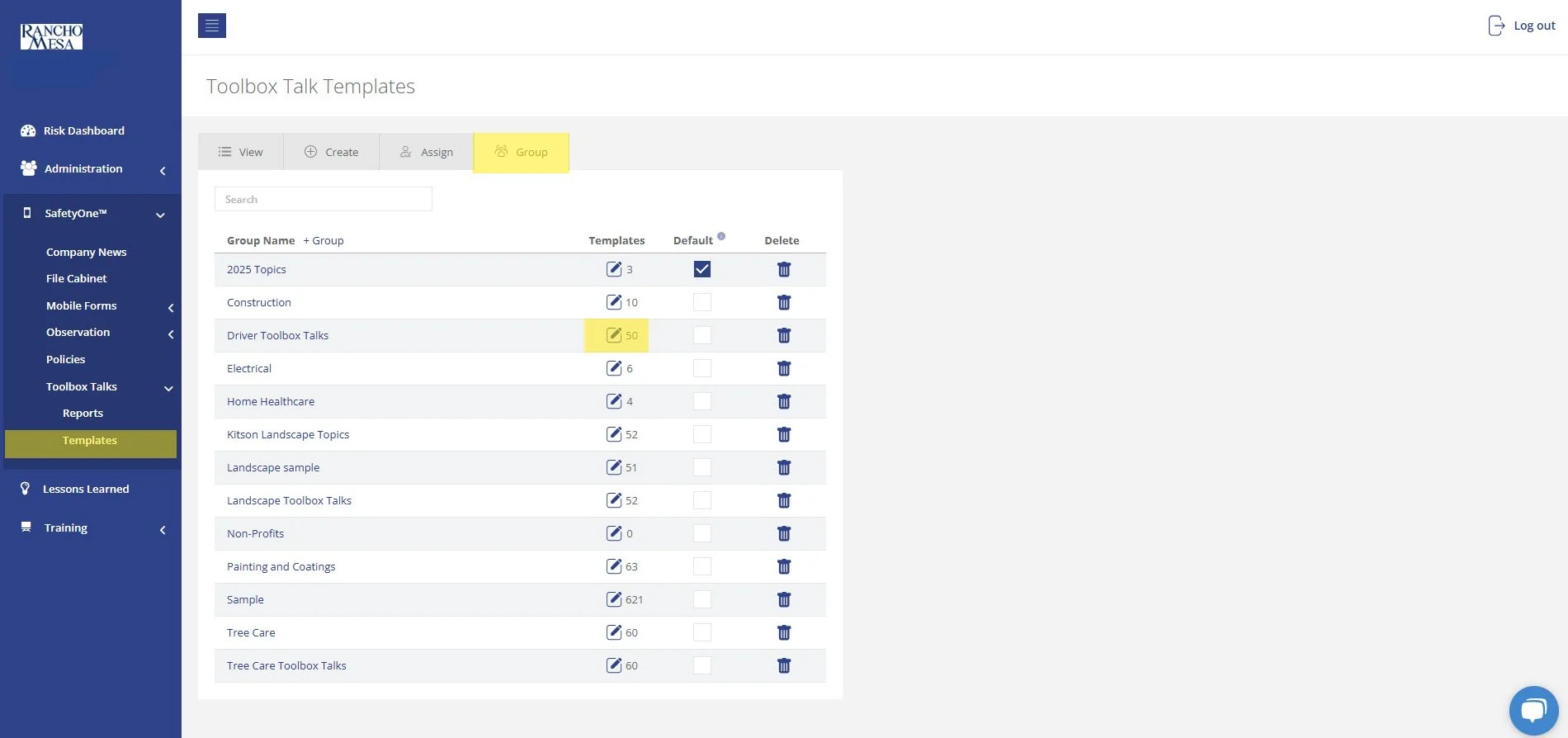
Filter the list of toolbox talks by using the search bar and entering the word “Driver.” This will display 50 driver-specific toolbox talks available in both English and Spanish.
You can assign all of the toolbox talks to this group using the check box at the top of the page. Or, pick and choose the individual topics by selecting their check box.
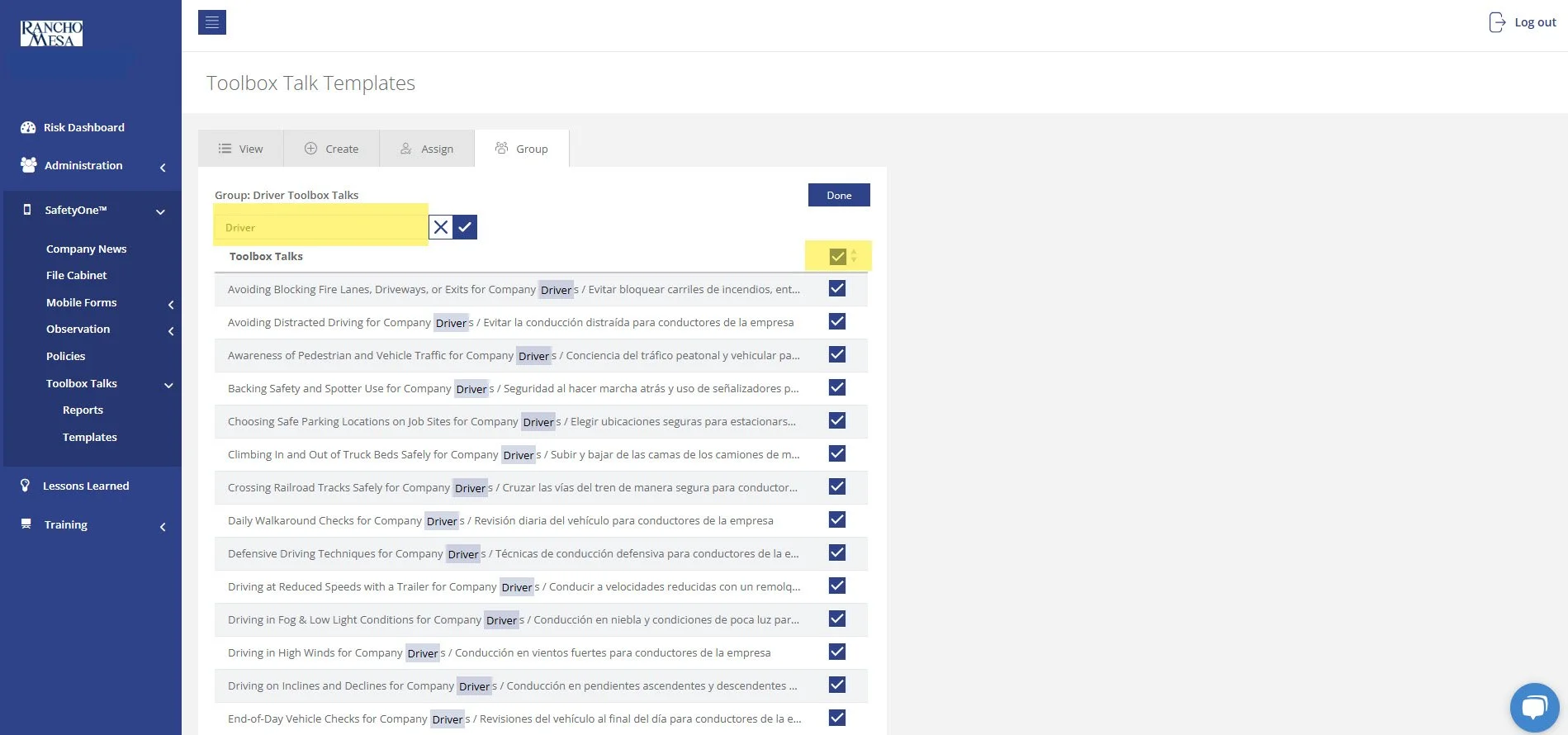
There are two additional driver-specific toolbox talks that can be found by searching “Driving.” They are:
Driving in Wet Conditions / Conducir Vehiculo En Condiciones Húmedas
Like Oil And Water, Drinking And Driving Do Not Mix / Como Agua Y Aceite, Beber Y Conducir No Mezclar
Select both by checking their boxes. Then, click “Done.”
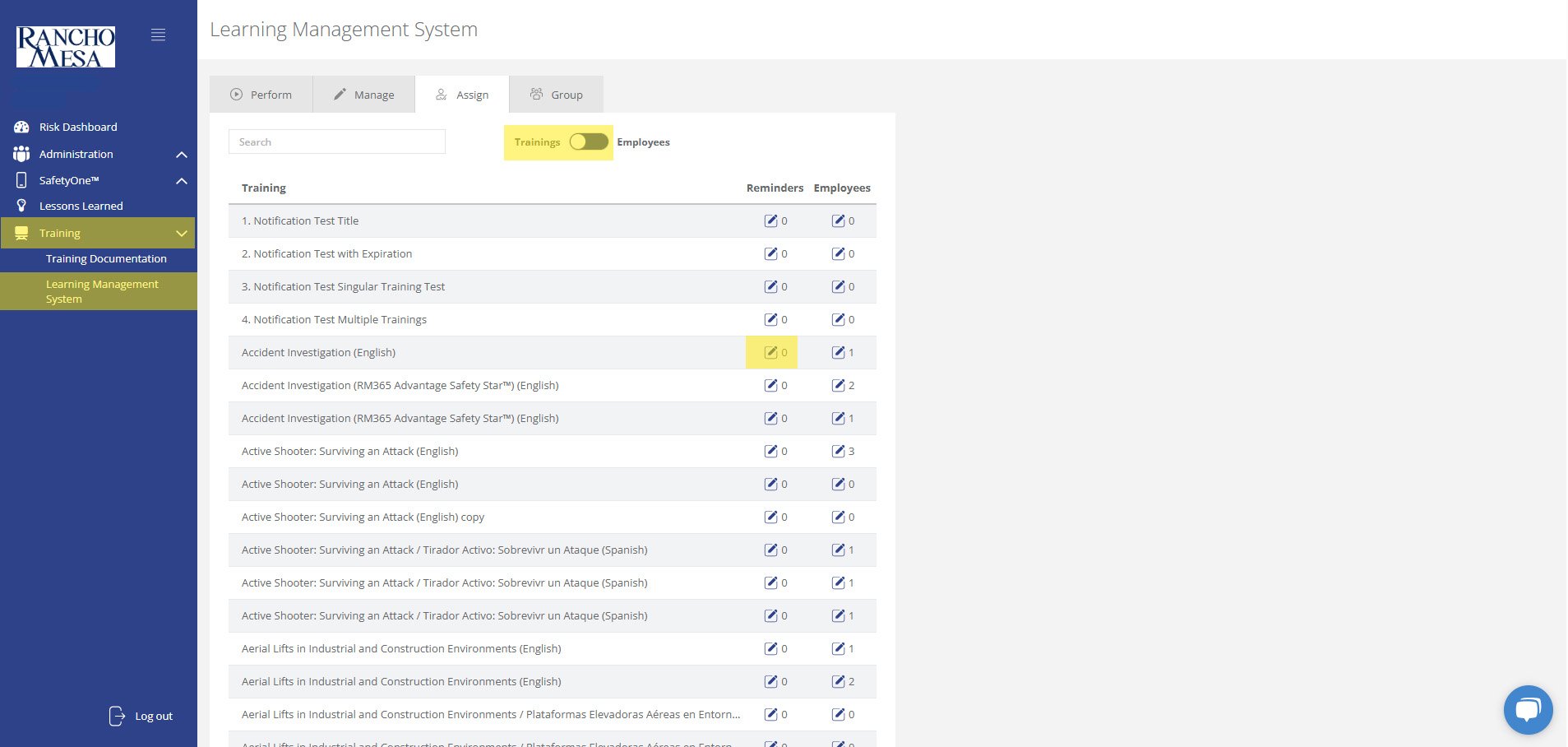
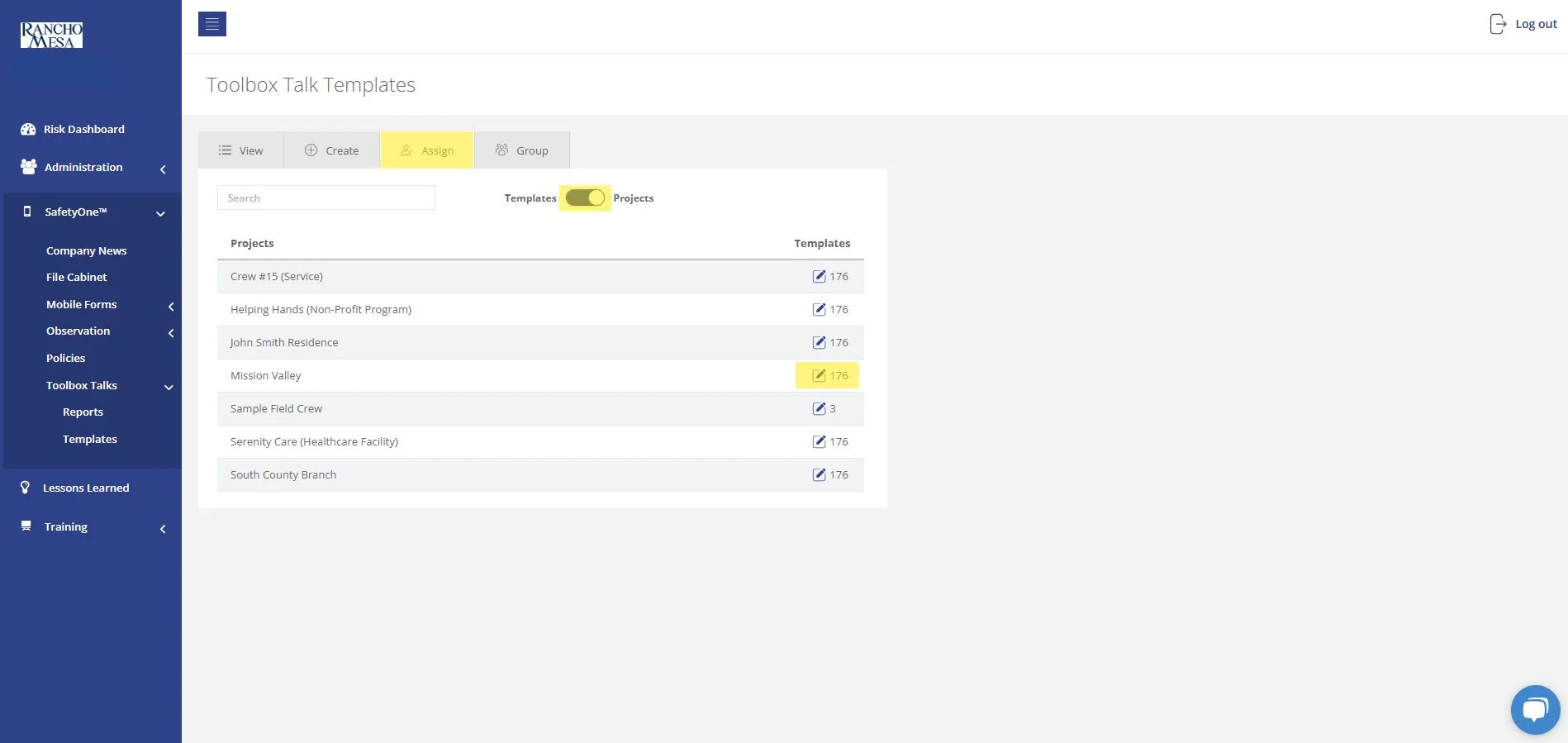
If the driver-specific toolbox talk group is checked as the default group, the toolbox talks will automatically be added to all projects. If the driver-specific toolbox talk group is not the default group, in order to make these toolbox talks available on the SafetyOne app, click on the “Assign” tab and then click the “Templates/Projects” toggle switch to show a list of your projects. Check the box next to the Project(s) you want to have access to the driver-specific toolbox talks in SafetyOne app.
Contact your Client Technology Coordinator for more information.
How can I Setup SafetyOne™ Toolbox Talks?
To begin setting up your SafetyOne™ account to utilize Toolbox Talks in the mobile app, as an Administrator, log in to your SafetyOne website account.
To begin setting up your SafetyOne™ account to utilize Toolbox Talks in the mobile app, as an Administrator, log in to your SafetyOne website account.
ADD A PROJECT
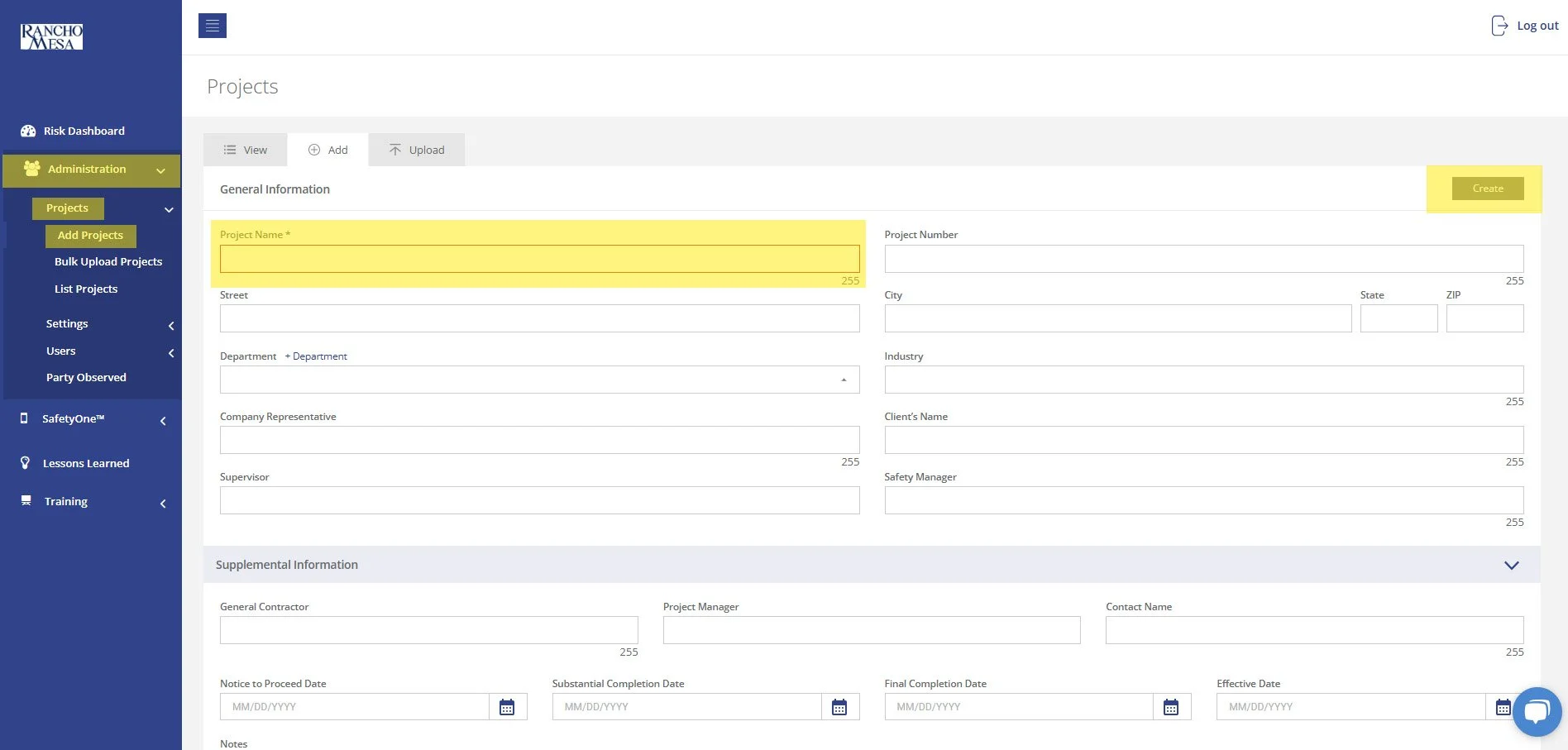
Since everything in the SafetyOne mobile app is organized by individual projects, crews, facilities or programs, the Administrator will need to first create a Project for which the toolbox talk topic(s) will be assigned. If the Project has already been created, skip this step.
To create a Project, click on “Administration” in the navigation panel, click on “Projects,” then click “Add Project.” Note: the Project Name field is required; all other fields are optional. Then, click “Save.”
ENABLE TOOLBOX TALKS
Now that the individual project, crew, facility or program has been added to SafetyOne, the Administrator will assign the toolbox talk topic(s) to the project(s). This allows the SafetyOne mobile app users to access the toolbox talks that are assigned to their project(s).
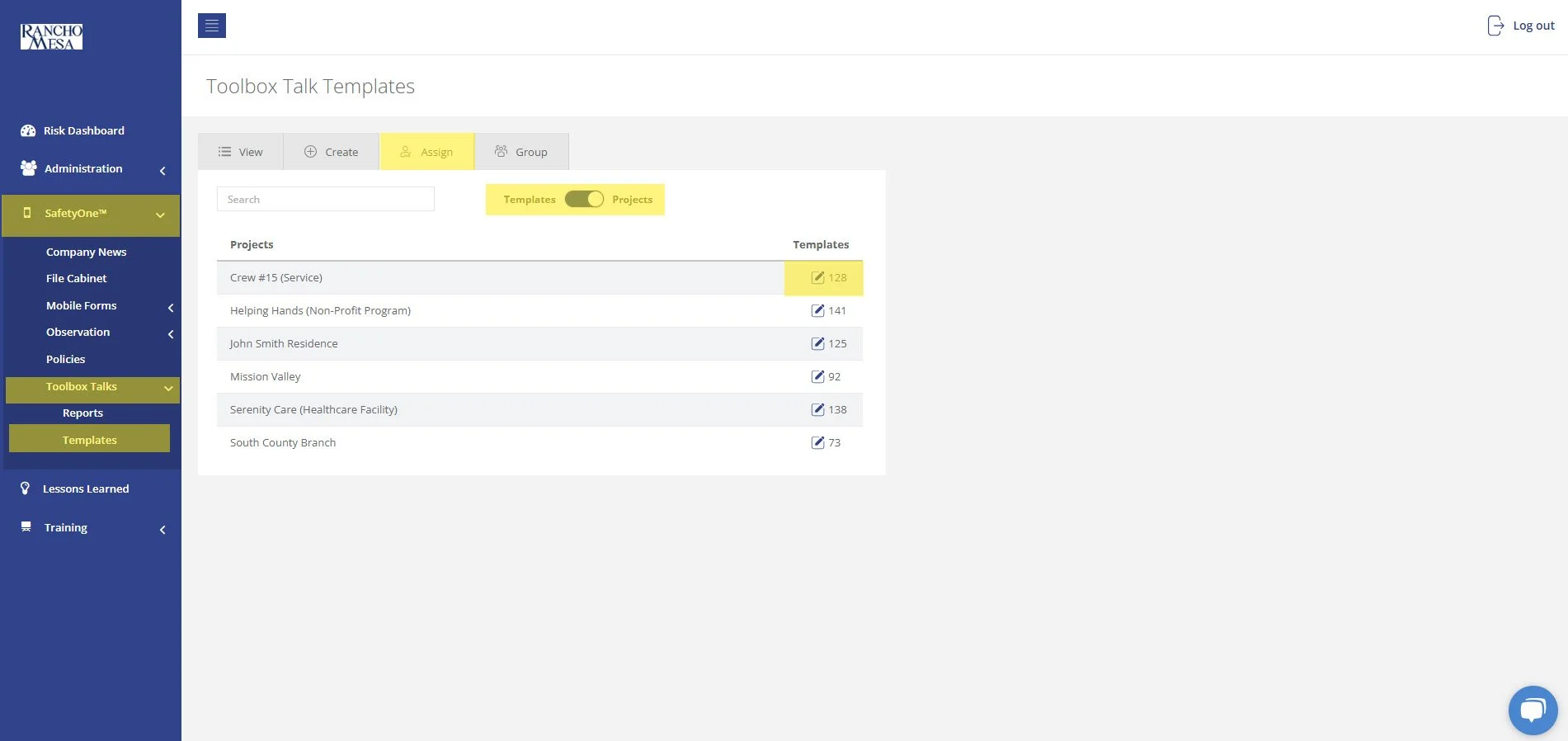
To assign toolbox talks to projects, click on “SafetyOne” in the navigation panel, click on “Toolbox Talks,” then click on “Templates.”
On the Assign tab, use the search box to locate the toolbox talk topics you want to assign to the project.
Click the pencil icon in the projects column for the toolbox talk topic that you would like to make available in the mobile app. Then, check the box for each project where the toolbox talk should be available. Repeat these steps for each toolbox talk topic.
Or, on the Assign tab, click the “Template/Projects” toggle switch to show a list of the projects. Click the pencil icon in the templates column for the project name. Then, check the box for each toolbox talk that should be available for this Project.
This will assign all of the selected toolbox talks to that Project at once. Remember, even if you go to the next page of the toolbox talks list, it will remember the boxes you checked on previous pages.
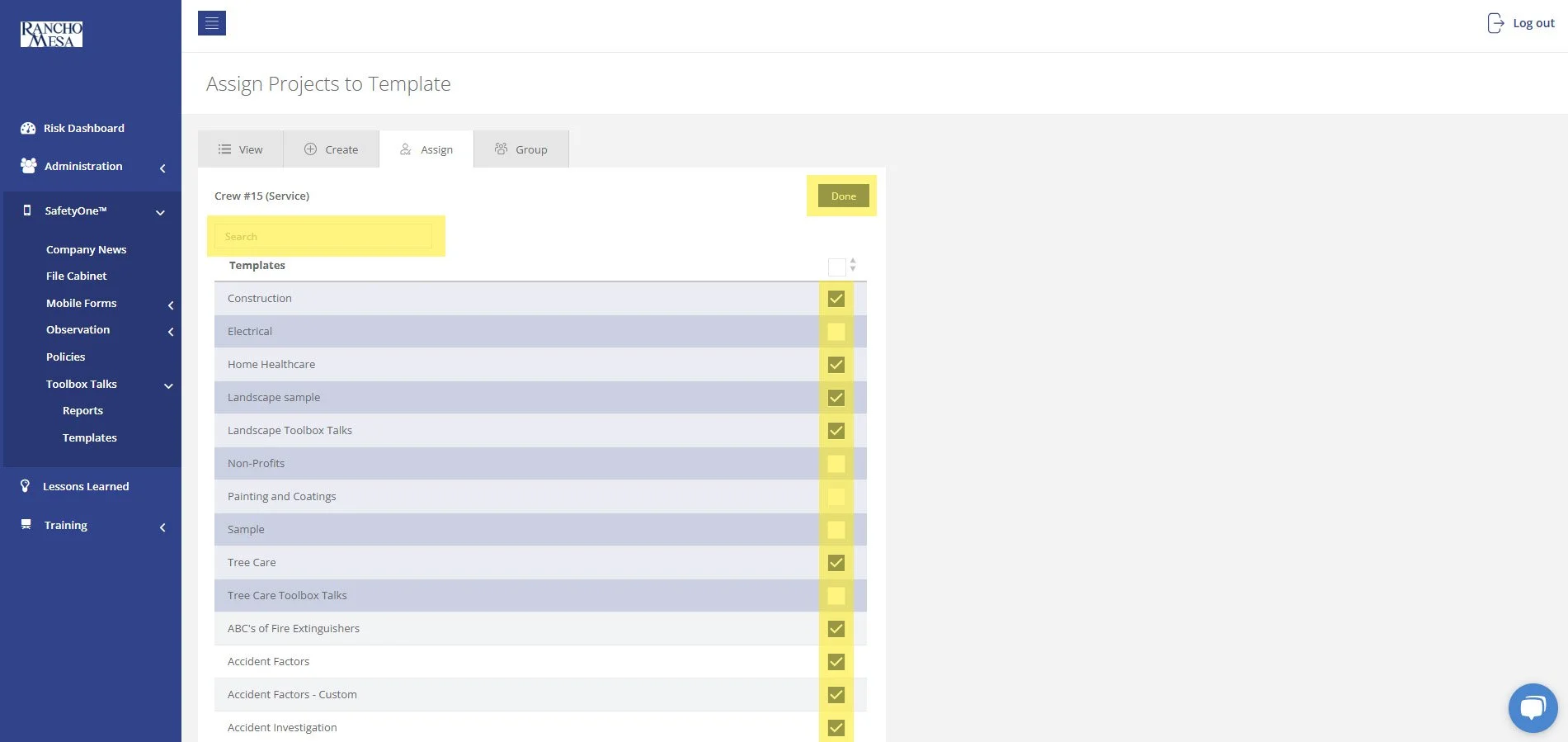
Then, click “Done.”
ASSIGN USERS TO THE PROJECT(S)
In order to access the toolbox talks in the SafetyOne mobile app, the user must be assigned to the project in which the toolbox talks are assigned.
To assign a user to a project, click “Administration” in the navigation panel, click “Projects,” then click “List Projects.” Click the pencil icon in the Users column for the project. Then, click on the toggle switch to the right of the users’ name and click “Done.”
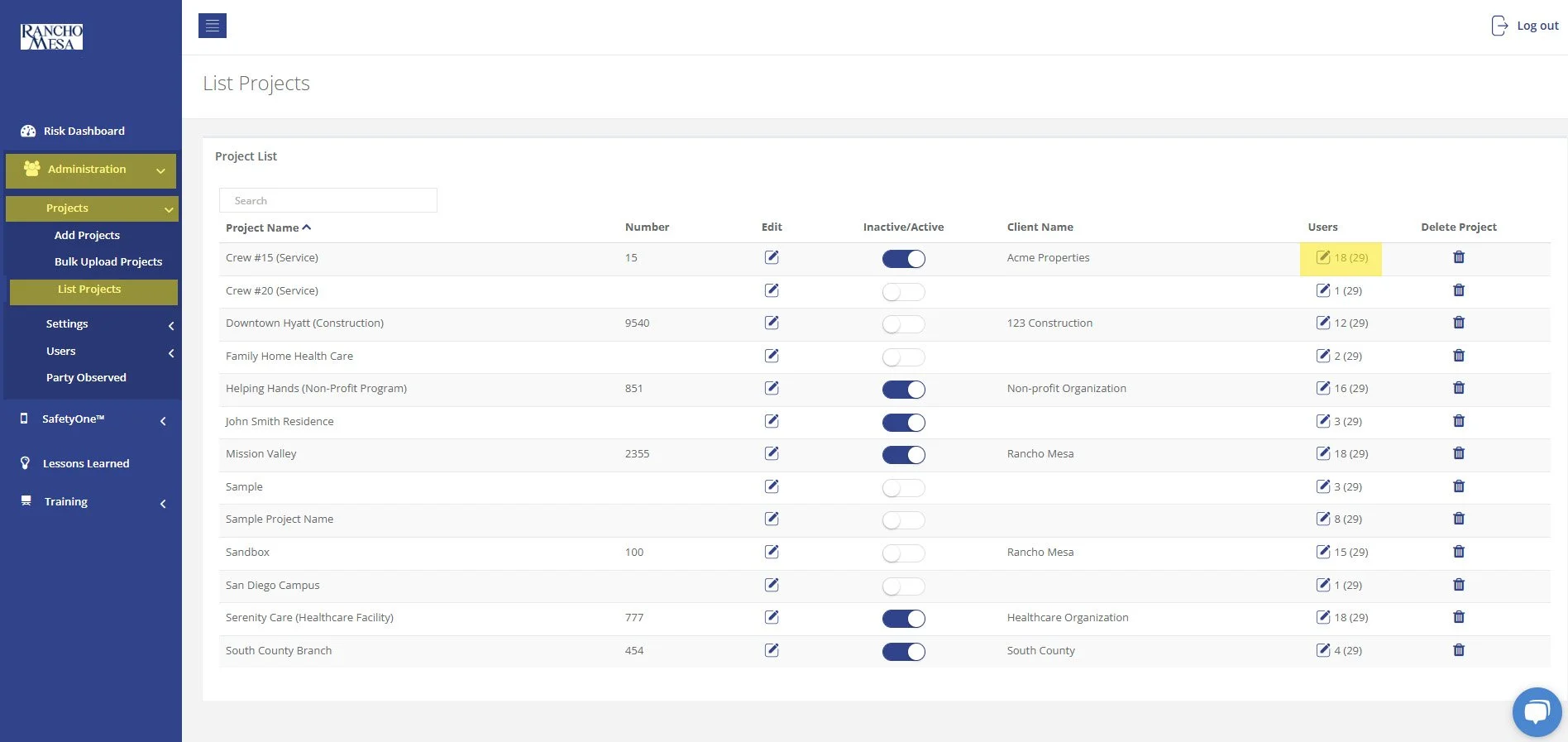
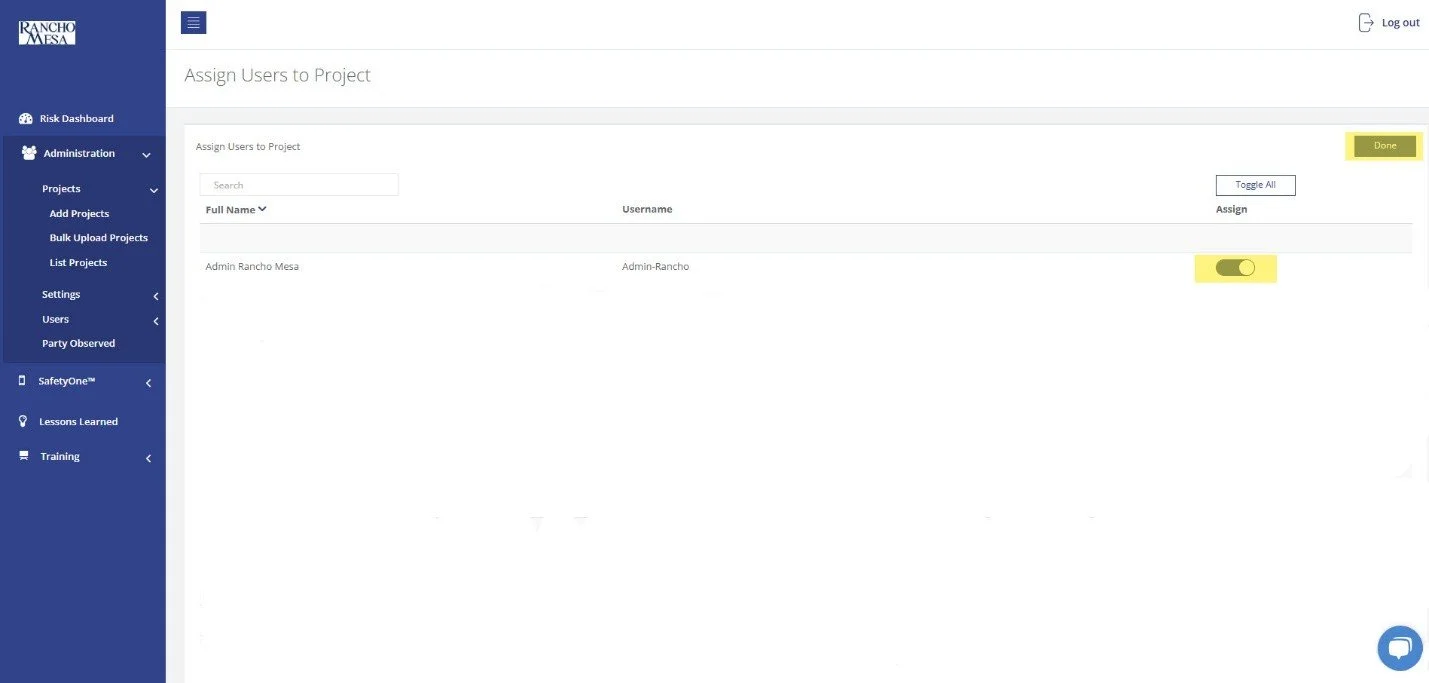
The Toolbox Talks will now be available when users log in to the mobile app.
As a reminder, if you want to make something available on the mobile app, it has to be assigned to a project. And, the user must be assigned to that project in order to have access to all of the content and documents assigned to it.
How can I access tree care-specific toolbox talks?
The tree care-specific toolbox talks are available in your SafetyOne™ account. To make them accessible via the mobile app, you will need to assign them to a group.
However, it is a best practice to first, create a toolbox talk group in the administrator website, then assign 52 toolbox talks to the group. This will allow you to easily assign the entire group of toolbox talks to future projects/crews.
The tree care-specific toolbox talks are available in your SafetyOne™ account. To make them accessible via the mobile app, you will need to assign them to a group.
However, it is a best practice to first, create a toolbox talk group in the administrator website, then assign 52 toolbox talks to the group. This will allow you to easily assign the entire group of toolbox talks to future projects/crews.
Setup
1. Create a toolbox talk group.
From the administrator website, click on the “SafetyOne™” section. Then, click on “Toolbox Talks.” Click “Toolbox Talk Groups,” then, add a new group and give it a name. We recommend naming the group something like “Tree Care Toolbox Talks”.
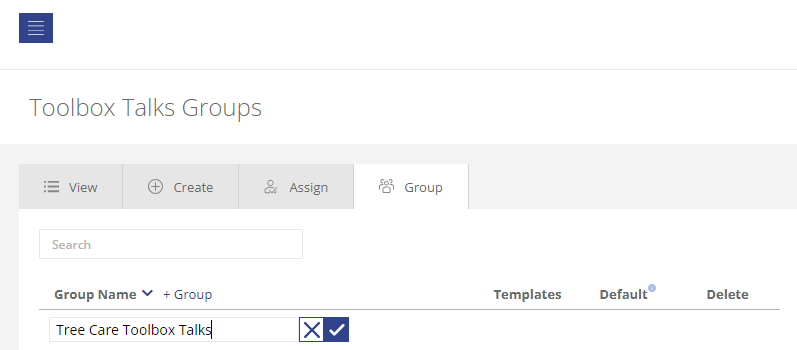
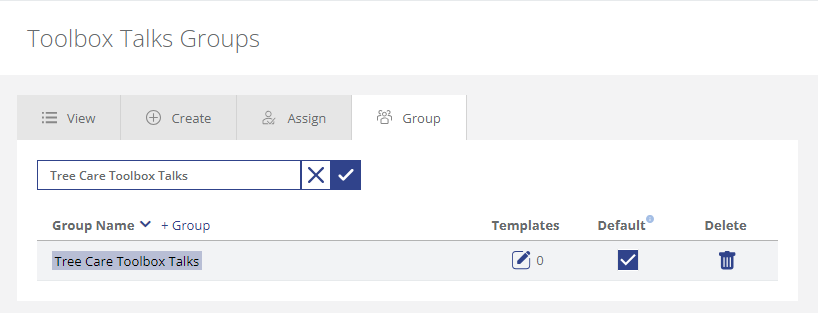
Pro Tip: You can set the group to automatically assign these toolbox talks to all existing and any new projects/crews by making it a default.
2. Assign toolbox talks to a group.
Now that the group has been created, assign the toolbox talks to the group. Locate the new group on the list and edit the group.
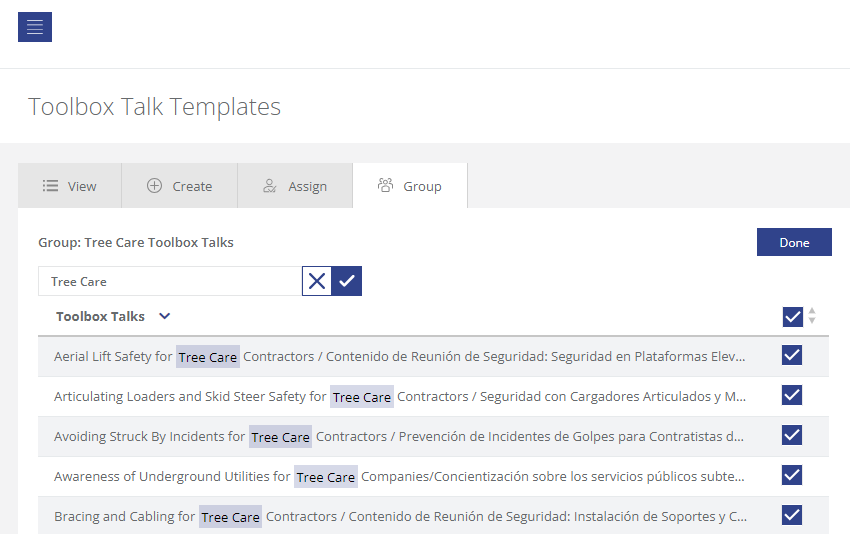
Filter the list of toolbox talks by using the search bar and entering the word “Tree Care.” This will display 60 tree care-specific toolbox talks. You can assign all of the toolbox talks to this group using the check box at the top of the page. Or, pick and choose the individual topics by selecting their individual check box.
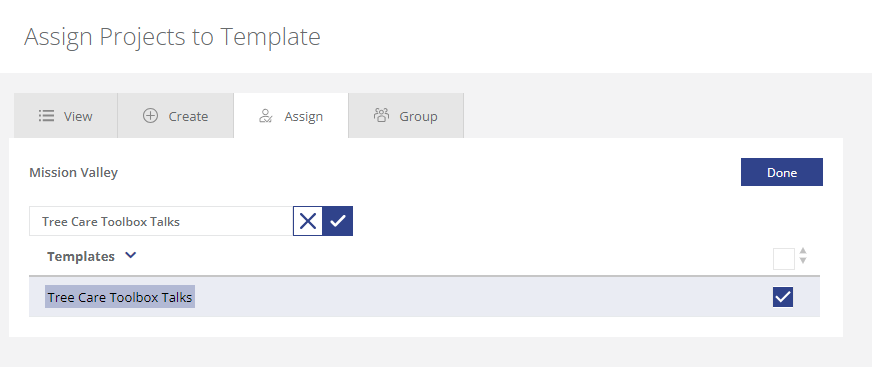
In order to make these toolbox talks available on the SafetyOne™ app, assign the group to your project.
Contact your Client Technology Coordinator for more information.
How can I access landscape-specific toolbox talks?
The Landscape-specific toolbox talks are available in your SafetyOne account. To have them accessible from the mobile app, you’ll need to assign them to a project or crew.
We recommend, first, creating a toolbox talk group. This will make assigning future crews or projects the same set of toolbox talks much easier.
The landscape-specific toolbox talks are available in your SafetyOne™ account. To make them accessible via the mobile app, you will need to assign them to a project/crew.
However, it is a best practice to first, create a toolbox talk group in the administrator website, then assign all 52 toolbox talks to the group. This will allow you to easily assign the entire group of toolbox talks to future projects/crews.
Setup
1. Create a toolbox talk group.
From the administrator website, click on the “SafetyOne™” section. Then, click on “Toolbox Talks.” Click “Toolbox Talk Groups,” then, add a new group and give it a name. We recommend naming the group something like “Landscape Toolbox Talks” or Landscape Default Toolbox Talks.”
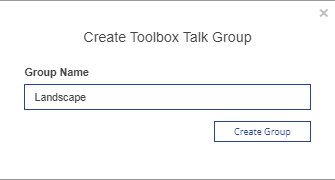
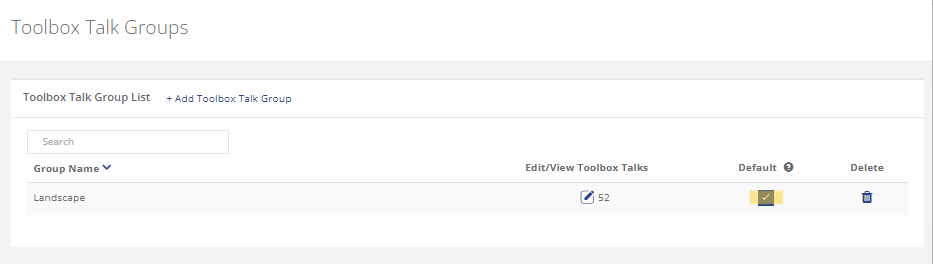
Pro Tip: You can set the group to automatically assign these toolbox talks to all existing and any new projects/crews by making it a default.
2. Assign toolbox talks to a group.
Now that the group has been created, assign the toolbox talks to the group. Locate the new group on the list and edit the group.
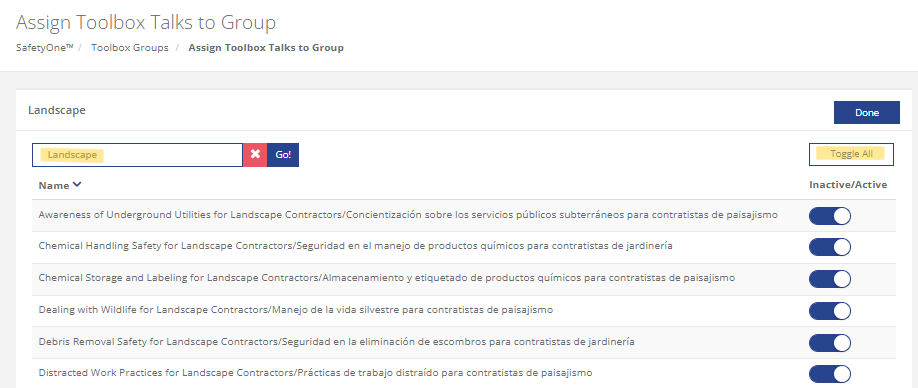
Filter the list of toolbox talks by using the search bar and entering the word “Landscape.” This will display 51 landscape-specific toolbox talks. Use the “Toggle All” switch to assign all of the toolbox talks to this group. Or, pick and choose the individual topics by toggling their individual switch.
The 52nd toolbox talk is titled “Fertilizer and Soil Amendment Safety/Seguridad de fertilizantes y enmiendas del suelo.” Enter the title in the search bar to locate the final toolbox talk. Toggle the switch on for this topic. Click “Done.”
3. Enable the Group for the Project.
Note: This step only applies if the group was not set as a default.
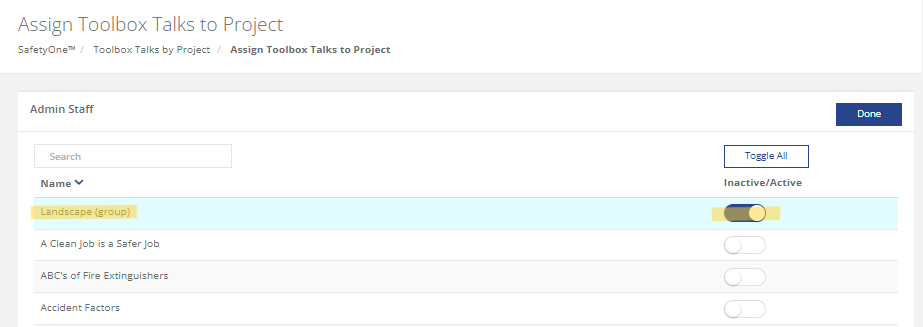
To assign this group of toolbox talks to projects/crews, use the “Assign Toolbox Talks to Project” screen. Select the project you want to assign, then turn on the group you just created.
Contact your Client Technology Coordinator for additional questions.
How do I generate QR codes to document toolbox talk attendence?
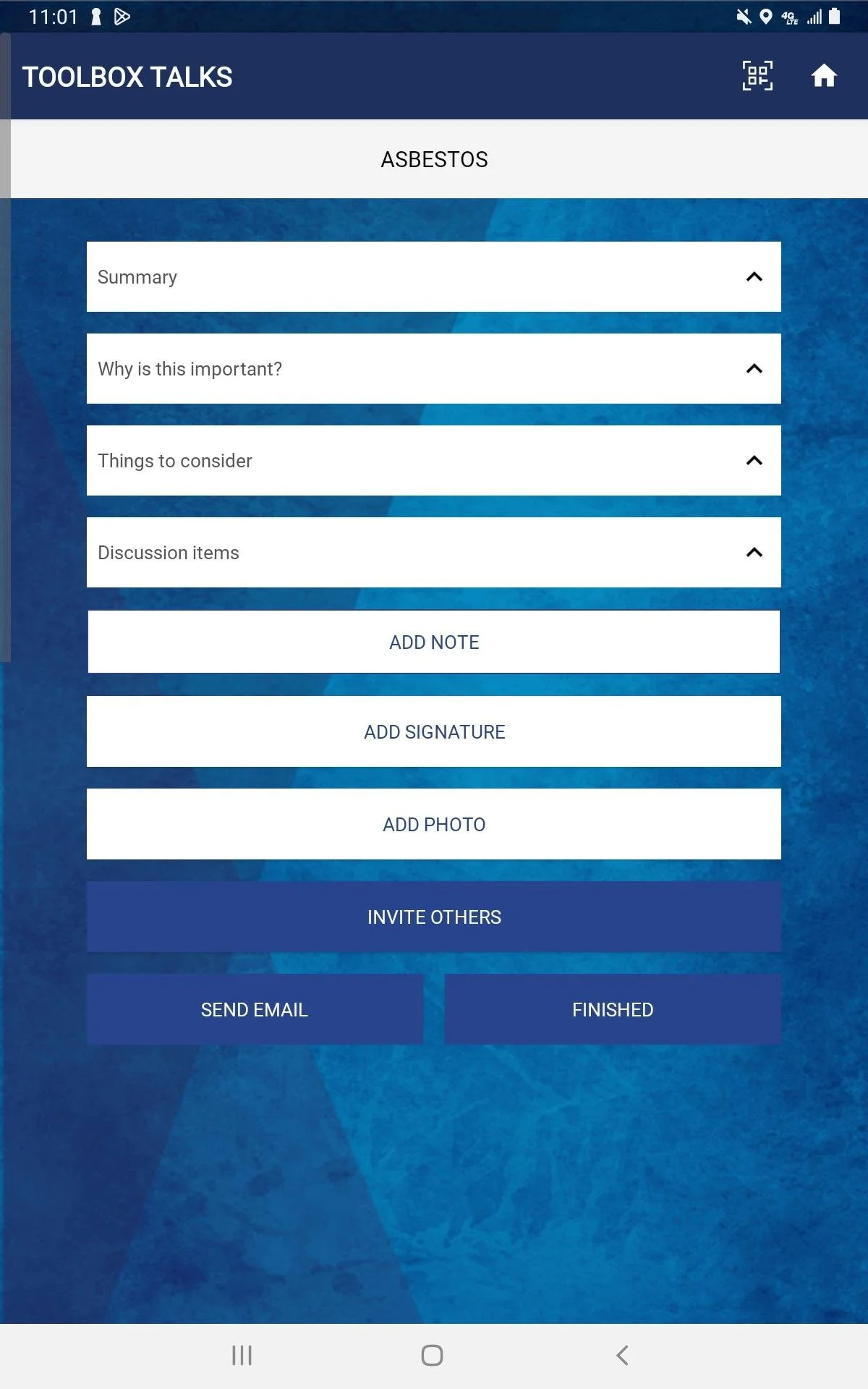
Users can review and sign toolbox talks on their own mobile device by receiving a link or scanning a QR code. Once you open a toolbox talk on your mobile device or tablet, tap the button “invite others'' that appears at the bottom of the toolbox talk screen. You will have the option to either email or text a link to employees, or generate a QR code for the toolbox talk that can be scanned.
Users can review and sign toolbox talks on their own mobile device by receiving a link or scanning a QR code.
Once you open a toolbox talk on your mobile device or tablet, tap the button “invite others'' that appears at the bottom of the toolbox talk screen. You will have the option to either email or text a link to employees, or generate a QR code for the toolbox talk that can be scanned.
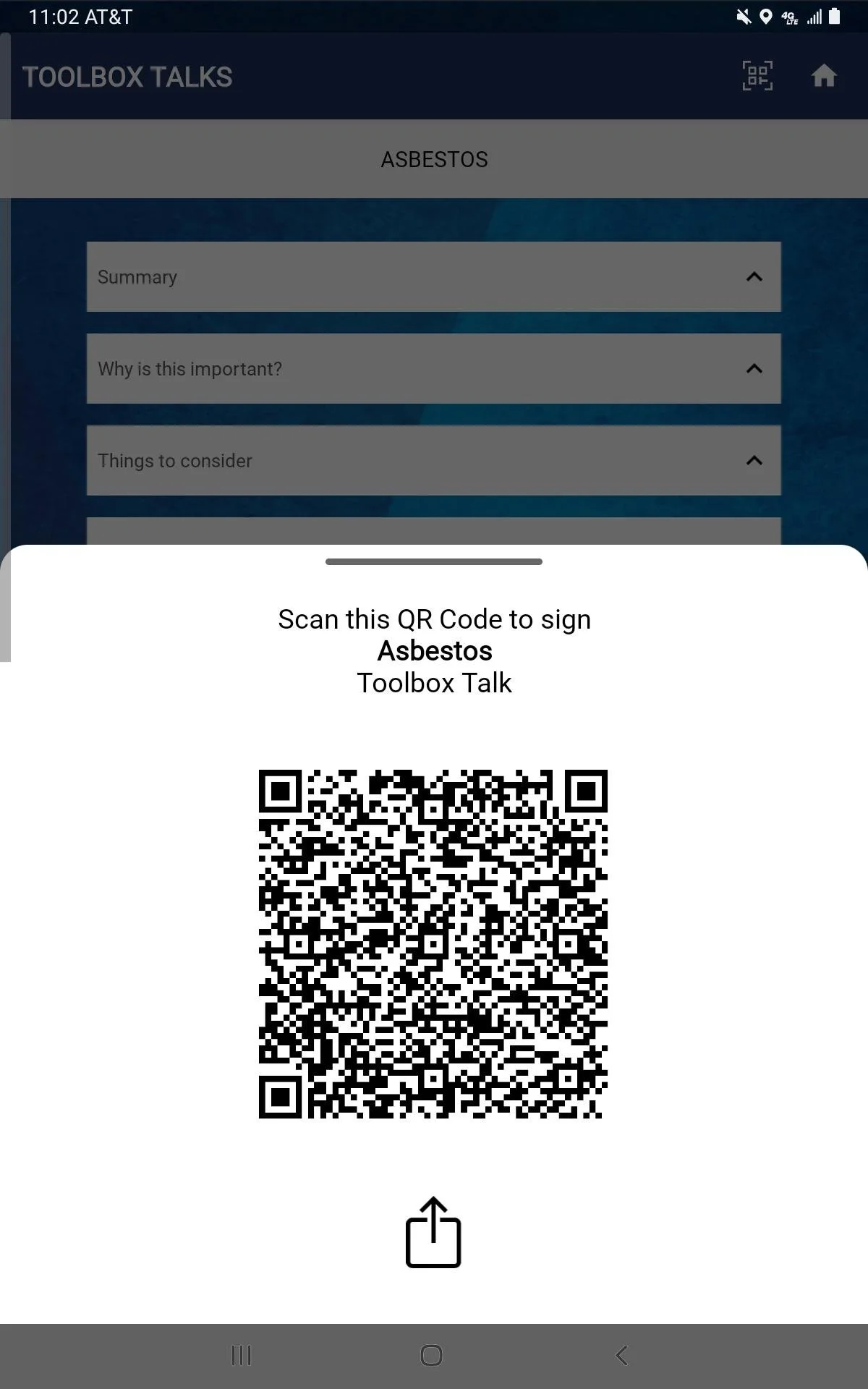
Once the employees receive the link or scan the QR code, they can then review the lesson’s information and sign the toolbox on their device, documenting their attendance/participation.
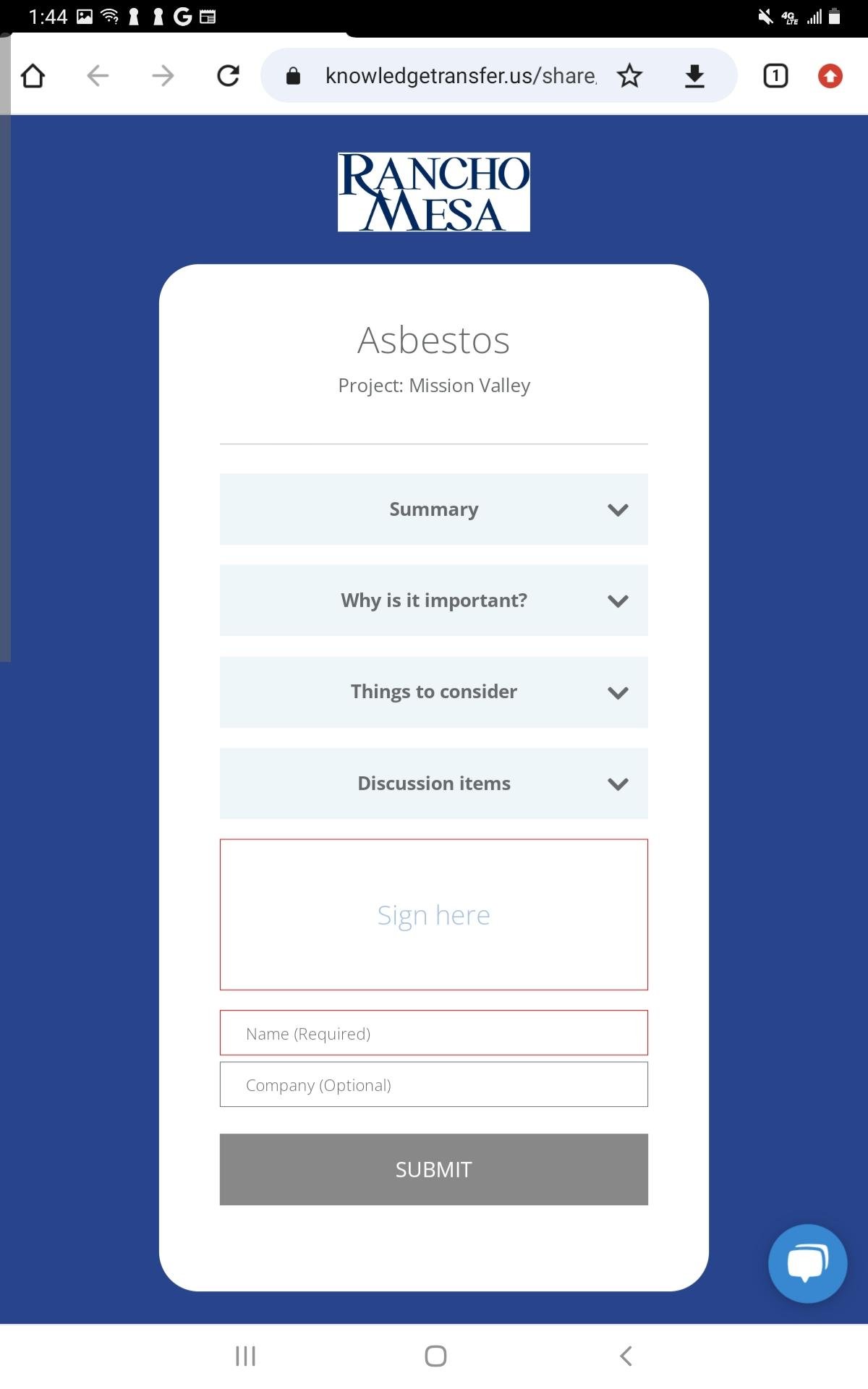
This features contribute to the ease and accessibility of SafetyOne’s mobile app, allowing for quick attendance and information distribution while in the field.
Contact your Client Technology Coordinator for additional questions.
Can I create generic user accounts that are shared between multiple people for the SafetyOne platform?
No, Rancho Mesa’s user agreement requires that each SafetyOne™ user (i.e., Administrator, Supervisor, Employee, Field Employee, Training Manager, and Trainee) has their own individual username and password to ensure data integrity. Sharing generic logins is not permitted.
No, Rancho Mesa’s user agreement requires that each SafetyOne™ user (i.e., Administrator, Supervisor, Employee, Field Employee, Training Manager, and Trainee) has their own individual username and password to ensure data integrity. Sharing generic logins is not permitted.
This rule was established to prevent data integrity issues which would render certain functions unusable.
Data integrity is important when utilizing technology to manage and administer a safety program. Accurate data is imperative for documentation and reporting purposes.
For this reason, SafetyOne users cannot share logins to access and/or use the mobile app or website.
Issues Caused by Generic User Logins
Toolbox Talks
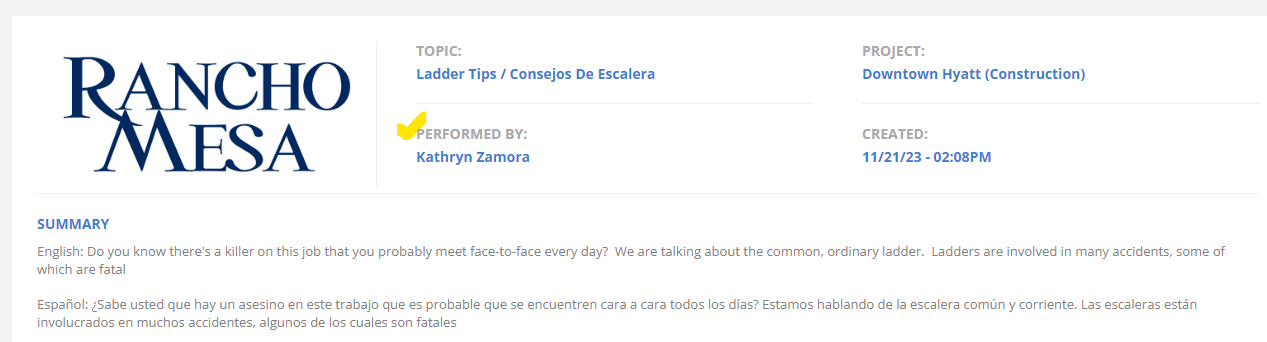
When a toolbox talk is completed in the SafetyOne mobile app, a report is automatically generated. The system logs the topic, project, date and time, and the person who conducted the toolbox talk. If multiple supervisors or foremen are using one login, the administrator won’t know who actually conducted the safety meeting and they won’t be able to filter or sort the records by the specific supervisor or foreman, either.
When providing individuals with their own login, the platform will accurately document who conducted the toolbox talk safety meeting.
Risk Observations
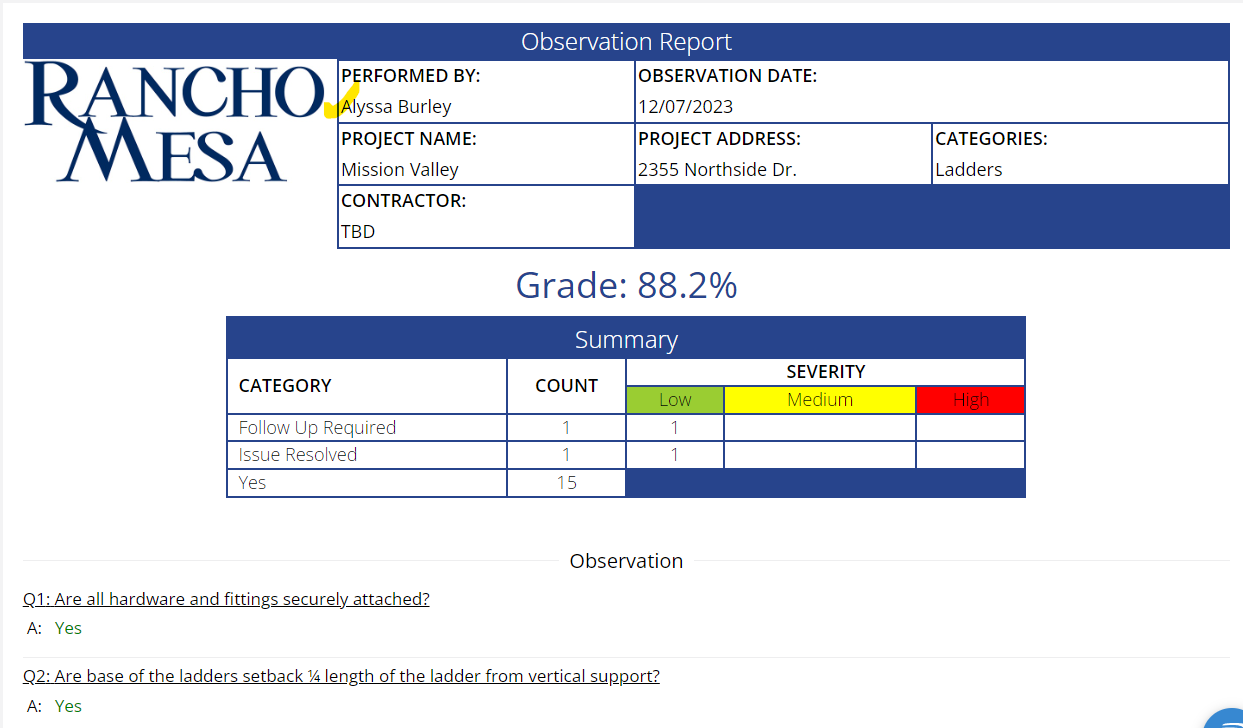
The Observations tool allows users to complete safety inspections or audits on their jobsites and facilities. If a generic login is used to access the SafetyOne mobile app and complete these observations, the report will not show the person who actually conducted the observation, nor could the person conducting the observation assign another user to correct issues that are found. Since the mobile app sends notifications based on the individual user, if a generic login is used, all users would be notified of an issue. This defeats the purpose of assigning an individual to fix an issue.
So, if there is an incident where an employee is injured as a result of something like a ladder failure and an inspection was done on the ladder only a day before the incident, and a generic user was assigned to fix the issue, the documentation would not accurately show who conducted the inspection nor who was actually assigned. It would only show the generic user logins. When providing individuals with their own login, the platform will accurately document who is responsible for the observation and correcting any issues that are found..
Mobile Forms
Mobile forms would also be negatively affected by using a generic SafetyOne login. Again, if a generic login is used to complete a mobile form, the person receiving the completed form will not know who it is from.
These are just a few examples of why using a generic user login for multiple people is not permitted in SafetyOne.
Contact your Client Technology Coordinator for additional questions.