
How can I Setup SafetyOne™ Toolbox Talks?
To begin setting up your SafetyOne™ account to utilize Toolbox Talks in the mobile app, as an Administrator, log in to your SafetyOne website account.
ADD A PROJECT
Since everything in the SafetyOne mobile app is organized by individual projects, crews, facilities or programs, the Administrator will need to first create a Project for which the toolbox talk topic(s) will be assigned. If the Project has already been created, skip this step.
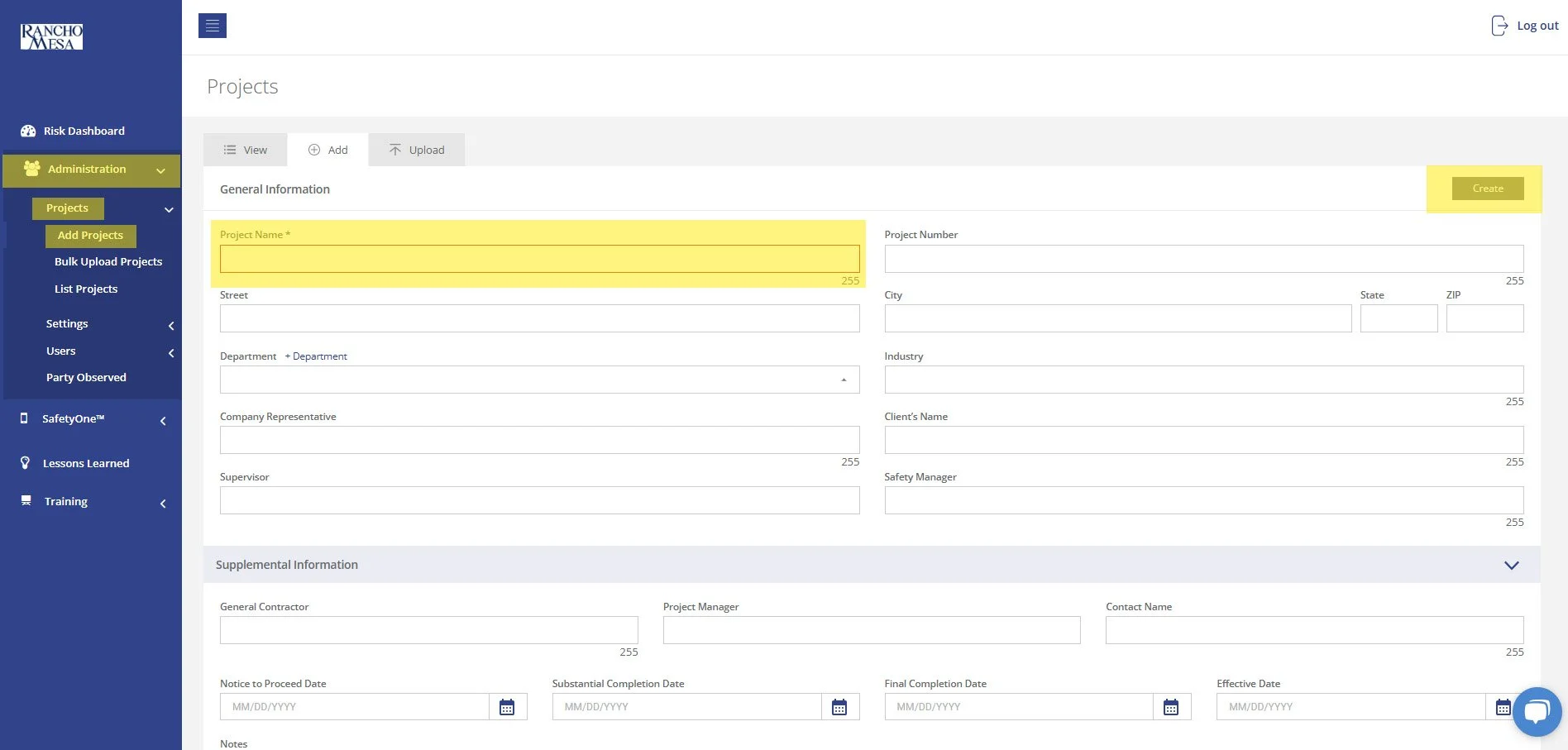
To create a Project, click on “Administration” in the navigation panel, click on “Projects,” then click “Add Project.” Note: the Project Name field is required; all other fields are optional. Then, click “Save.”
ENABLE TOOLBOX TALKS
Now that the individual project, crew, facility or program has been added to SafetyOne, the Administrator will assign the toolbox talk topic(s) to the project(s). This allows the SafetyOne mobile app users to access the toolbox talks that are assigned to their project(s).
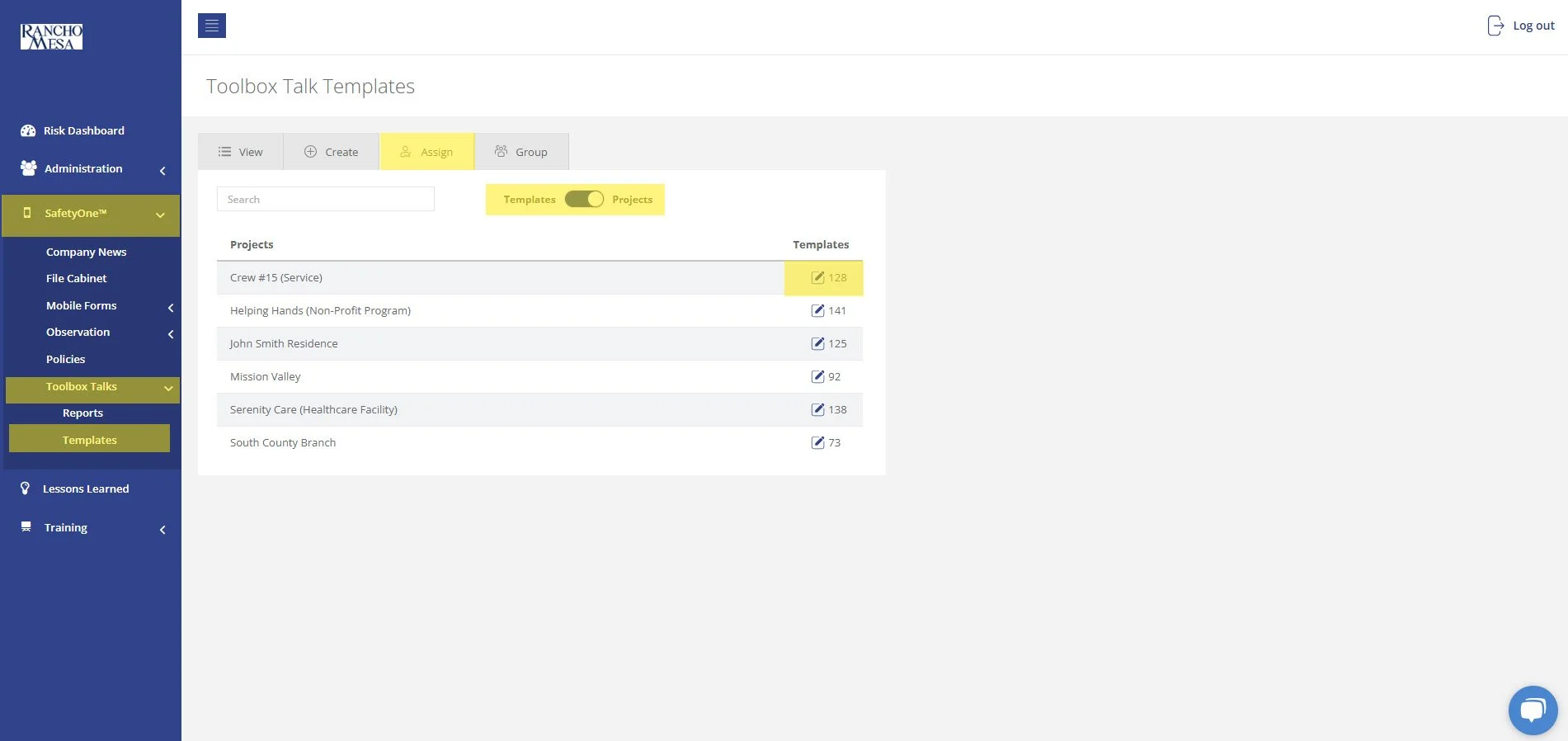
To assign toolbox talks to projects, click on “SafetyOne” in the navigation panel, click on “Toolbox Talks,” then click on “Templates.”
On the Assign tab, use the search box to locate the toolbox talk topics you want to assign to the project.
Click the pencil icon in the projects column for the toolbox talk topic that you would like to make available in the mobile app. Then, check the box for each project where the toolbox talk should be available. Repeat these steps for each toolbox talk topic.
Or, on the Assign tab, click the “Template/Projects” toggle switch to show a list of the projects. Click the pencil icon in the templates column for the project name. Then, check the box for each toolbox talk that should be available for this Project.
This will assign all of the selected toolbox talks to that Project at once. Remember, even if you go to the next page of the toolbox talks list, it will remember the boxes you checked on previous pages.
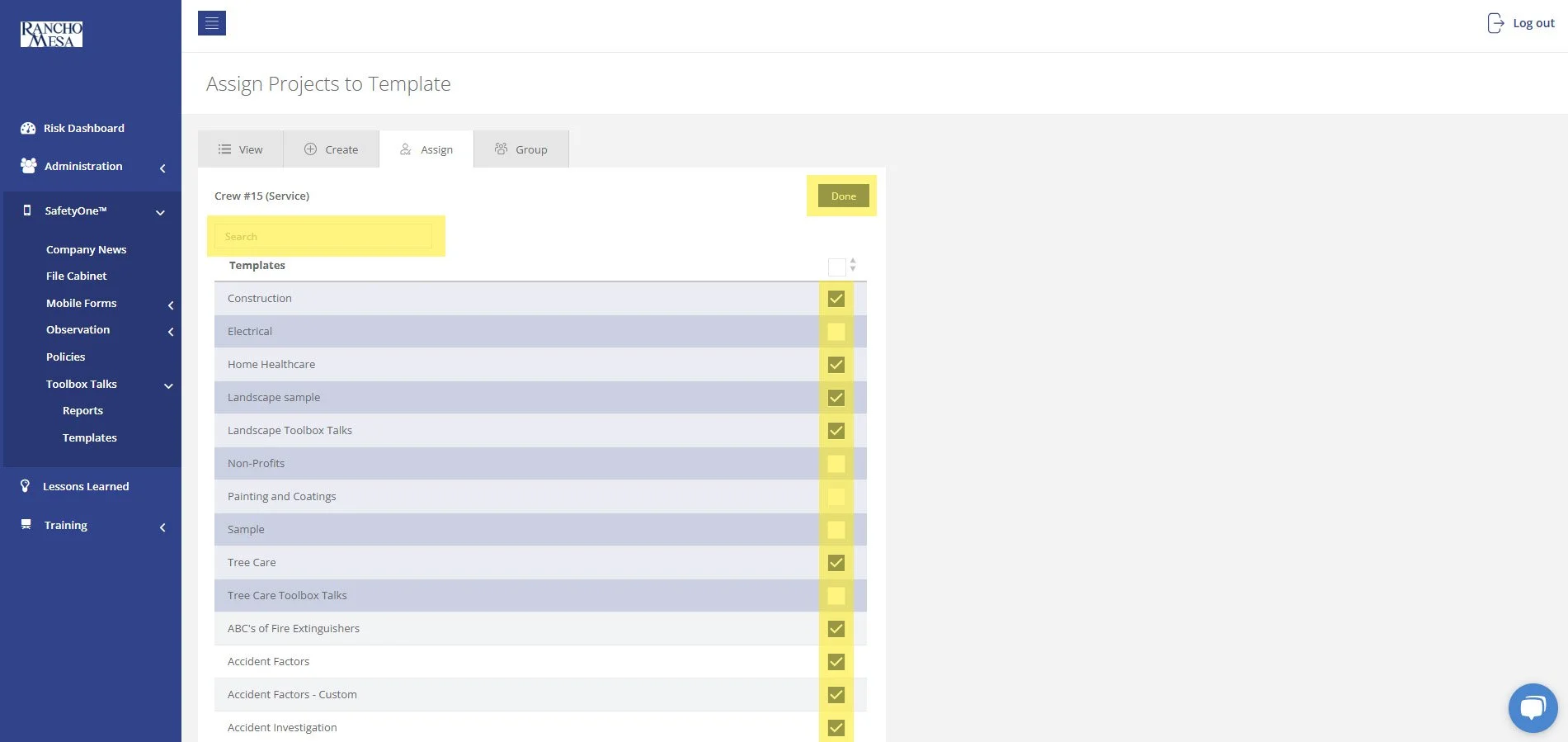
Then, click “Done.”
ASSIGN USERS TO THE PROJECT(S)
In order to access the toolbox talks in the SafetyOne mobile app, the user must be assigned to the project in which the toolbox talks are assigned.
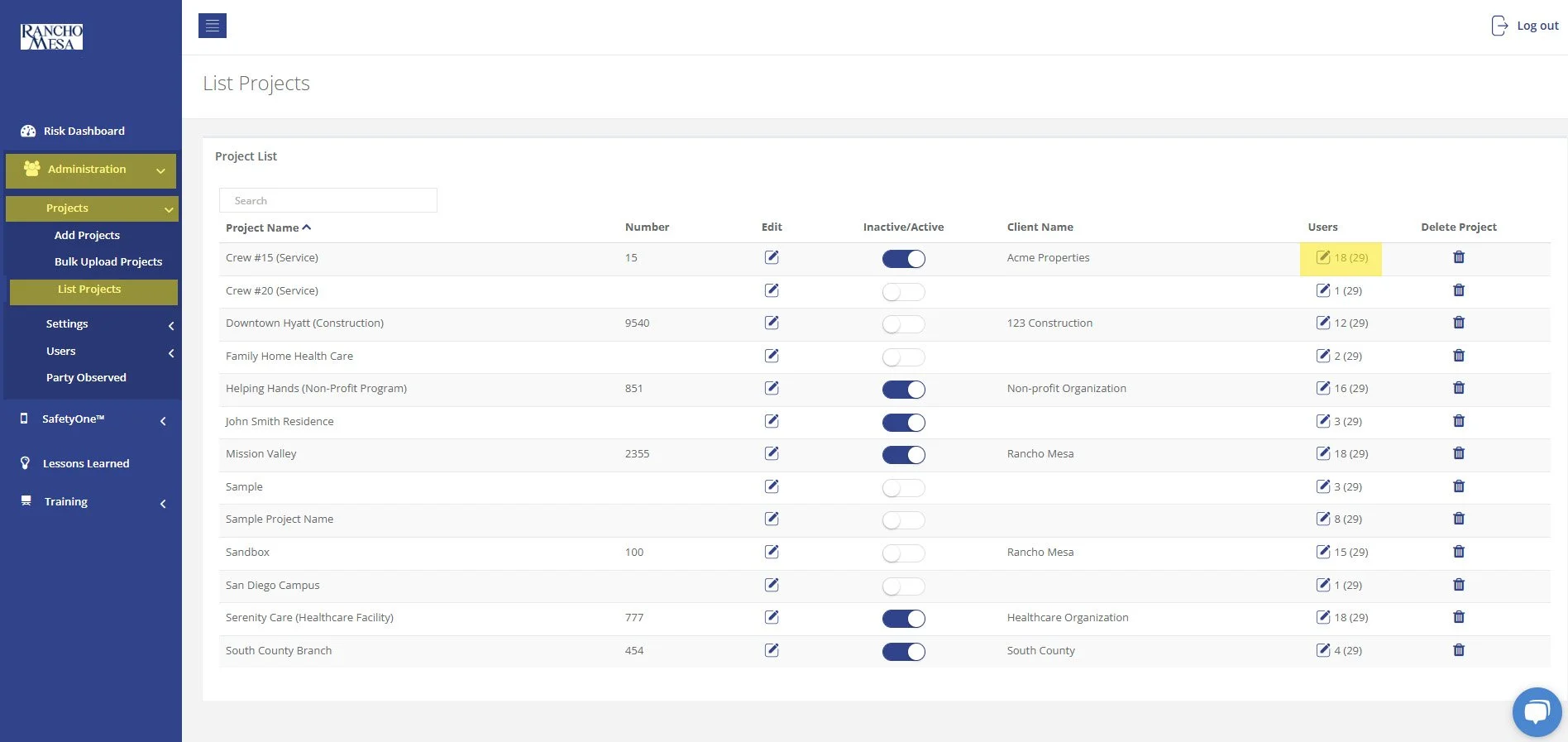
To assign a user to a project, click “Administration” in the navigation panel, click “Projects,” then click “List Projects.” Click the pencil icon in the Users column for the project. Then, click on the toggle switch to the right of the users’ name and click “Done.”
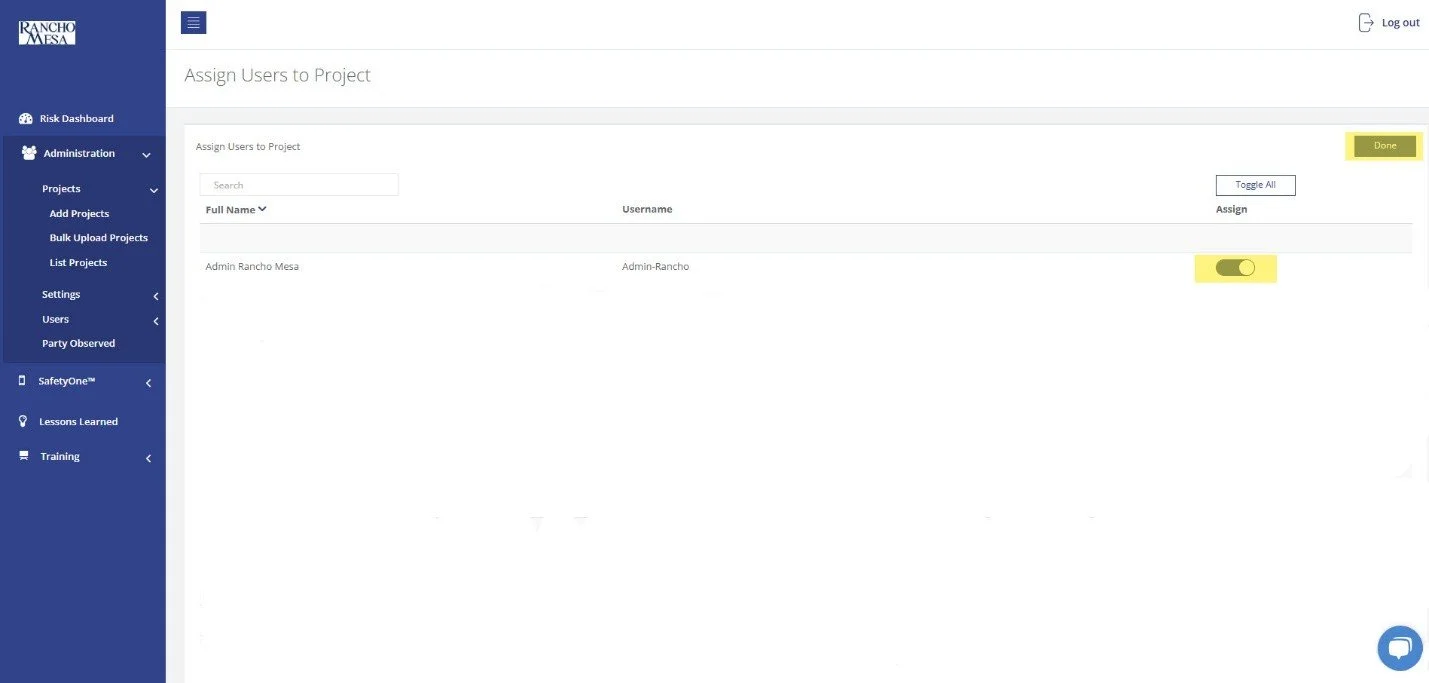
The Toolbox Talks will now be available when users log in to the mobile app.
As a reminder, if you want to make something available on the mobile app, it has to be assigned to a project. And, the user must be assigned to that project in order to have access to all of the content and documents assigned to it.