
How do I upload third-party training documentation?
Administrators can use the SafetyOne™ website to document in-person and third-party employee training. This feature is typically used to document CPR/First-Aid, OSHA-10, OSHA-30, and other trainings that are not administered through the SafetyOne platform.
Uploading Training Documentation
To upload training documentation, click on the “Training” section in the navigation panel. Then, click on “Training Documentation.”
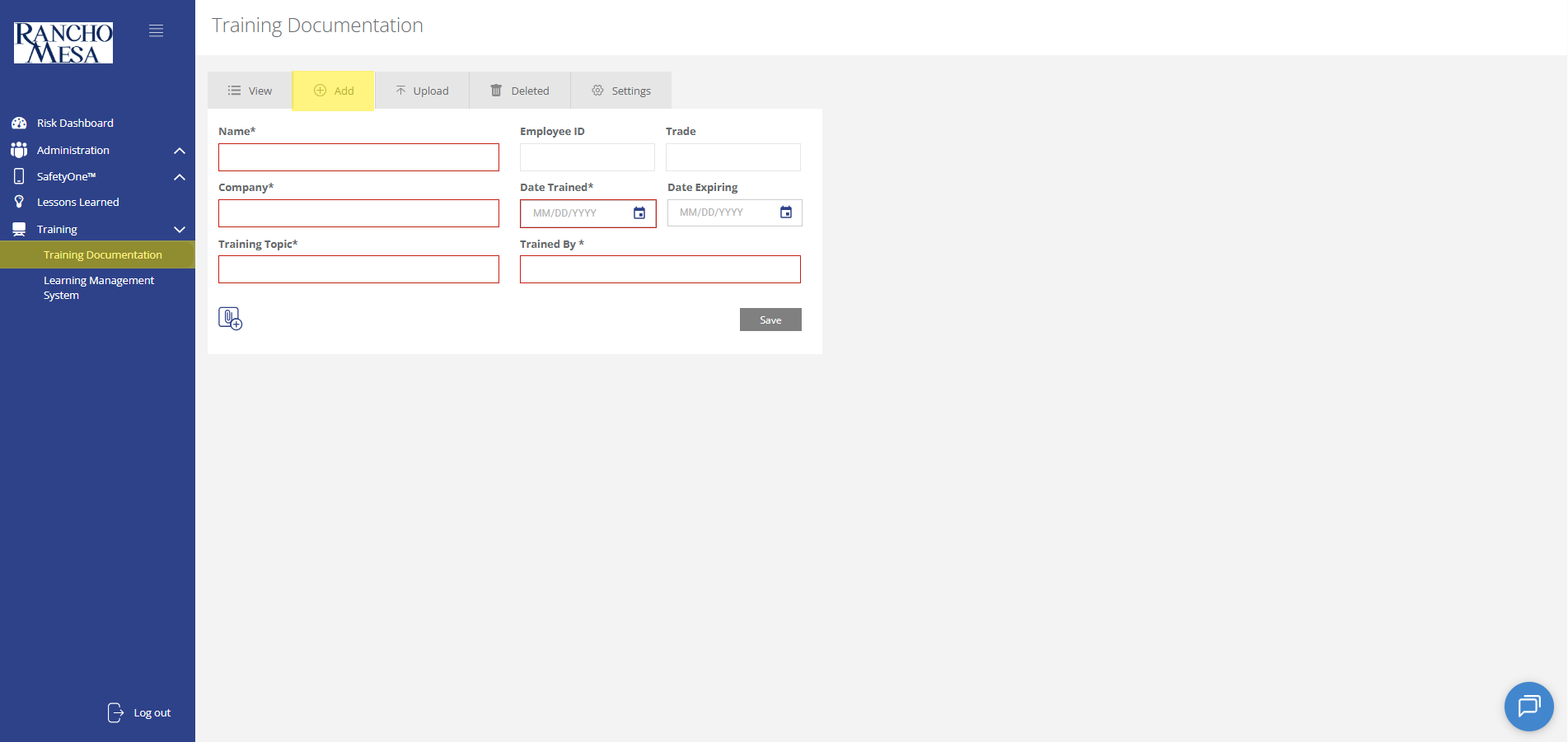
Individual employee training documentation can be added to the platform using the “Add” tab at the top of the page. Here, administrators can manually enter all required information, and attach a PDF of the employee’s certificate of completion.
Note: we highly recommend including the Employee ID for all training documentation. The Employee ID field is used to link the training record to the employee and is required in order to display the employee’s training history that is accessible through an employee’s custom QR Code.
When all information has been entered, click the “Save” button in the right corner.
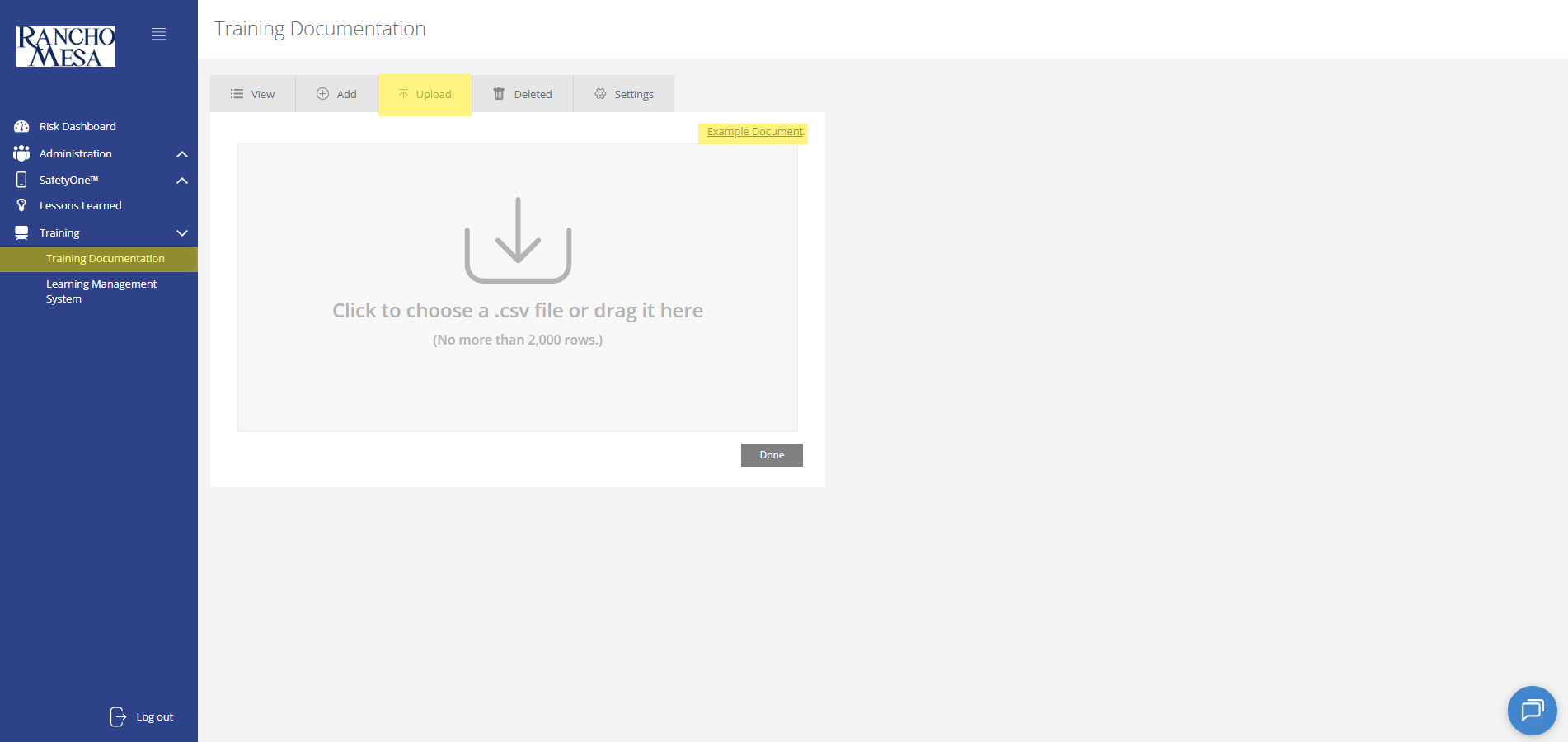
Training records for a group of employees can be uploaded in bulk using the “Upload” tab at the top of the page. Administrators can upload a .CSV file with all required information for each employee. Again, we highly recommend including the Employee ID.
An example document for upload can be found by clicking the “Example Document” link in the right corner of the screen. Once you have uploaded the .CSV file, click the “Done” button in the bottom right corner.
Required information for both individual and bulk uploads are: name, company, training topic, date trained, and trained by. However, employee ID (highly recommended), date expiring, and trade are optional.
Certificates of Completion cannot be uploaded using the bulk upload feature. Each certificate will need to be manually added to the individual training records, once the training record populates within the Training Documentation Screen.
Attaching Certificate of Completion to Individual Training Records
Click on the “View” tab at the top of the screen to view and search training records.
Click on the Employee’s name. This will open the record and allow you to edit the record.
Select the paperclip icon in the bottom left corner of the record. This will open your computer file folders. Select the applicable certificate of completion file. Then click “Save.”
