How can I create a driver-specific toolbox talk group in SafetyOne™?
The driver-specific toolbox talks are available in your SafetyOne™ account. To make them accessible via the mobile app, you will need to assign them to a project/crew.
The driver-specific toolbox talks are available in your SafetyOne™ account. To make them accessible via the mobile app, you will need to assign them to a project/crew.
However, it is a best practice to first, create a toolbox talk group in the administrator website, then assign all 52 toolbox talks to the group. This will allow you to easily assign the entire group of toolbox talks to future projects/crews.
SETUP
1. Create a toolbox talk group.
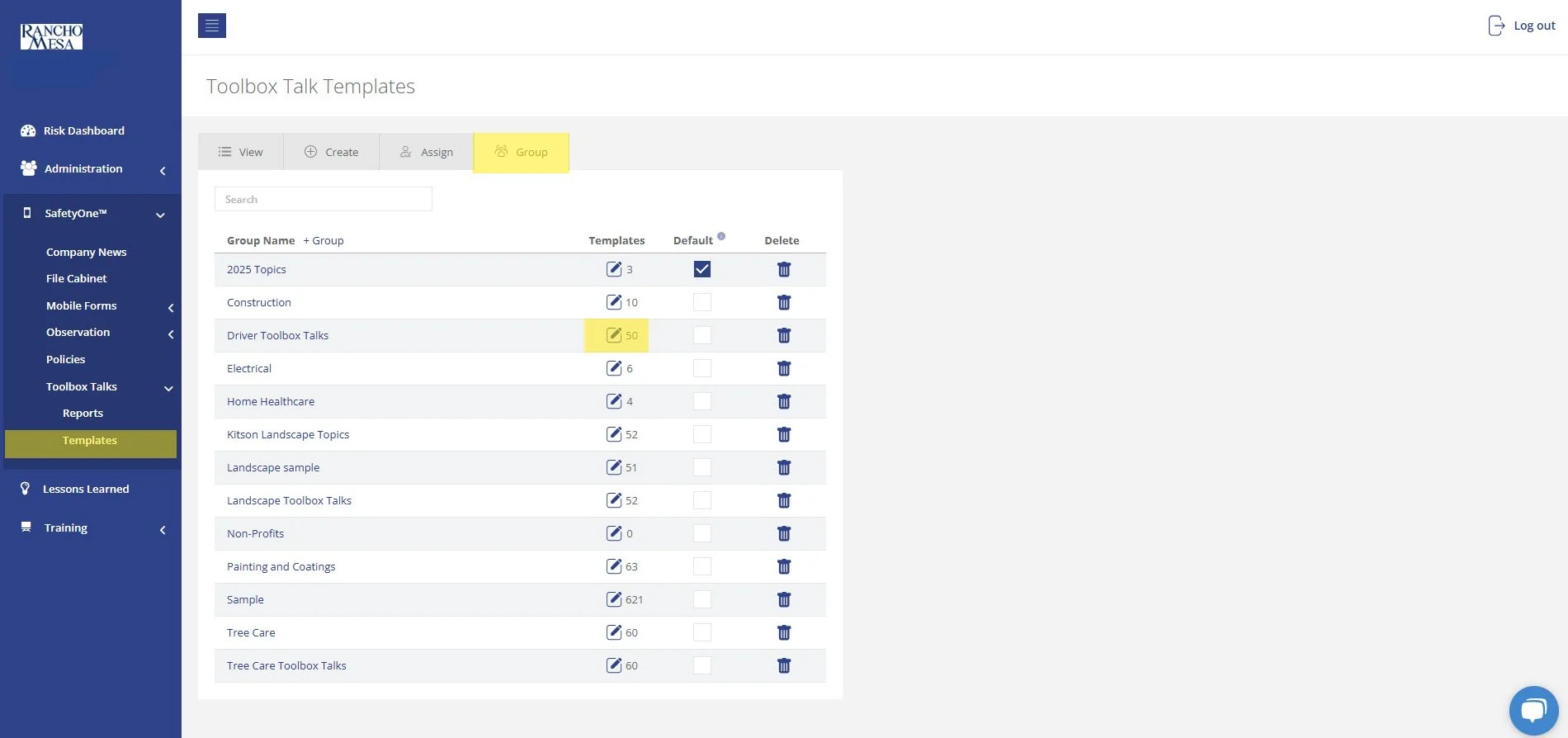
From the administrator website, click on the “SafetyOne™” section. Then click on “Toolbox Talks” and then “Templates.” Add a new group and give it a name. We recommend naming the group something like “Driver Toolbox Talks” or “Driver Default Toolbox Talks.”
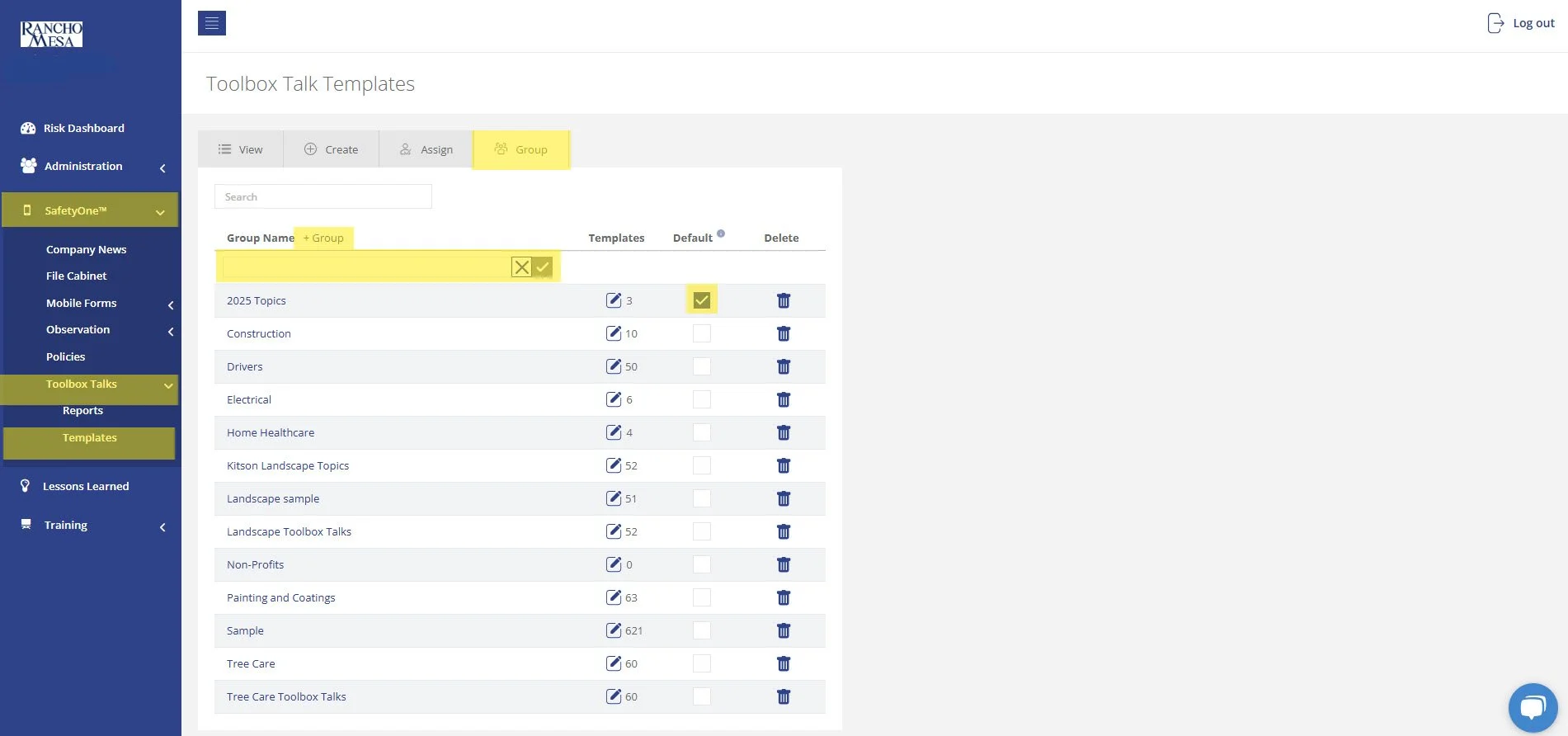
You can set the group to automatically assign these toolbox talks to all existing projects/crews by making it a default. Note, you can only have one default Toolbox Talk Group.
2. Assign toolbox talks to a group.
Now that the group has been created, assign the toolbox talks to the group. On the “Templates” page, locate the new group and click the edit button.
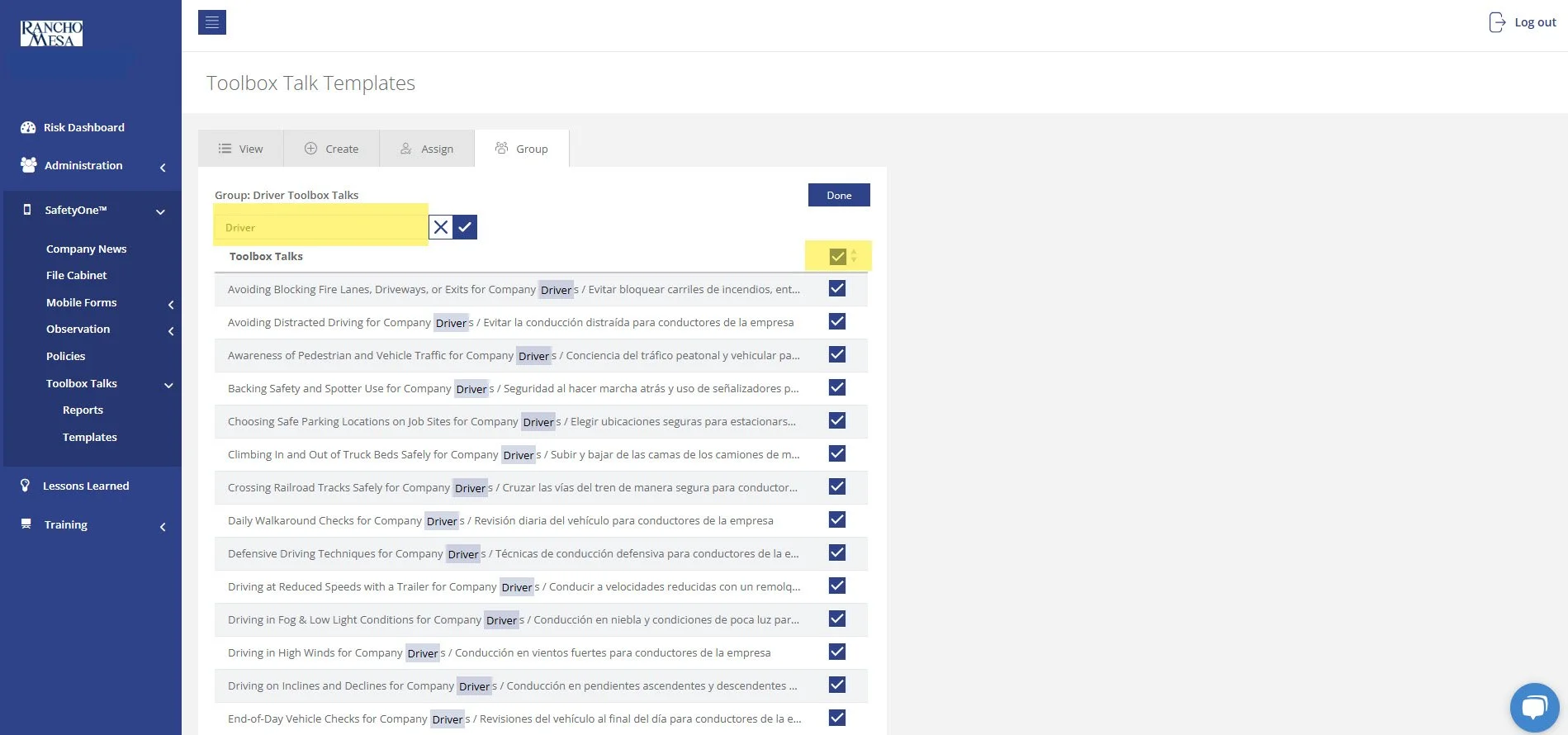
Filter the list of toolbox talks by using the search bar and entering the word “Driver.” This will display 50 driver-specific toolbox talks available in both English and Spanish.
You can assign all of the toolbox talks to this group using the check box at the top of the page. Or, pick and choose the individual topics by selecting their check box.
There are two additional driver-specific toolbox talks that can be found by searching “Driving.” They are:
Driving in Wet Conditions / Conducir Vehiculo En Condiciones Húmedas
Like Oil And Water, Drinking And Driving Do Not Mix / Como Agua Y Aceite, Beber Y Conducir No Mezclar
Select both by checking their boxes. Then, click “Done.”
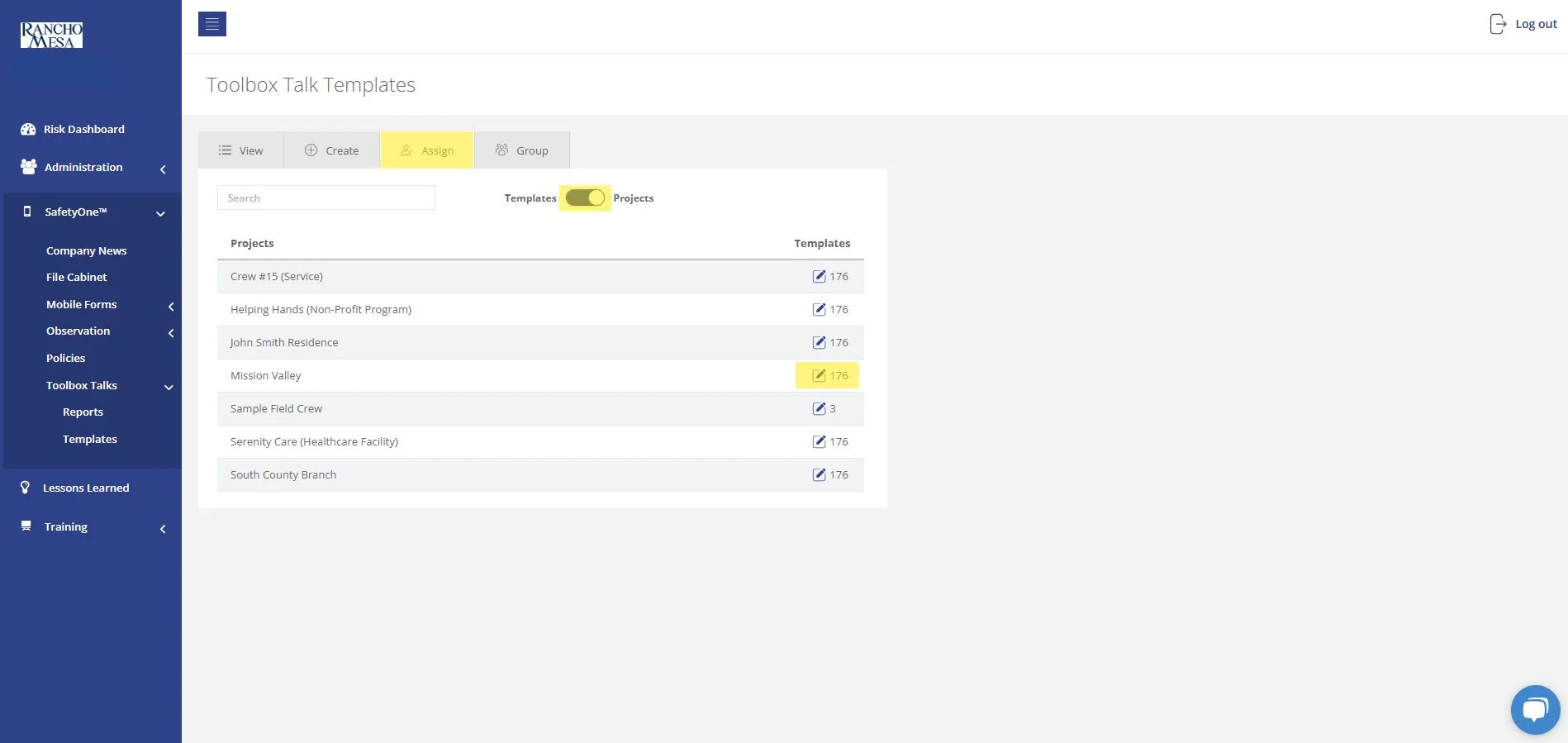
If the driver-specific toolbox talk group is checked as the default group, the toolbox talks will automatically be added to all projects. If the driver-specific toolbox talk group is not the default group, in order to make these toolbox talks available on the SafetyOne app, click on the “Assign” tab and then click the “Templates/Projects” toggle switch to show a list of your projects. Check the box next to the Project(s) you want to have access to the driver-specific toolbox talks in SafetyOne app.
Contact your Client Technology Coordinator for more information.
Can I create a QR Code for a document in the File Cabinet?
While SafetyOne™ currently does not generate QR codes for documents stored within the file cabinet, QR codes can be created using a third-party generator using the document’s URL.
While SafetyOne™ currently does not generate QR codes for documents stored within the file cabinet, QR codes can be created using a third-party generator using the document’s URL.
First, login into the SafetyOne website as an Administrator.
GENERATE URL LINK TO DOCUMENT
Click “SafetyOne” in the navigation panel, then click “File Cabinet.”
Click the down arrow for the folder where your document is saved.
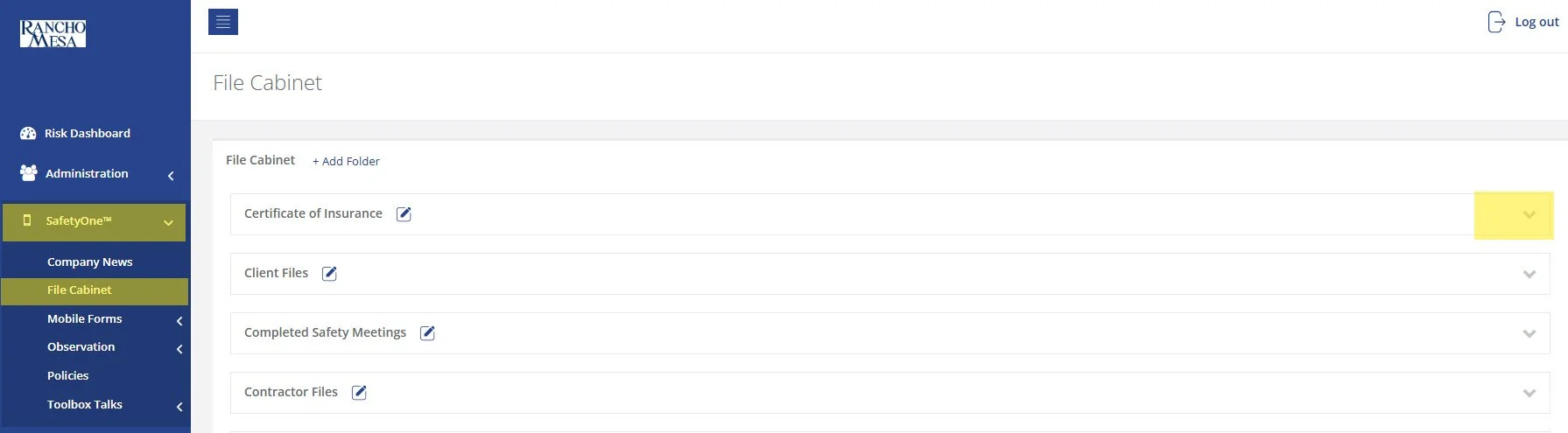
Find your document in the list and click the “Share” icon. This will generate a unique URL link to that document.
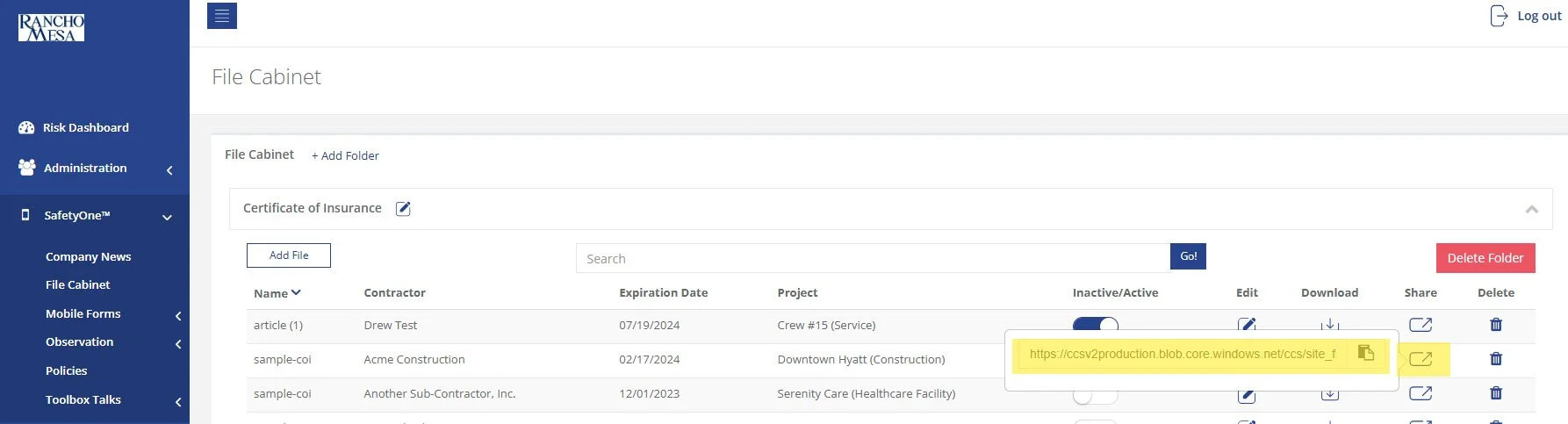
Open a third-party QR code generator. There are many options available online.
Paste the document’s unique URL into your third-party QR Code generator.
Download, print or share the QR Code from the third-party website.
Note: If you replace or update the document in the file cabinet, you will need to create a new QR Code.
How can I create a QR Code for a Mobile Form?
SafetyOne™ administrators can generate QR codes for mobile forms. This is useful when non-mobile app users need to complete a mobile form.
SafetyOne™ administrators can generate QR codes for mobile forms. This is useful when non-mobile app users need to complete a mobile form.
To create a QR Code for a Mobile Form, first log in to your SafetyOne website account as the administrator.
ASSIGN A MOBILE FORM TO PROJECT(S)
In order to generate a mobile form QR code, the mobile form must be assigned to a Project.
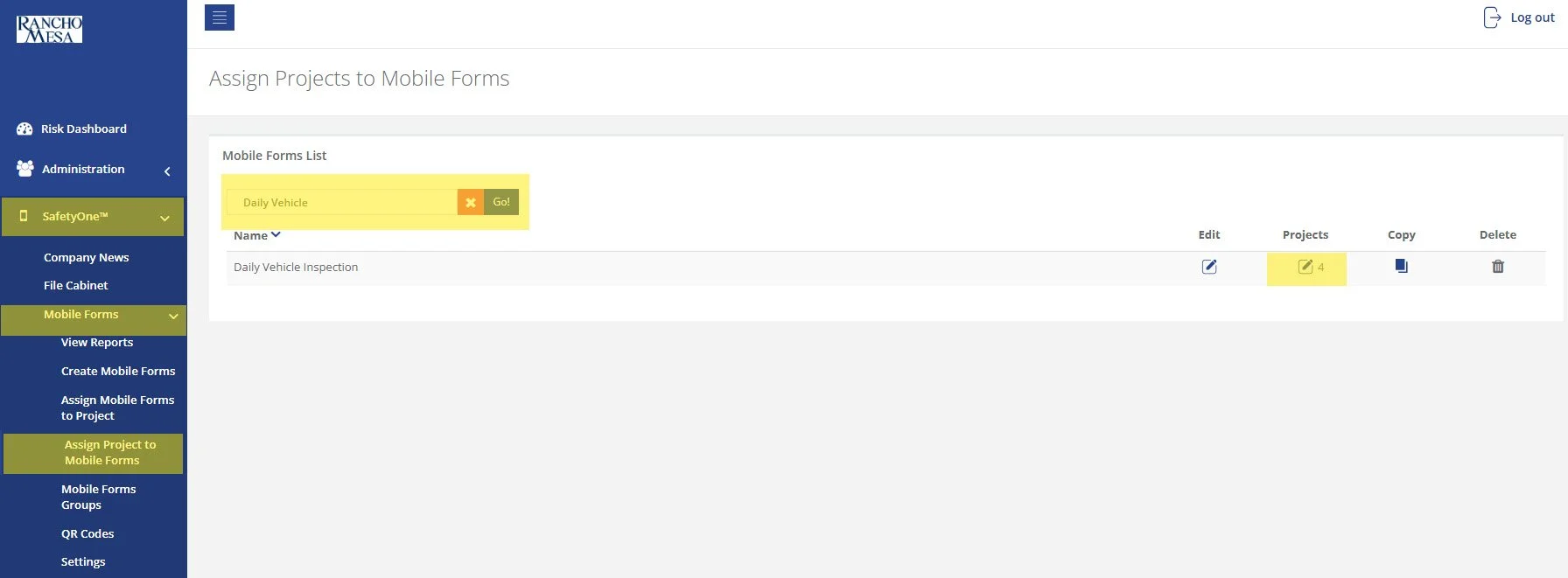
To assign a mobile form to a project, click on “SafetyOne” in the navigation panel, click on “Mobile Forms,” then click on “Assign Project to Mobile Forms.”
Use the search box to locate the specific mobile form(s) you want to assign to a project. Click the pencil icon in the projects column.
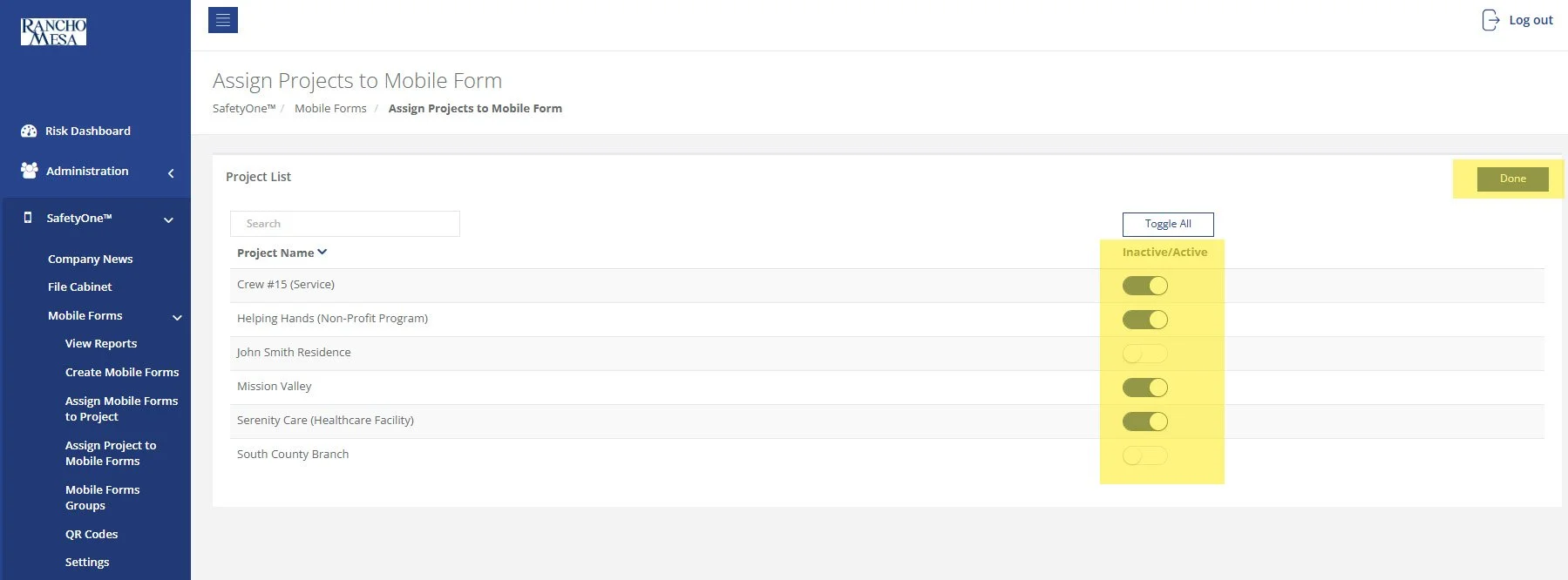
Click the “Inactive/Active” toggle switch for each project in which you want the mobile form assigned. Then click “Done.”
DOWNLOAD THE QR CODE
Now that the Mobile Form has been assigned to a project, the Administrator can download a QR Code that non-app users can use to access the form.
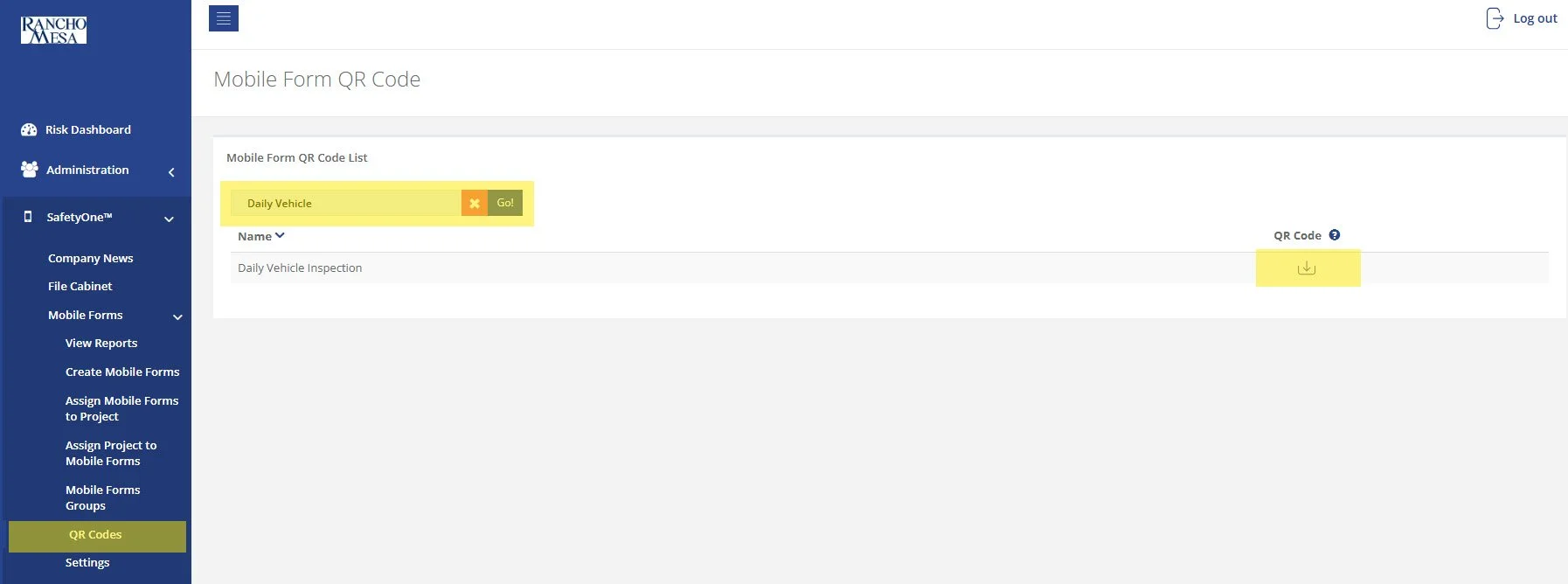
To download the QR Code, click on “QR Codes” in the navigation panel.
Use the search box to locate the Mobile Form.
Click the download button in the QR Code column.
Select the project for the QR Code you want to download. Choosing this project will ensure the data collected from the Mobile Form will be associated to the project that was selected. Then, click “Download.”
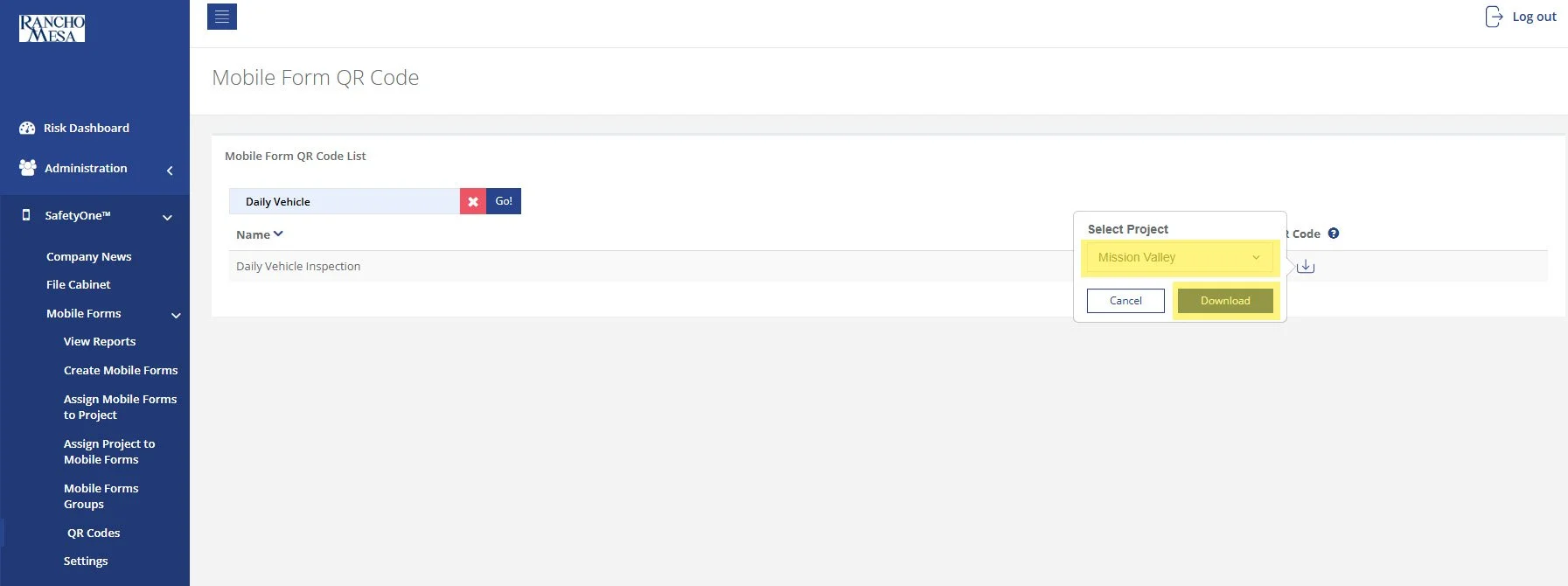
The QR Code will be downloaded onto your computer and it can now be printed or shared.
How can I Setup SafetyOne™ Toolbox Talks?
To begin setting up your SafetyOne™ account to utilize Toolbox Talks in the mobile app, as an Administrator, log in to your SafetyOne website account.
To begin setting up your SafetyOne™ account to utilize Toolbox Talks in the mobile app, as an Administrator, log in to your SafetyOne website account.
ADD A PROJECT
Since everything in the SafetyOne mobile app is organized by individual projects, crews, facilities or programs, the Administrator will need to first create a Project for which the toolbox talk topic(s) will be assigned. If the Project has already been created, skip this step.
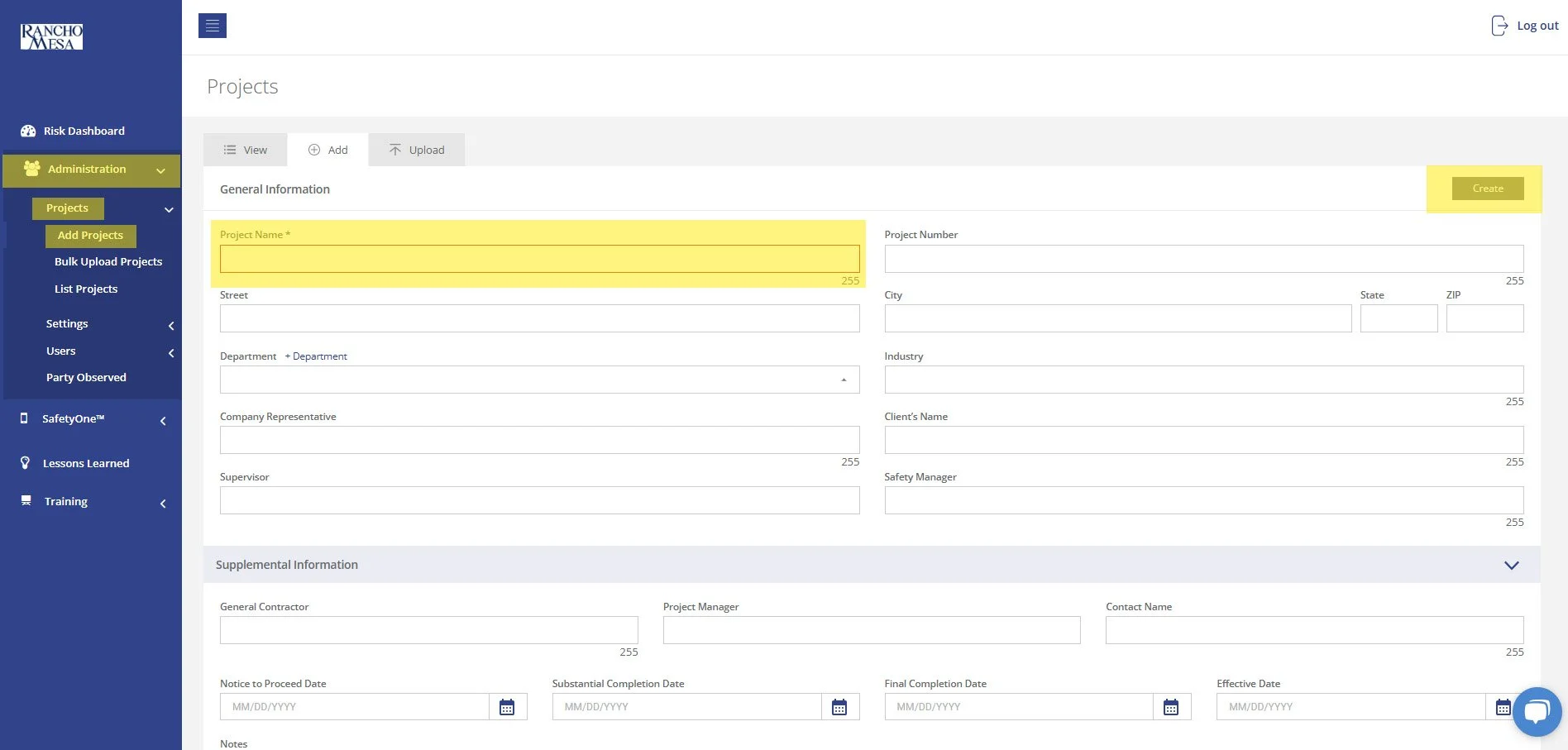
To create a Project, click on “Administration” in the navigation panel, click on “Projects,” then click “Add Project.” Note: the Project Name field is required; all other fields are optional. Then, click “Save.”
ENABLE TOOLBOX TALKS
Now that the individual project, crew, facility or program has been added to SafetyOne, the Administrator will assign the toolbox talk topic(s) to the project(s). This allows the SafetyOne mobile app users to access the toolbox talks that are assigned to their project(s).
To assign toolbox talks to projects, click on “SafetyOne” in the navigation panel, click on “Toolbox Talks,” then click on “Templates.”
On the Assign tab, use the search box to locate the toolbox talk topics you want to assign to the project.
Click the pencil icon in the projects column for the toolbox talk topic that you would like to make available in the mobile app. Then, check the box for each project where the toolbox talk should be available. Repeat these steps for each toolbox talk topic.
Or, on the Assign tab, click the “Template/Projects” toggle switch to show a list of the projects. Click the pencil icon in the templates column for the project name. Then, check the box for each toolbox talk that should be available for this Project.
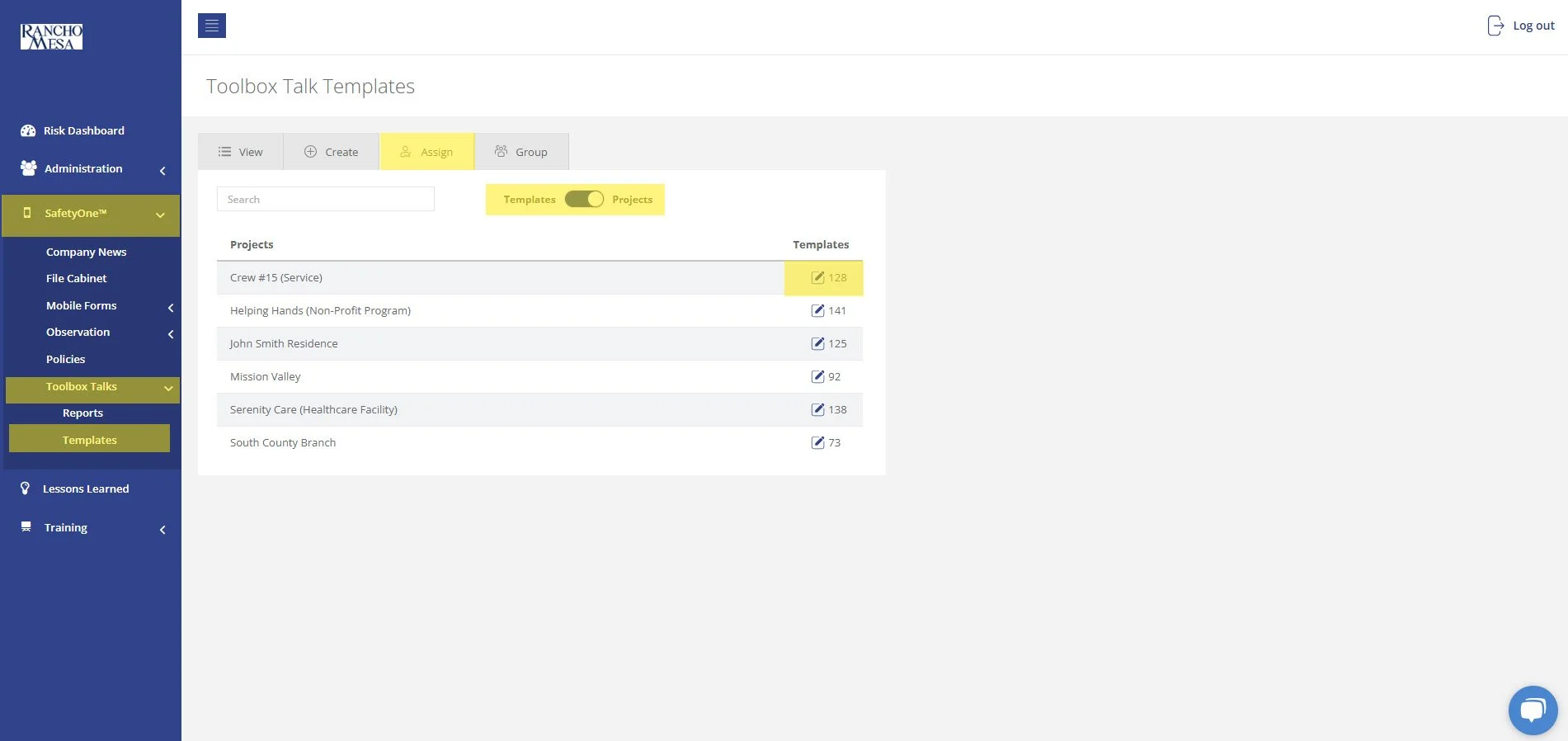
This will assign all of the selected toolbox talks to that Project at once. Remember, even if you go to the next page of the toolbox talks list, it will remember the boxes you checked on previous pages.
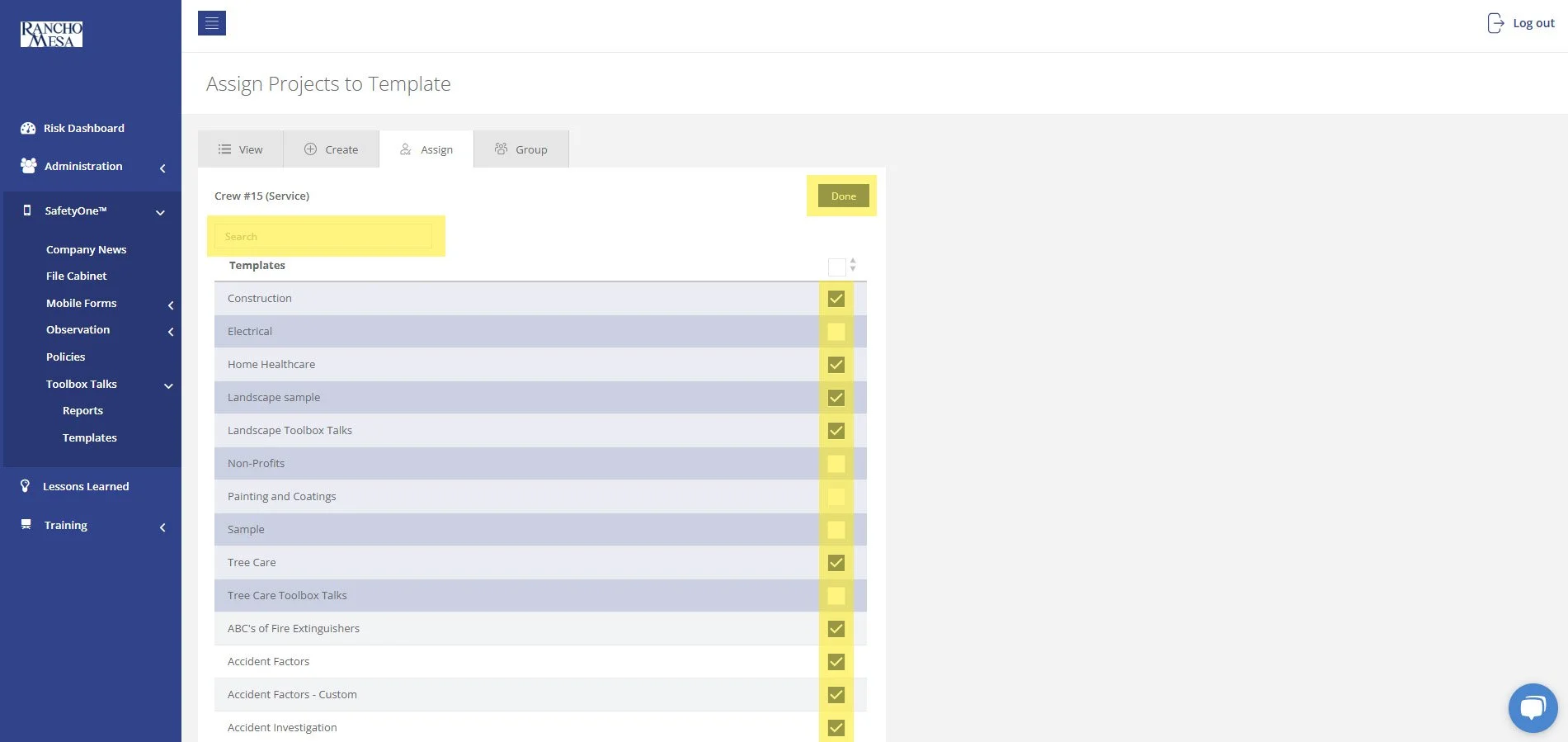
Then, click “Done.”
ASSIGN USERS TO THE PROJECT(S)
In order to access the toolbox talks in the SafetyOne mobile app, the user must be assigned to the project in which the toolbox talks are assigned.
To assign a user to a project, click “Administration” in the navigation panel, click “Projects,” then click “List Projects.” Click the pencil icon in the Users column for the project. Then, click on the toggle switch to the right of the users’ name and click “Done.”
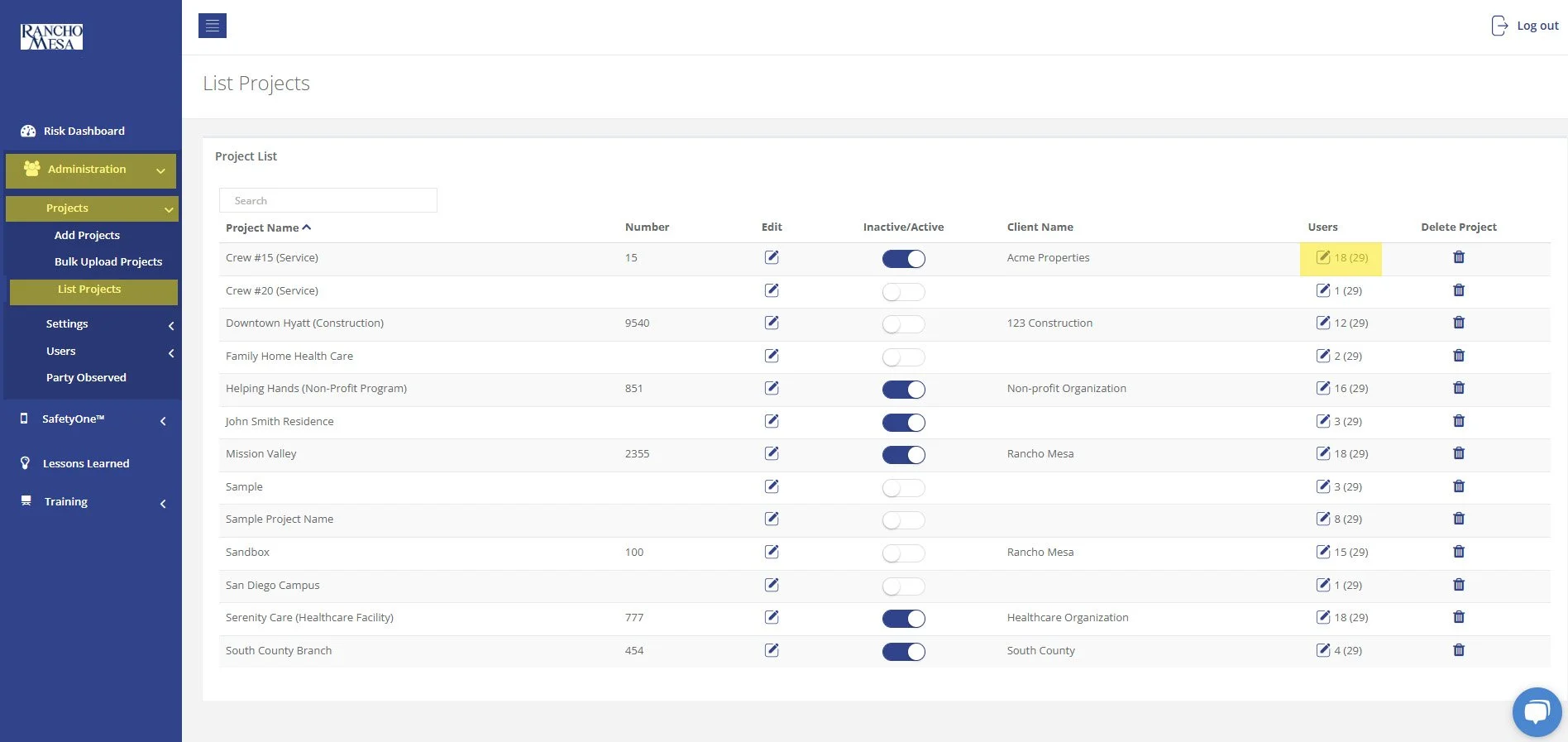
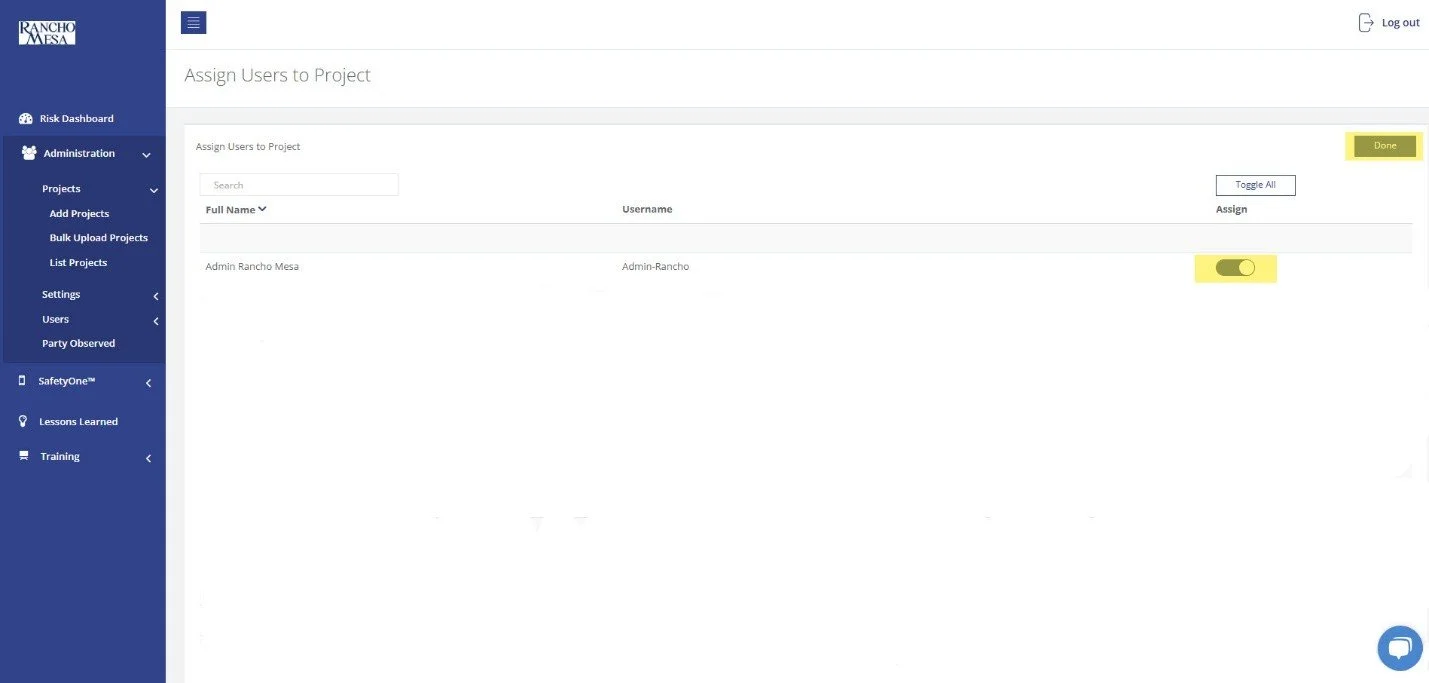
The Toolbox Talks will now be available when users log in to the mobile app.
As a reminder, if you want to make something available on the mobile app, it has to be assigned to a project. And, the user must be assigned to that project in order to have access to all of the content and documents assigned to it.
What does each user role have access to?
There are two types of licenses, user, trainee, and recipient.
There are two types of licenses, user, training user, and recipient.
User licenses are required for anyone who needs access to administrator functions via both the website and the mobile app. Below are descriptions of the roles that require a user license.
Administrator: have access to everything in the platform and mobile app. They can add and delete Projects and Users as well as perform any administration functions. Administrators can also create company news, delete observations, toolbox talks and forms, and configure what other users can see on their mobile devices by assigning categories, forms and toolbox talks. In all likelihood, your organization may have one or two Administrators.
Supervisor: can add, delete and edit any of the functions within the SafetyOne app section on the website but only for projects in which they are assigned. Also, when a User is setup as a Supervisor, a custom permission is displayed that allows the Supervisor to add, assign and unassign Users to projects in which they have been assigned. The Supervisor role might be used by a safety manager or project manager in a construction company, a facility director in a home health care company, or a program director in a non-profit organization. These are people who are managing one or more projects, crews, facilities, or programs.
Employee: allows access to perform tasks from the User’s mobile device but they are unable to delete or edit information from the website. Also, they are only able to view any information that they generated from the website as well as access the Learning Management System for training that they have been assigned. The Employee role may be used for Superintendents at a construction company or a manager in a human services organization.
Field Employee: are able to perform tasks from their mobile device that they have been assigned, and only access the Learning Management System for training that have been assigned. These are people who may be a foreman that is leading a crew, or a team lead within a facility. However, not all foreman or team leads need to be assigned the Field Employee role. Only assign the role if they need to complete assigned tasks in the mobile app.
Training Manager: role allows users to create training modules from the website, but they cannot log into the mobile app. This role is designed for large organizations with a dedicated training department. Smaller organizations are less likely to need this type of user role.
Trainee licenses only allows them to complete online training and generate a certificate of completion. They cannot log into the mobile application. Most regular employees, who would complete online training, fall under the Training User role. Keep in mind, if an employee is a trainee and training history is manually documented, but no online training is assigned, you can add as many of these as you want and they won’t count towards a trainee license.
Recipient licenses only allow them to receive email notifications when Company News is sent to a Project that they are assigned. They will not set a password nor will they be able to log into the mobile application nor the website. This is used to efficiently distribute company updates to employees who otherwise wouldn’t receive notifications via the SafetyOne app. Equivalent to Trainee in pricing, if an employee with this license role is transitioned over to a User or Trainee license, they will then receive an email to set their password.