Why can’t I add a user I have previously deleted? The platform states the username is already registered.
Once a username has been used in the platform, it can never be used again because it’s tied to existing records. This applies across the entire platform. So, if you pick a username like “sampleemployee,” it may have already been used by any of Rancho Mesa’s clients in the platform.
We recommend using email addresses as the username since no one else should be using it. However, the username can be anything you want as long as no one else has used it.
To add a user with a username that you have previously deleted, you’ll just need to use a different username. In the future, you can just make them inactive instead of deleting the user entirely.
How do I collect and manage Certificates of Insurance from my sub-contractors?
The SafetyOne™ platform can be used to collect and manage certificates of insurance for both the organization and it’s sub-contractors.
The SafetyOne™ platform can be used to collect and manage certificates of insurance for both the organization and it’s sub-contractors.
Setup
From the administrator website, the Mobile Form must setup.
1. Create a mobile form.
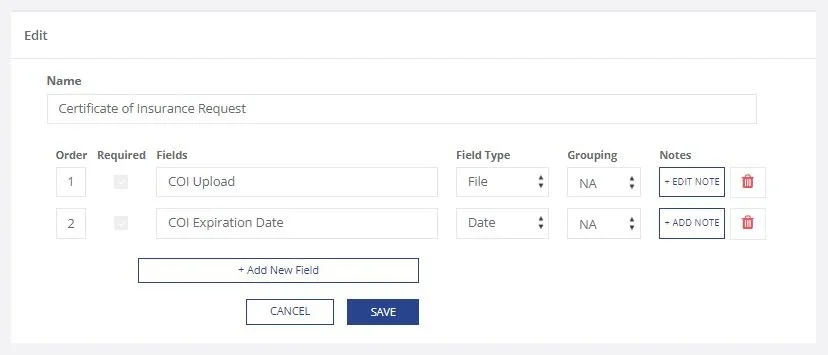
From the Mobile Forms/Create Mobile Forms screen, add a new mobile form. It can be as simple as adding the ability to upload a file and the Expiration Date. But, it’s up to each organization can collect as much or as little information as they want.
2. Turn on Alerts
From the Mobile Forms/Settings screen, enable Alerts to be sent to the appropriate internal recipient. This person will receive an email notification when someone submits their certificate of insurance through the platform. Click the Alerts icon and select the person(s) from the list.
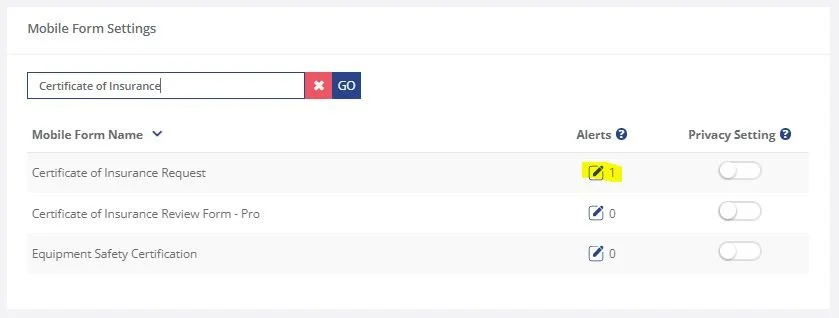
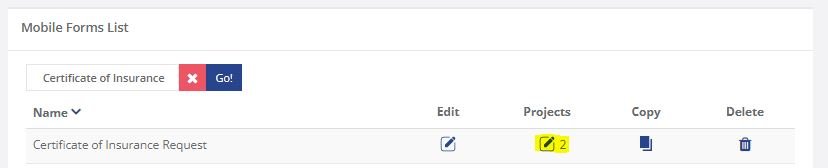
3. Enable the Mobile Form for the Project
From the Administration/Projects/List Projects screen, enable the mobile form for the Projects for which the certificate will be uploaded.
Pro Tip: Enable the Certificate Mobile Form for all Projects and make it a standard form that is enabled every time a Project is added.
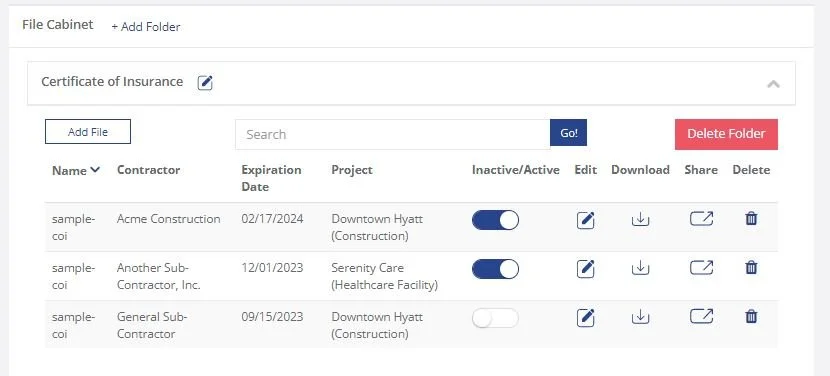
4. Create a Folder in the File Cabinet
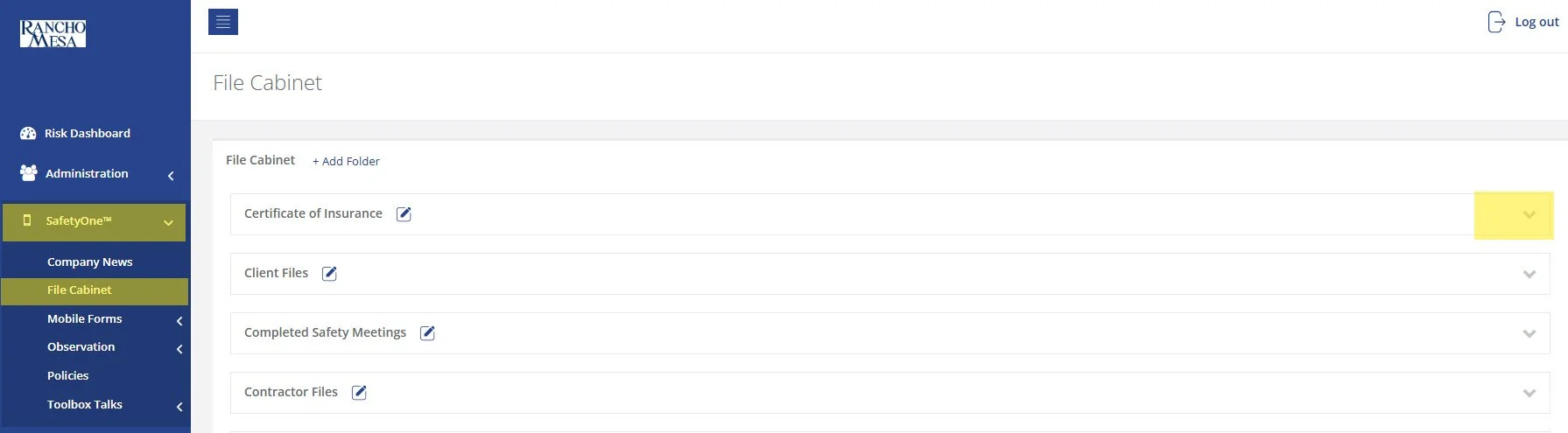
You’ll want to organize your Certificates of Insurance in the File Cabinet. Add a folder for your Certificates of Insurance. You’ll add them to the folder once they have been received.
Pro Tip: Turn on the Project Specific Files, Expiration Date, and Contractor Specific Files so you can track all of that information for each certificate of Insurance.
Request Certificate of Insurance
1. Request Certificate of Insurance
Once you have setup the mobile form, turned on alerts, enabled it for your Project(s) and created a folder to store the certificates, you are ready to request the certificate of insurance.
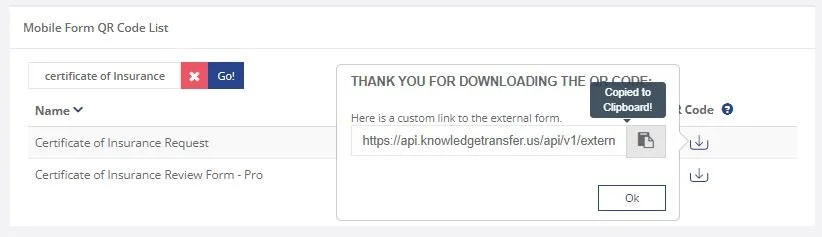
From the Mobile Forms/QR Codes screen, find the mobile form in the list and select the Project name. Click download. Either copy the URL or download the QR Code.
You can open your email and paste the URL directly into the body of the email.
The recipient will click the link in your email and complete the form.
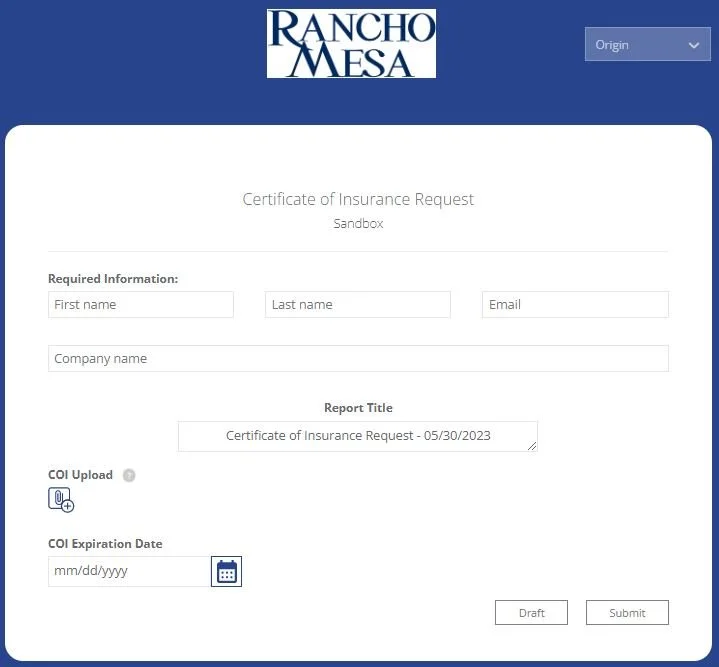
Upon completing the form and attaching the Certificate of Insurance PDF and clicking “Submit,” an email alert will be sent to the person submitting the certificate along with the user that was selected in the administrator website.
Review and Manage Certificates of Insurance
Once the alert email is received, you are ready to review the certificate of insurance.
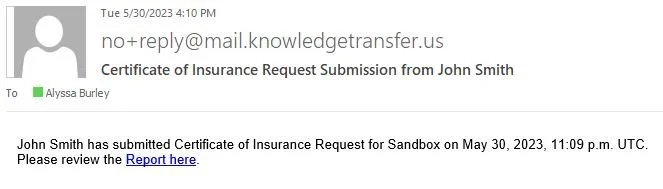
1. Review the Certificate of Insurance
Either click the in the email or open the SafetyOne website.
From the Mobile Forms/View Reports screen, locate the submitted Certificate of Insurance Request Form. Click the View icon to see the submitted information.
Click the attachment and review the certificate of insurance.
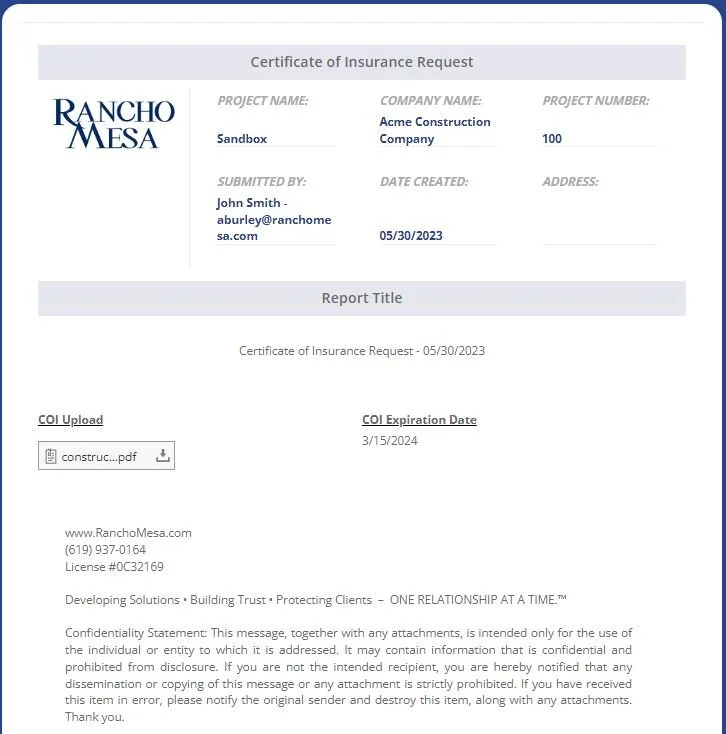
Submitted Certificate Mobile Form in web browser
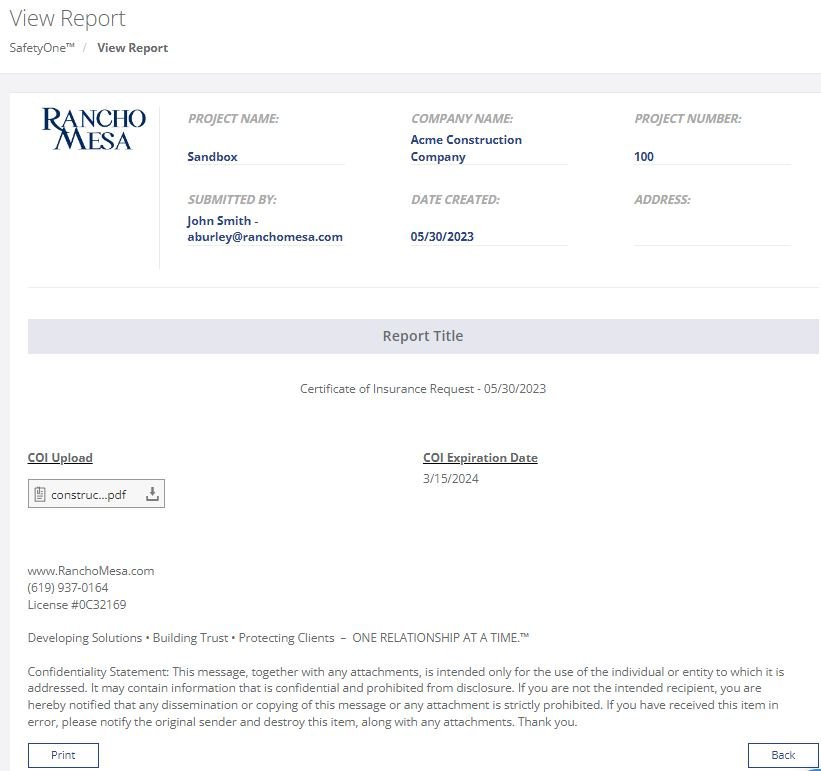
Submitted Certificate Mobile Form on SafetyOne™ website
2. Document the Certificate of Insurance
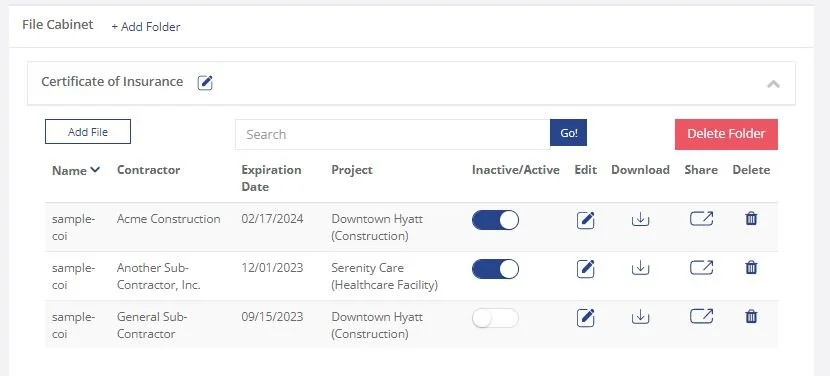
From the File Cabinet, open the Certificates of Insurance folder you previously created. Click “Add File.” Enter the Contractor, Expiration Date and Project (if those fields are available). Click Upload.
Now, your certificates of insurance will be accessible through the mobile SafetyOne app for those who are assigned to the Projects.
Why aren't I receiving push notifications on my lock screen?
In order to receive push notifications on your device’s lock screen sent by your system administrator, you must be logged into the SafetyOne™ app. The app doesn’t need to open, you just need to be logged into the app.
If you’re logged into the SafetyOne app and you are still not receiving the push notifications, it is likely a setting on your device.
Consult the instructions for enabling push notifications from your device’s manufacturer.
In order to receive push notifications on your device’s lock screen sent by your system administrator, you must be logged into the SafetyOne™ app. The app doesn’t need to open, you just need to be logged into the app.
If you’re logged into the SafetyOne app and you are still not receiving the push notifications, it is likely a setting on your device.
Consult the instructions for enabling push notifications from your device’s manufacturer.
How should I use job groups when assigning training?
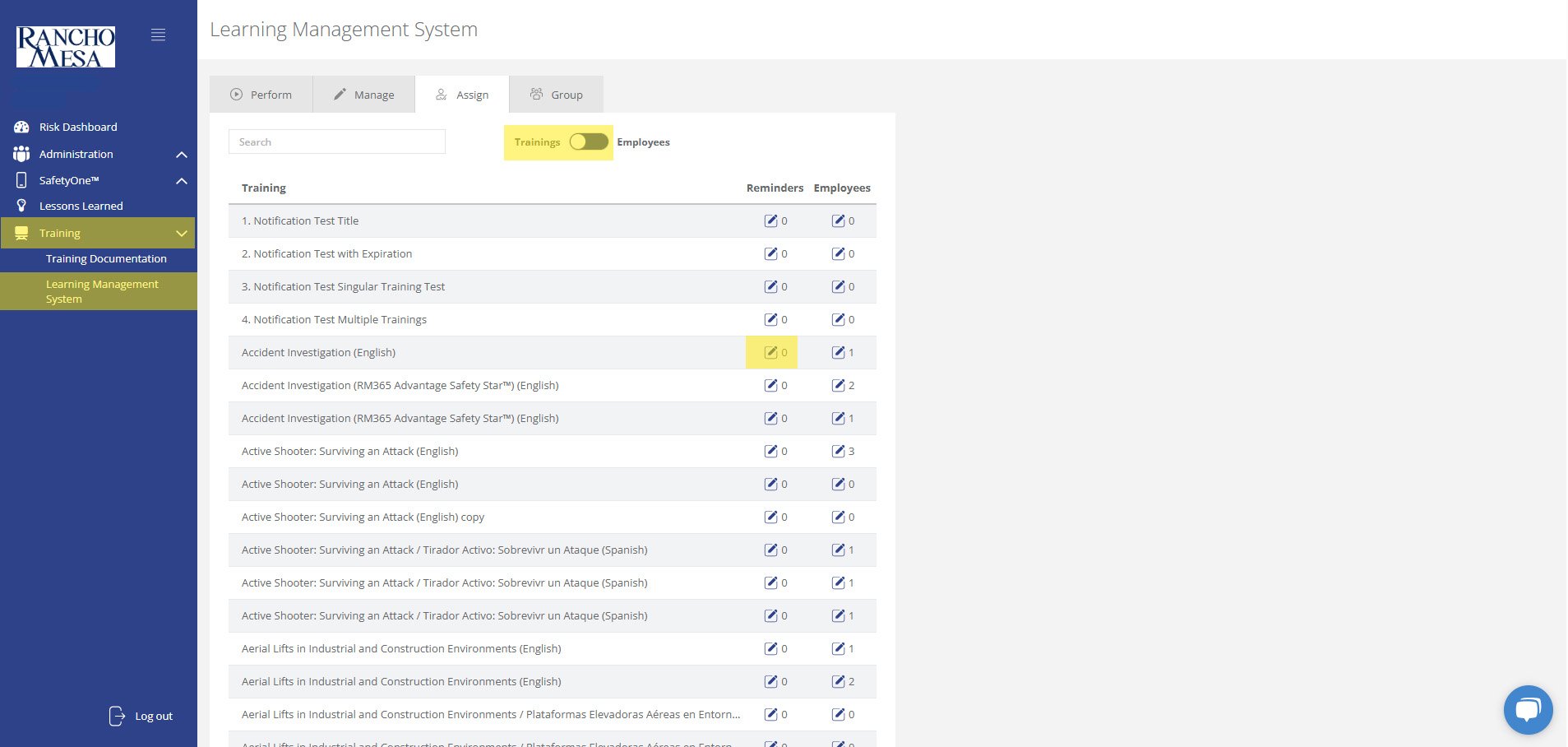
Job training groups work the same way as employee groups, only you group trainings together rather than employees. This allows you to choose a list of trainings that need to be done within a group rather than having to make each training active when you assign training to employees.
Job training groups work the same way as employee groups, only you group trainings together rather than employees. This allows you to choose a list of trainings that need to be done within a group rather than having to make each training active when you assign training to employees.
For our example, we can create a “Driver Training” job training group for all the driver trainings that are available in the platform..
How should I use employee groups when assigning online training?
Employee groups can be set up when there are employees that are categorized the same way and take the same training. This makes it easier to assign training to a group of people rather than assign them one at a time.
Employee groups can be set up when there are employees that are categorized the same way and take the same training. This makes it easier to assign training to a group of people rather than assign them one at a time.
For example, there might be a group of supervisors that need a specific sexual harassment prevention training course and another group of employees who need a different sexual harassment prevention training. By creating employee groups, these supervisors or employees can be grouped together. This makes assigning trainings easy.
What is the difference between an Employee and Field Employee?
The Employee role provides access to perform tasks from the mobile device, but they are unable to delete or edit information from the website. They are only able to view any information that they generated from the website as well as access the their online trainings.
Field Employees are able to perform tasks from their mobile devices and only access their online trainings.
The Employee role provides access to perform tasks from the mobile device, but they are unable to delete or edit information from the website. They are only able to view any information that they generated from the website as well as access the their online trainings.
Field Employees are able to perform tasks from their mobile devices and only access their online trainings.
What role should I select for employees who only need training?
The Trainee permission structure allows users to only perform Training and generate a certificate of completion. They cannot log into the mobile application.
The Trainee permission structure allows users to only perform Training and generate a certificate of completion. They cannot log into the mobile application.
When uploading a spreadsheet of employees into the administrator website, the Role column should read “Trainee.” This will ensure that the correct permissions will be assigned.

Can the observation reports be fully customized to match our company branding?
There are four standard report templates to choose from that display your company’s logo and custom footer text (i.e., disclaimer).
If additional customization like a specific font and color scheme is desired, it can be done for a fee to cover the development costs.
There are four standard report templates to choose from that display your company’s logo and custom footer text (i.e., disclaimer).
If additional customization like a specific font and color scheme is desired, it can be done for a fee to cover the development costs.
Is there the ability to synch data to a company drive on our server (i.e., auto renaming of forms, saving to folders, etc.)?
While the file cabinet can be set up with an integration that mirrors the two integrated systems, this is not a standard feature and may require a fee to setup.
While the file cabinet can be set up with an integration that mirrors the two integrated systems, this is not a standard feature and may require a fee to setup.
Can reoccurring deadlines be set for specific mobile forms or observations to ensure they are completed?
While mobile forms or observations cannot be assigned specific deadlines to be completed, in the SafetyOne™ Pro Analytics website, alerts may be used to notify the administrator when certain thresholds are not being met or when specific conditions exist.
While mobile forms or observations cannot be assigned specific deadlines to be completed, in the SafetyOne™ Pro Analytics website, alerts may be used to notify the administrator when certain thresholds are not being met or when specific conditions exist.
Can specific data (i.e., address, contact information, etc.) be auto-populated on a mobile form when a name or company is selected on a field?
No, the SafetyOne™ App does not auto-populate data on one field based on what is entered on another field.
However, to streamline the data entry process, use the “Copy Mobile Form” feature to copy a previously generated form and make whatever changes are needed to the new form. This is helpful on daily reports where only minor information may change from day to day.
No, the SafetyOne™ App does not auto-populate data on one field based on what is entered on another field.
However, to streamline the data entry process, use the “Copy Mobile Form” feature to copy a previously generated form and make whatever changes are needed to the new form. This is helpful on daily reports where only minor information may change from day to day.
Where do we get user support for the SafetyOne™ desktop administrator website and mobile app?
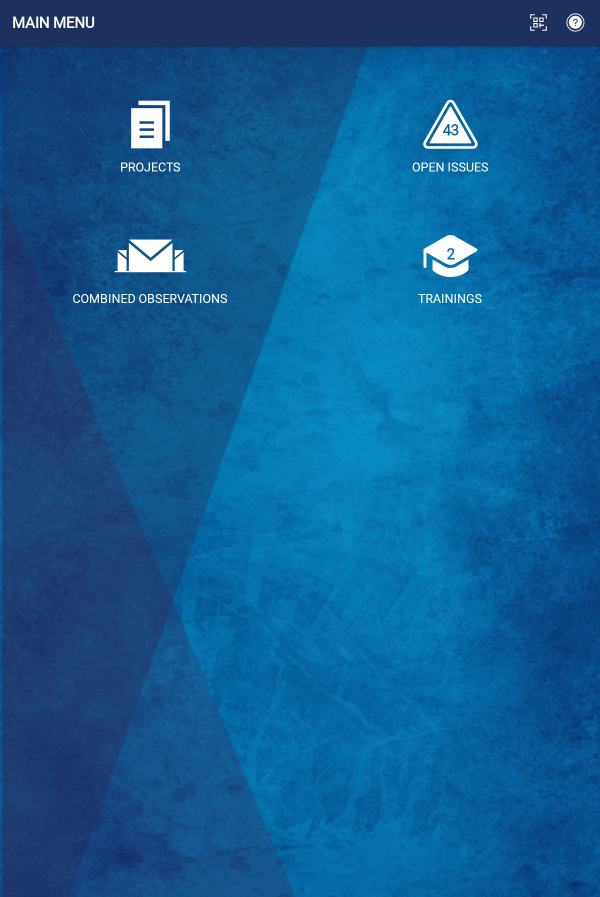
Rancho Mesa’s Client Services team is the support contact for both the desktop administrator website and mobile app. In the next mobile app update, the support contact information will be updated to Rancho Mesa’s Client Services Department. It currently displays the developer’s tech support department’s contact information.
Rancho Mesa’s Client Services team is the support contact for both the desktop administrator website and mobile app. In the next mobile app update, the support contact information is Rancho Mesa’s Client Services Department. The support button is indicated by a question mark button found on the top right corner of the app’s home screen.
Are users able to save mobile forms and observations before they are completed?
Yes, incomplete mobile forms and observations are automatically saved, so users may return to the complete them at any time.
Yes, incomplete mobile forms and observations are automatically saved, so users may return to the complete them at any time.
Is spell-check available when completely field in an observation or mobile form?
Yes, the SafetyOne™ App uses the device’s spell check capabilities, if available. Users can also utilize voice dictation to complete fields.
Yes, the SafetyOne™ App uses the device’s spell check capabilities, if available. Users can also utilize voice dictation to complete fields.
Is there a way to score Observations/Audits to quickly see issues using numerical values?
Yes, in SafetyOne™ Pro Analytics, there is an Accident Prevention Index Dashboard that will calculate the API of the observation based on the number of questions in the observation, # of issues (open and resolved) and severity of the issue(s). Alerts can also be set to notify you when the data shows an API that has reached a specific threshold.
Yes, in SafetyOne™ Pro Analytics, there is an Accident Prevention Index Dashboard that will calculate the API of the observation based on the number of questions in the observation, # of issues (open and resolved) and severity of the issue(s). Alerts can also be set to notify you when the data shows an API that has reached a specific threshold.
Does the SafetyOne™ App use Geolocation tracking?
Yes, if GPS is enabled on the device for the SafetyOne App, then the app will track the user’s location. This is useful when adding the location of the an observation or toolbox talk.
Yes, if GPS is enabled on the device for the SafetyOne App, then the app will track the user’s location. This is useful when adding the location of the an observation or toolbox talk.
Is there the ability for conditional formatting in mobile forms?
Yes, within the mobile form creator, a “Nested Option” provides a way for companies to provide specific follow-up questions depending on the answers chosen for that specific question.
Yes, within the mobile form creator, a “Nested Option” provides a way for companies to provide specific follow-up questions depending on the answers chosen for that specific question.
Are you able to track individual mobile users’ data to determine who has completed forms on time and who hasn’t?
From the administrator website, completed mobile forms can be filtered and/or sorted by the name of the user who completed the form along with the date the mobile form was completed.
For SafetyOne™ Pro Analytics users, Daily Form Completion Checks, along with custom alerts, can be used to notify a user when an analytical condition exists. These can be used when certain thresholds are not being met or when specific conditions merit further analysis.
From the administrator website, completed mobile forms can be filtered and/or sorted by the name of the user who completed the form along with the date the mobile form was completed.
For SafetyOne™ Pro Analytics users, Daily Form Completion Checks, along with custom alerts, can be used to notify a user when an analytical condition exists. These can be used when certain thresholds are not being met or when specific conditions merit further analysis.
How is the data stored/backed up?
The SafetyOne™ platform consists of a set of mobile apps (for iOS and Android devices) and a web-based back-end for collaboration, data analysis and system administration, which is hosted on Microsoft Azure cloud service.
The SafetyOne™ platform consists of a set of mobile apps (for iOS and Android devices) and a web-based back-end for collaboration, data analysis and system administration, which is hosted on Microsoft Azure cloud service.
Is the SafetyOne™ App HIPAA compliant?
The developer of the SafetyOne™ App is not considered a covered entity since they do not directly deal with patient data. Rancho Mesa’s clients, however, may create forms that ask for patient data. In this case the developer would rely on Rancho Mesa’s client to be HIPAA compliant in how they use the data.
Rancho Mesa limits access to client data on the SafetyOne™ App to Client Services Personnel for support and statistical use only. If you decide to use the SafetyOne™ App to collect and/or maintain patient data, we can discuss your individual scenarios with your Client Services Coordinator.
The developer of the SafetyOne™ App is not considered a covered entity since they do not directly deal with patient data. Rancho Mesa’s clients, however, may create forms that ask for patient data. In this case the developer would rely on Rancho Mesa’s client to be HIPAA compliant in how they use the data.
Rancho Mesa limits access to client data on the SafetyOne™ App to Client Services Personnel for support and statistical use only. If you decide to use the SafetyOne™ App to collect and/or maintain patient data, we can discuss your individual scenarios with your Client Services Coordinator.