What functions are available through the new training icon?
The Training icon allows mobile app users to quickly access the Learning Management System within the SafetyOne™ platform.
The Training icon allows mobile app users to quickly access the Learning Management System within the SafetyOne™ platform.
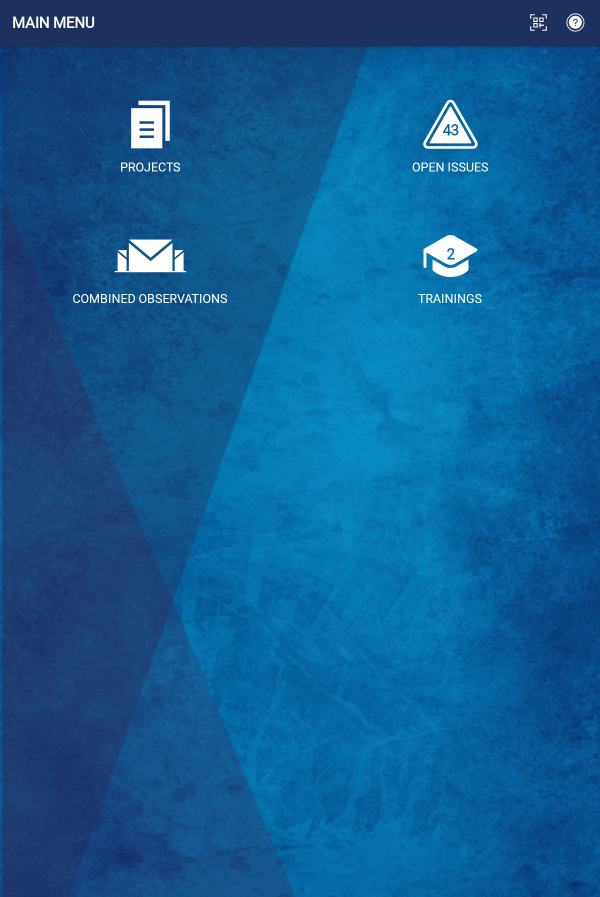
Through the Trainings icon, SafetyOne Administrators can complete their own trainings and assign trainings to their employees, while Supervisors, Employees, and Field Employees can complete the trainings assigned to them.
When a mobile app user is assigned a training, the icon will show the number of trainings they need to complete.
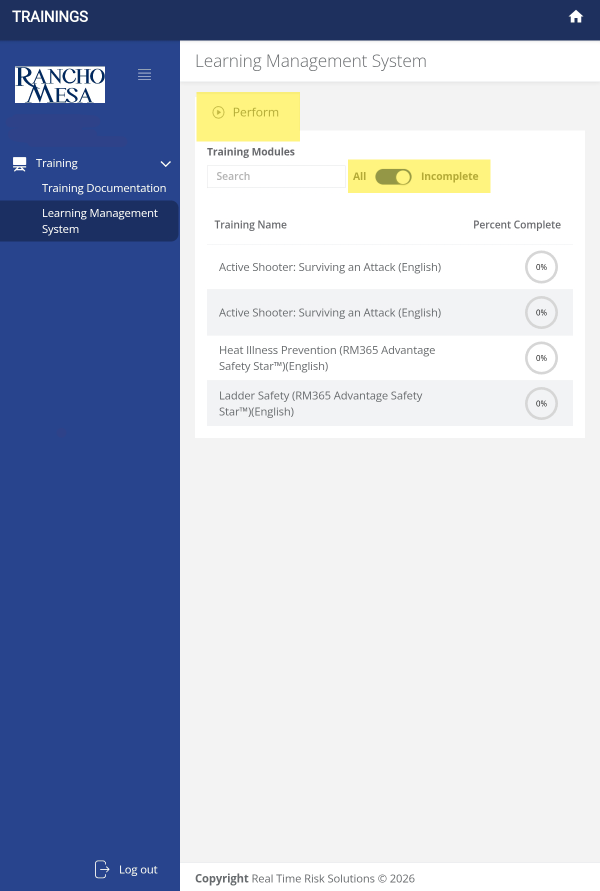
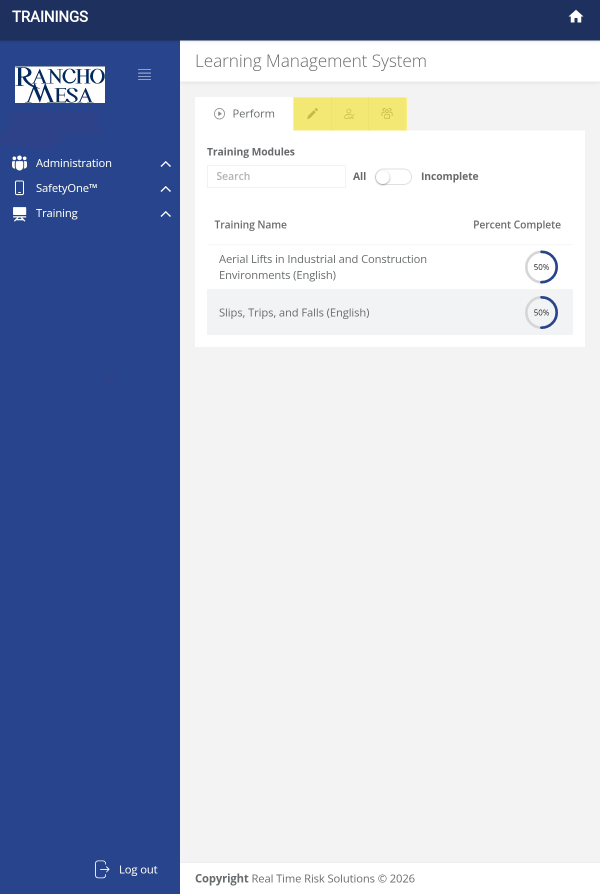
When a mobile app user opens the Training icon, the SafetyOne Learning Management System Perform tab will launch. Under the Perform tab, the mobile app user will be able to view the trainings that have been assigned and their progress.
Similar to accessing the Learning Management System website, the toggle at the top of the screen can be used to view all trainings or incomplete trainings.
Employees can also search for trainings by keyword using the search box.
For SafetyOne Administrators, the training icon allows them to view and perform training, similar to employees.
Administrators can also use the Manage, Assign, and Group tabs across the top of the screen to edit, adds, and assign trainings, along with setting up email reminders.
How can I translate mobile forms and toolbox talks to other languages?
Mobile Forms and Toolbox Talks from the SafetyOne™ platform can be easily translated into multiple languages when accessed via QR code or a URL.
Mobile Forms and Toolbox Talks from the SafetyOne™ platform can be easily translated into multiple languages when accessed via QR code or a URL.
Translate Mobile Forms
To translate mobile forms, the SafetyOne administrator or a Supervisor must first generate a QR code or URL for the form, then employees or third-parties will scan the QR code on their mobile device or click on the URL from their computer to launch the form.
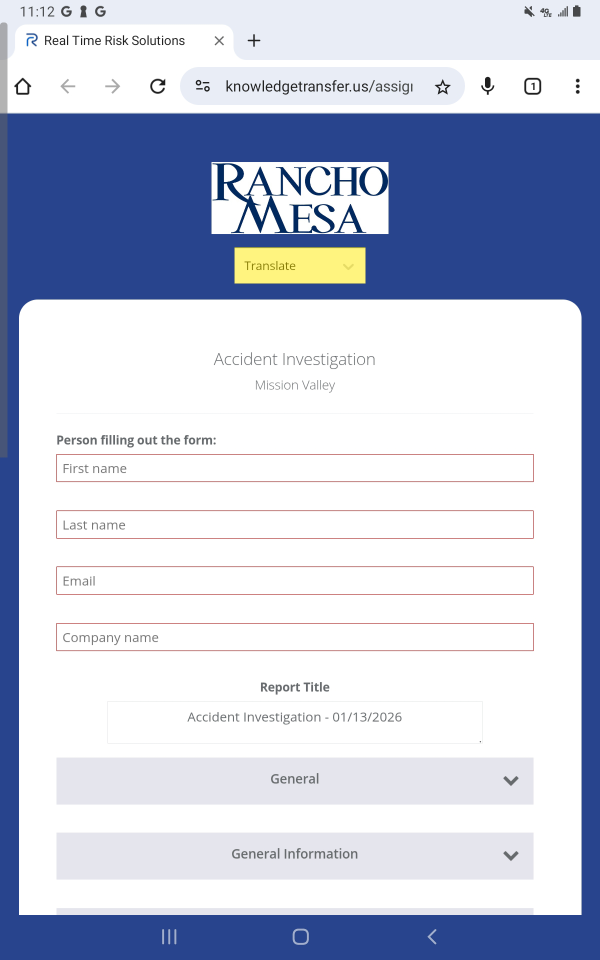
The mobile form will open on the device. At the top of the form, click the dropdown menu titled “Translate.”
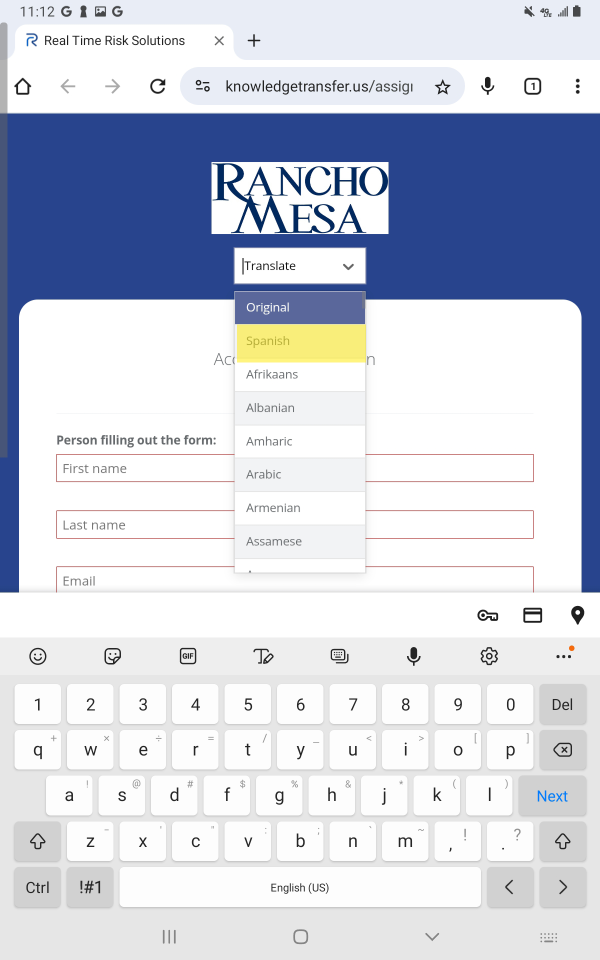
Select the language in which you want the page translated.
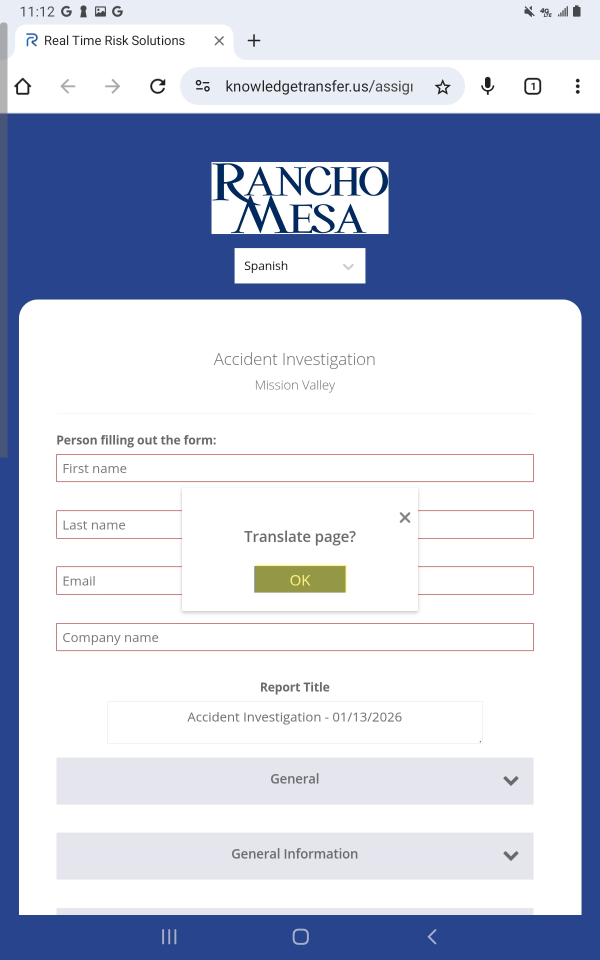
A confirmation dialog box will appear. When prompted, click “OK.” This will translate the entire form into the chosen language.
The page will be translated and can be completed and submitted in their chosen language.
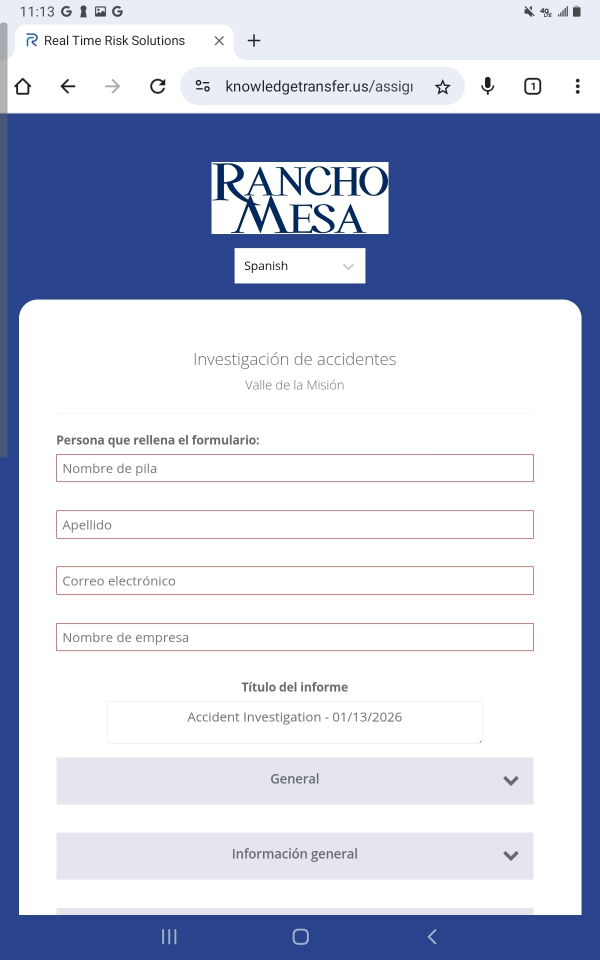
Note: the information that is collected on the form will be displayed exactly as the user entered it on the report generated by SafetyOne.
Translate Toolbox Talks
To translate toolbox talks, SafetyOne Administrators or Supervisors must provide the toolbox talk attendee with a QR code to access the toolbox talk content.
Like with mobile forms, employees can scan the QR code to open the toolbox talk and use the dropdown menu at the top of the page to translate the content.
Note: the translation function can only be accessed by users through the web browser. Mobile App users do not have access to the translate function.
How do I restore deleted training records?
Deleted training records will be displayed on the “Deleted” tab.
Deleted training records will be displayed on the “Deleted” tab.
First, locate the training record(s). You may also utilize the search box or the filter feature to find the training you want to restore.
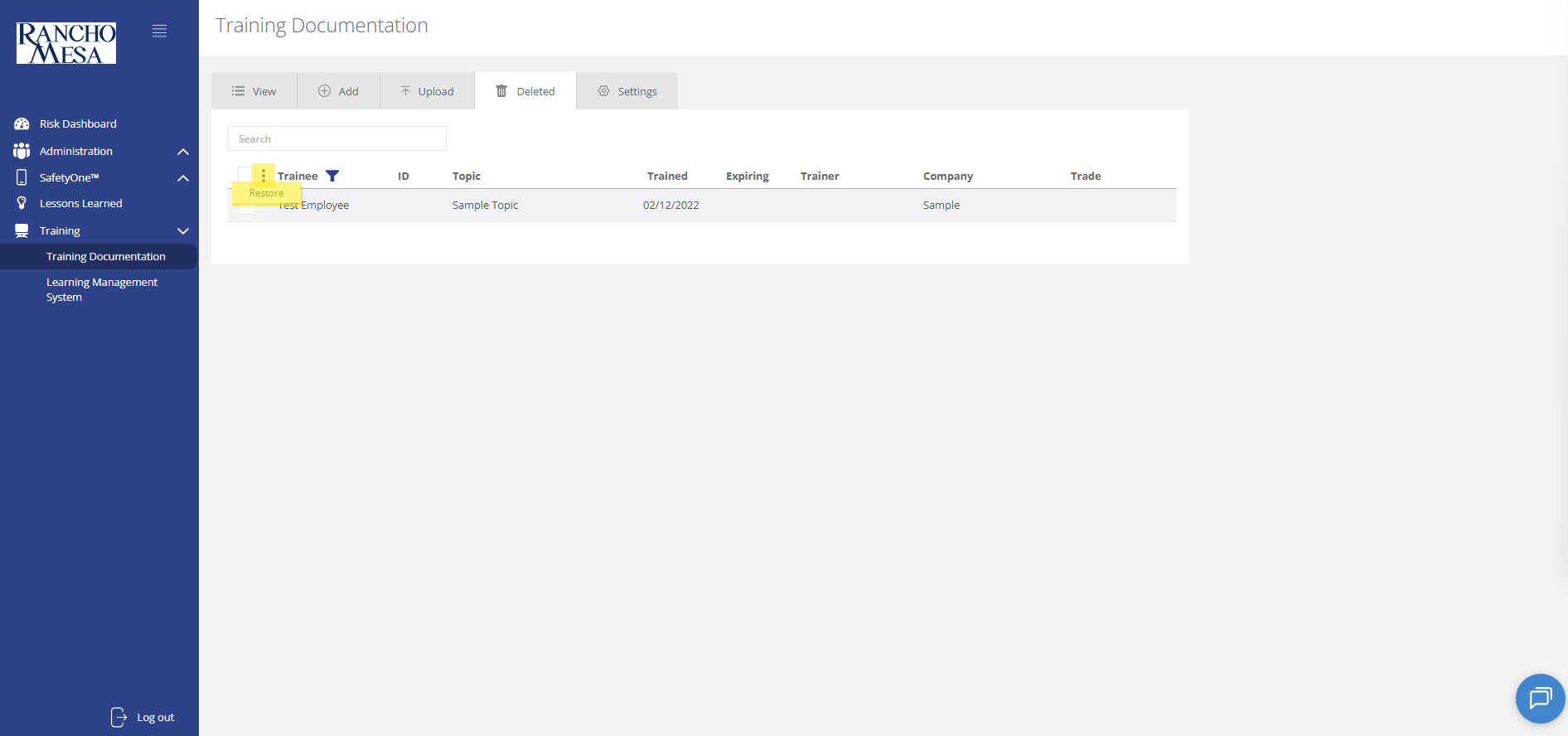
To restore a single training record, check the box to the left of the training record.
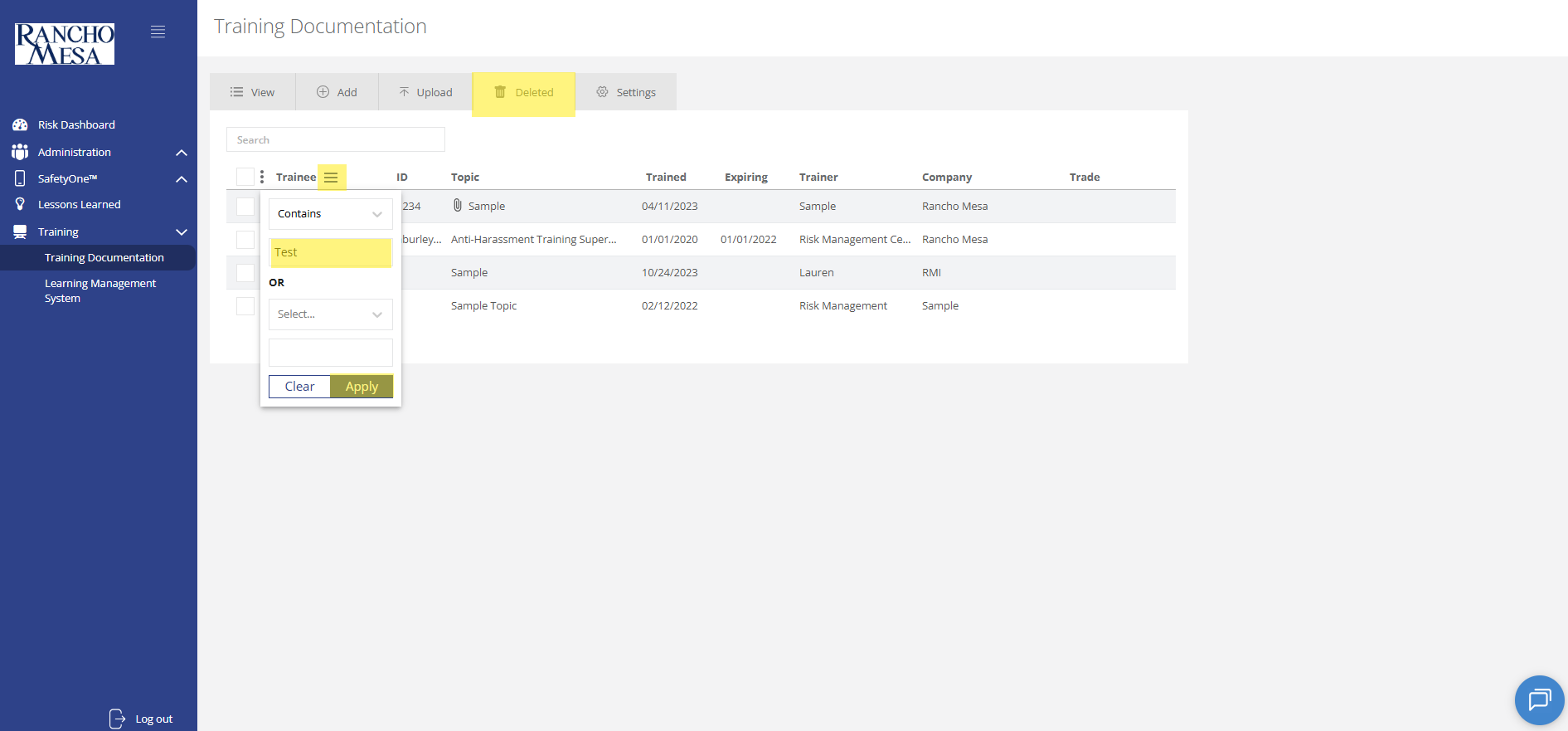
Click the three dots next to the select-all check-box. Click “Restore.” A prompt box will appear and you will be asked if you want to restore the selected trainings. Click “Ok.”
How do I view training records?
To view training documentation, click on the “Training” section in the navigation panel. Then, click on “Training Documentation.”
To view training documentation, click on the “Training” section in the navigation panel. Then, click on “Training Documentation.”
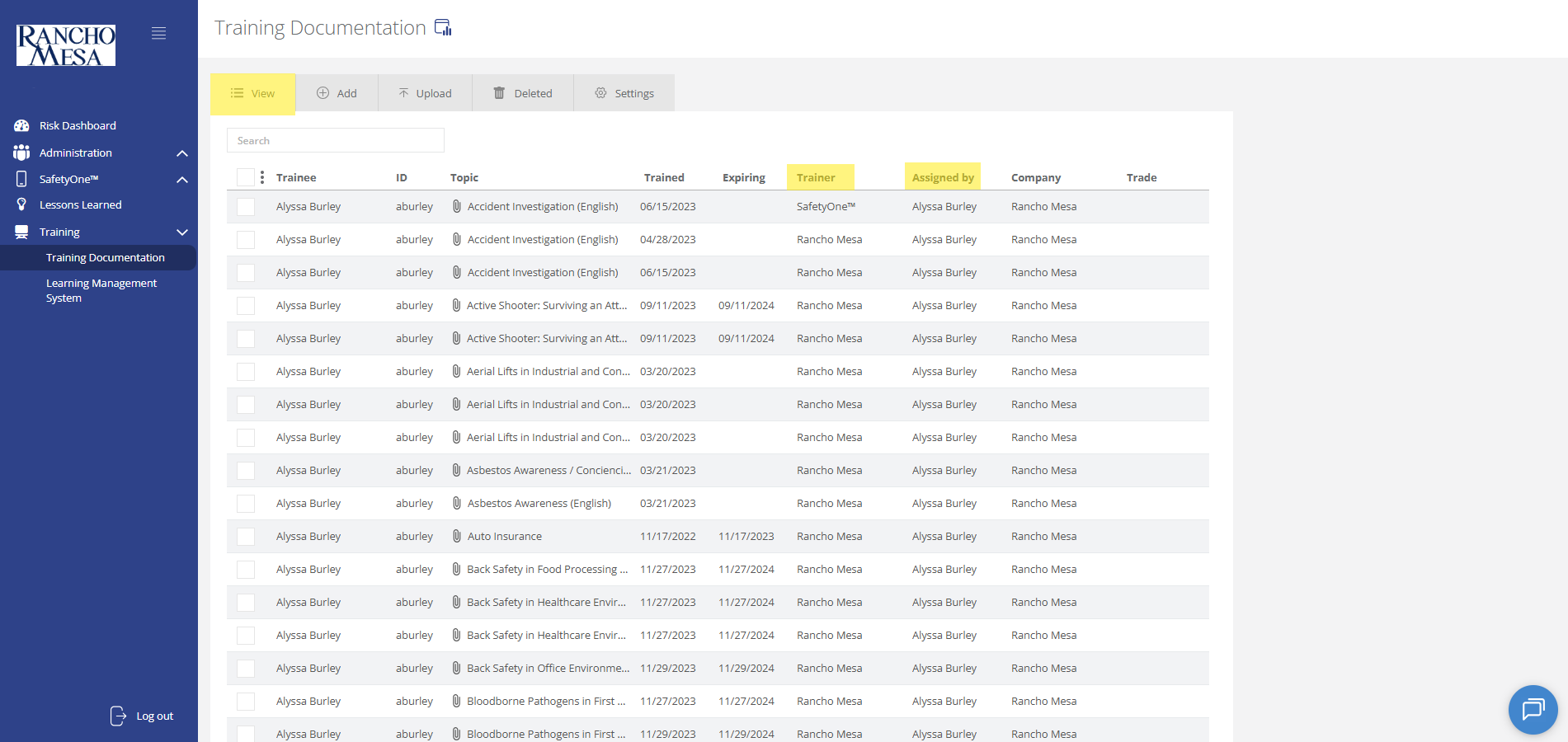
On the “View” tab, you will be able to view and search training records.
If a standard training from the library was completed through SafetyOne, the “Trainer” field will display “SafetyOne™.” If custom training content was uploaded by the administrator and the employee completed it through SafetyOne, the “Trainer” will display your company’s name. If the training record was manually added to SafetyOne, the “Trainer” will display the name entered in the “Trained By” field .
Training records prior to June 2025, may display “Rancho Mesa” as the Trainer instead of “SafetyOne” or your company name.
The “Assigned By” column displays the administrator or training manager who assigned the training to the employee.
How do I upload third-party training documentation?
Administrators can use the SafetyOne™ website to document in-person and third-party employee training.
Administrators can use the SafetyOne™ website to document in-person and third-party employee training. This feature is typically used to document CPR/First-Aid, OSHA-10, OSHA-30, and other trainings that are not administered through the SafetyOne platform.
Uploading Training Documentation
To upload training documentation, click on the “Training” section in the navigation panel. Then, click on “Training Documentation.”
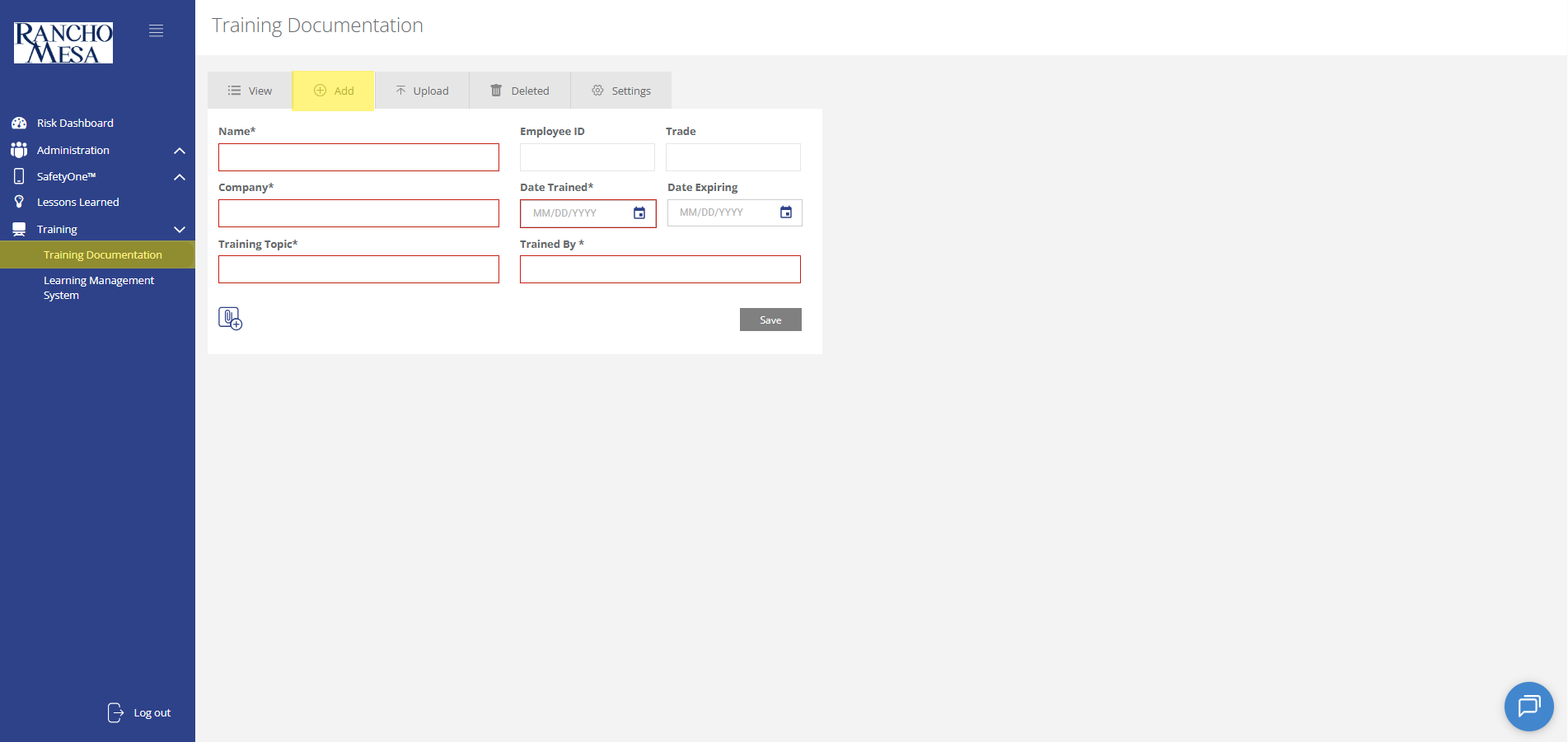
Individual employee training documentation can be added to the platform using the “Add” tab at the top of the page. Here, administrators can manually enter all required information, and attach a PDF of the employee’s certificate of completion.
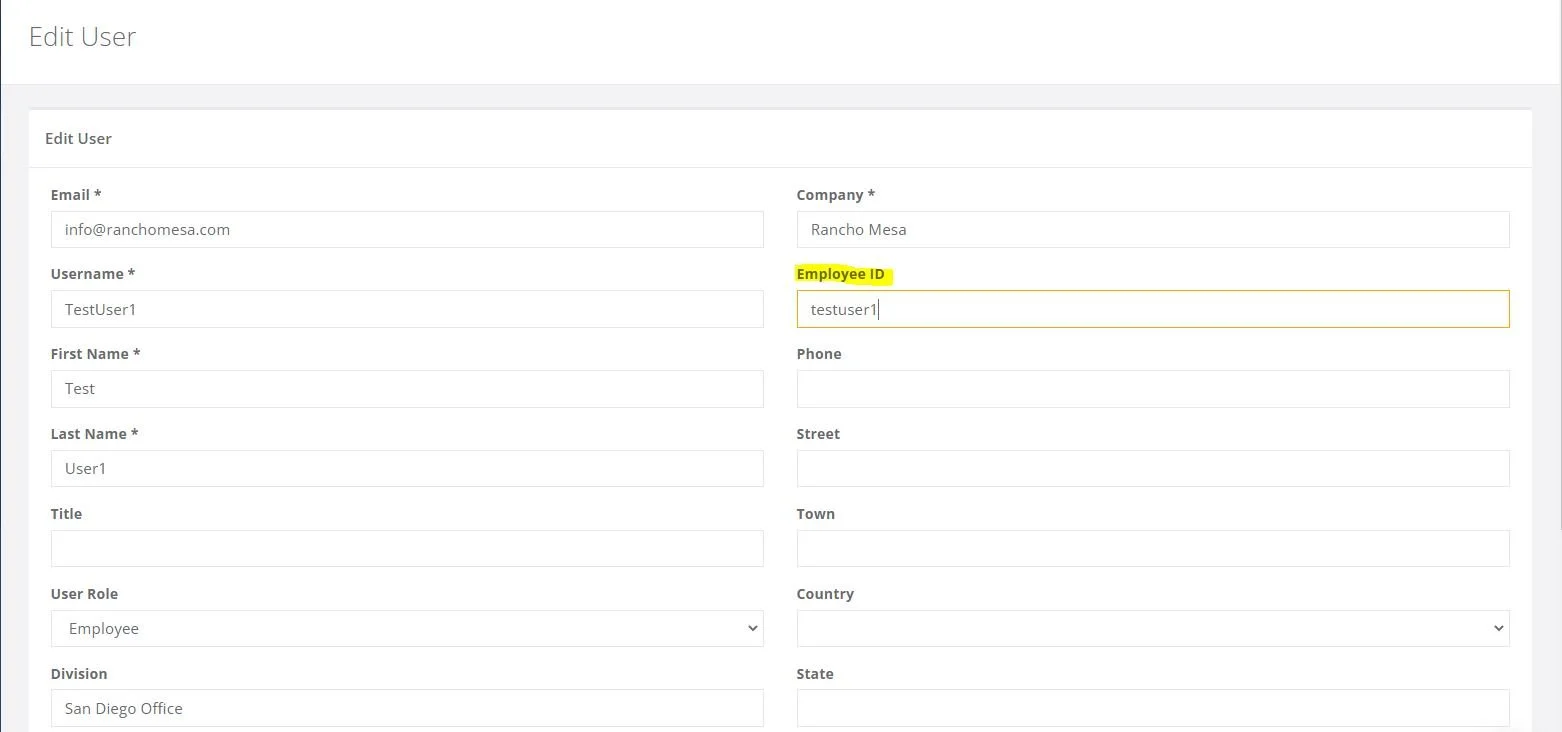
Note: we highly recommend including the Employee ID for all training documentation. The Employee ID field is used to link the training record to the employee and is required in order to display the employee’s training history that is accessible through an employee’s custom QR Code.
When all information has been entered, click the “Save” button in the right corner.
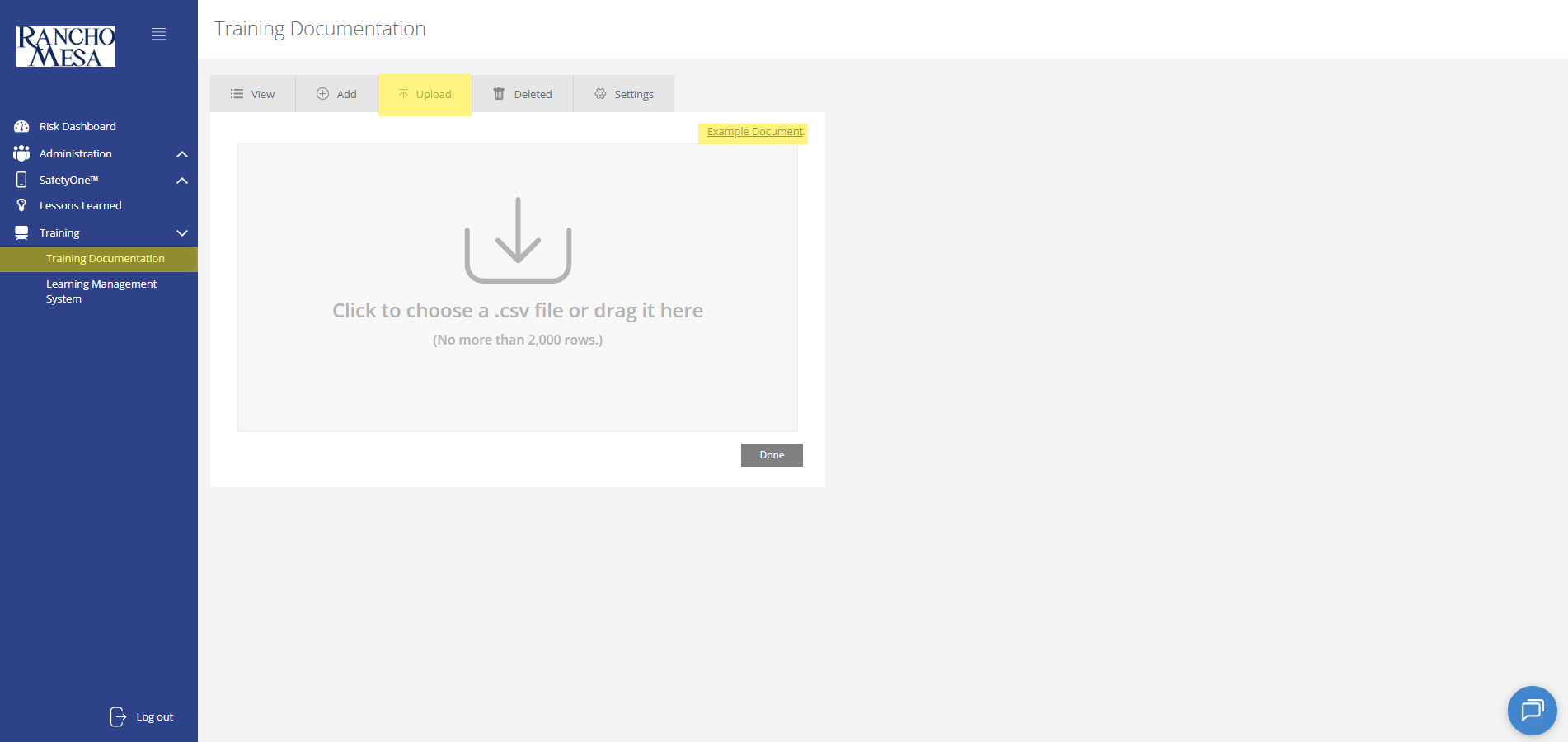
Training records for a group of employees can be uploaded in bulk using the “Upload” tab at the top of the page. Administrators can upload a .CSV file with all required information for each employee. Again, we highly recommend including the Employee ID.
An example document for upload can be found by clicking the “Example Document” link in the right corner of the screen. Once you have uploaded the .CSV file, click the “Done” button in the bottom right corner.
Required information for both individual and bulk uploads are: name, company, training topic, date trained, and trained by. However, employee ID (highly recommended), date expiring, and trade are optional.
Certificates of Completion cannot be uploaded using the bulk upload feature. Each certificate will need to be manually added to the individual training records, once the training record populates within the Training Documentation Screen.
Attaching Certificate of Completion to Individual Training Records
Click on the “View” tab at the top of the screen to view and search training records.
Click on the Employee’s name. This will open the record and allow you to edit the record.
Select the paperclip icon in the bottom left corner of the record. This will open your computer file folders. Select the applicable certificate of completion file. Then click “Save.”

How do I schedule online training reminder emails?
Administrators can schedule training reminder emails through the SafetyOne™ website to help keep employees up-to-date with their necessary safety trainings.
Administrators can schedule training reminder emails through the SafetyOne™ website to help keep employees up-to-date with their necessary safety trainings.
Log in to the SafetyOne website, click on the “Training” section in the navigation panel. Then, click on “Learning Management System.”
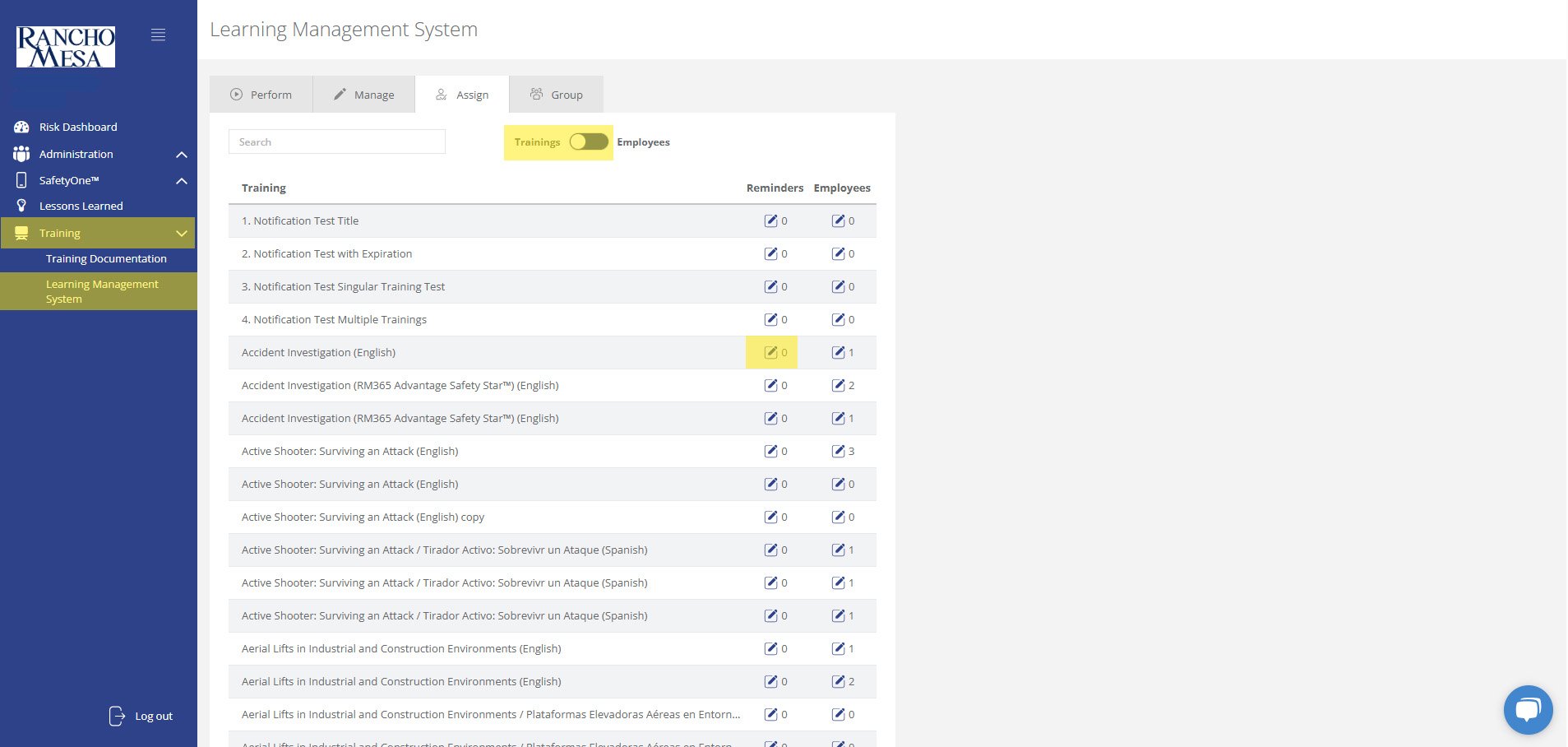
Click on the “Assign” tab at the top of the page. This will open a list of all available trainings. Make sure the toggle switch at the top of the page is set to “Trainings.”
For each training that you would like to send reminders, click the pencil icon in the “Reminders” column.
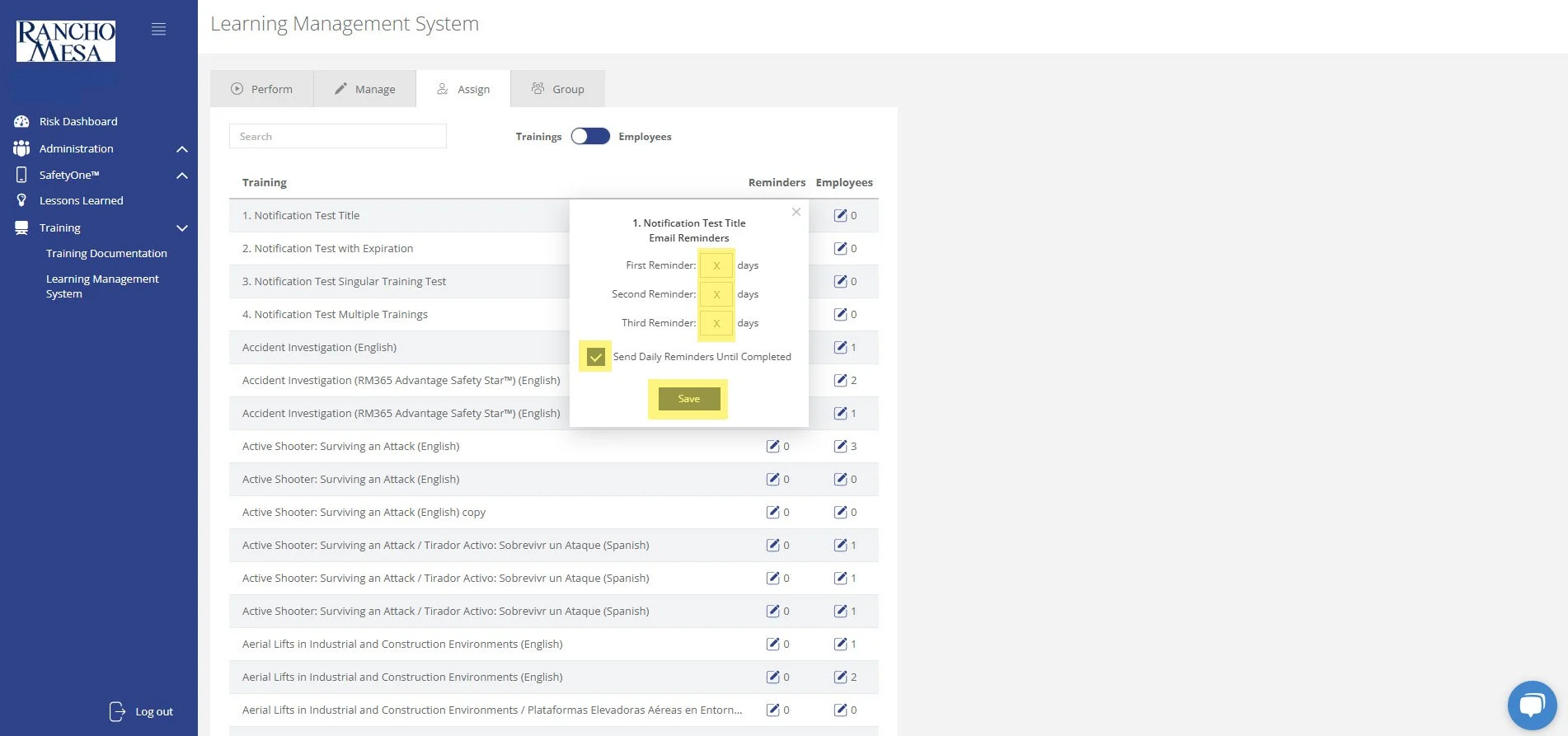
Enter the number of days after the training has been assigned that you would like the first, second and third email reminders to be sent and/or check the box to “Send Daily Reminders Until Completed”. Click “Save.”
In this example, if you assign an employee a training on January 1st and the first reminder is set for 7 days, the second reminder is set for 14 days, and the third reminder is set for 21 days, the employee will receive email reminders on the January 8th, 15th and 22nd if they haven’t completed the training. Furthermore, if you also check the “Send Daily Reminders Until Completed” box, the employee will receive an email reminder on January 23rd and every day after that until the training is completed.
The first, second, third and daily reminders can be used in any combination to suite your company’s training policy.
Once a reminder is setup for a training, all employees assigned to the training will receive the reminders based on the specific criteria until the employee has completed the training.
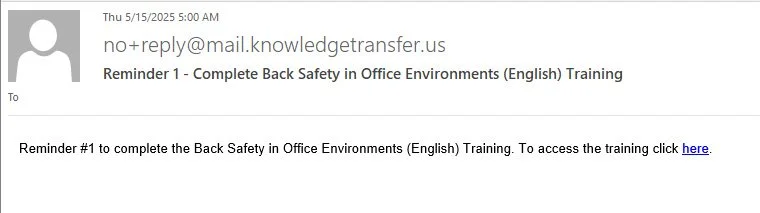
For example, if an employee was already assigned a training on January 1st and has not completed the training by the time the email reminders were setup on February 1st, the employee may receive email reminders depending on how they were setup.
If the first reminder was scheduled for 10 days, the second reminder was set for 25 days, and the third reminder was set for 45 days, and the “Send Daily Reminders Until Completed” box was not checked, the employee would only receive the third email reminder since they are based on the date the training was assigned. However, if the “Send Daily Reminders Until Completed” box was checked, the employee would receive the third email reminder and a daily reminder until the training was completed.
How should I use job groups when assigning training?
Job training groups work the same way as employee groups, only you group trainings together rather than employees. This allows you to choose a list of trainings that need to be done within a group rather than having to make each training active when you assign training to employees.
Job training groups work the same way as employee groups, only you group trainings together rather than employees. This allows you to choose a list of trainings that need to be done within a group rather than having to make each training active when you assign training to employees.
For our example, we can create a “Driver Training” job training group for all the driver trainings that are available in the platform..
How should I use employee groups when assigning online training?
Employee groups can be set up when there are employees that are categorized the same way and take the same training. This makes it easier to assign training to a group of people rather than assign them one at a time.
Employee groups can be set up when there are employees that are categorized the same way and take the same training. This makes it easier to assign training to a group of people rather than assign them one at a time.
For example, there might be a group of supervisors that need a specific sexual harassment prevention training course and another group of employees who need a different sexual harassment prevention training. By creating employee groups, these supervisors or employees can be grouped together. This makes assigning trainings easy.
Why aren't my employee's Certifications showing up when we scan their QR Code?
The employee certifications and training history is available via the employee’s individual QR codes when the employee has an employee ID entered on the desktop administrator website and the certification/training record is in the Training section of the desktop administrator website.
The employee certifications and training history is available via the employee’s individual QR codes when the employee has an employee ID entered on the desktop administrator website and the certification/training record is in the Training section of the desktop administrator website.
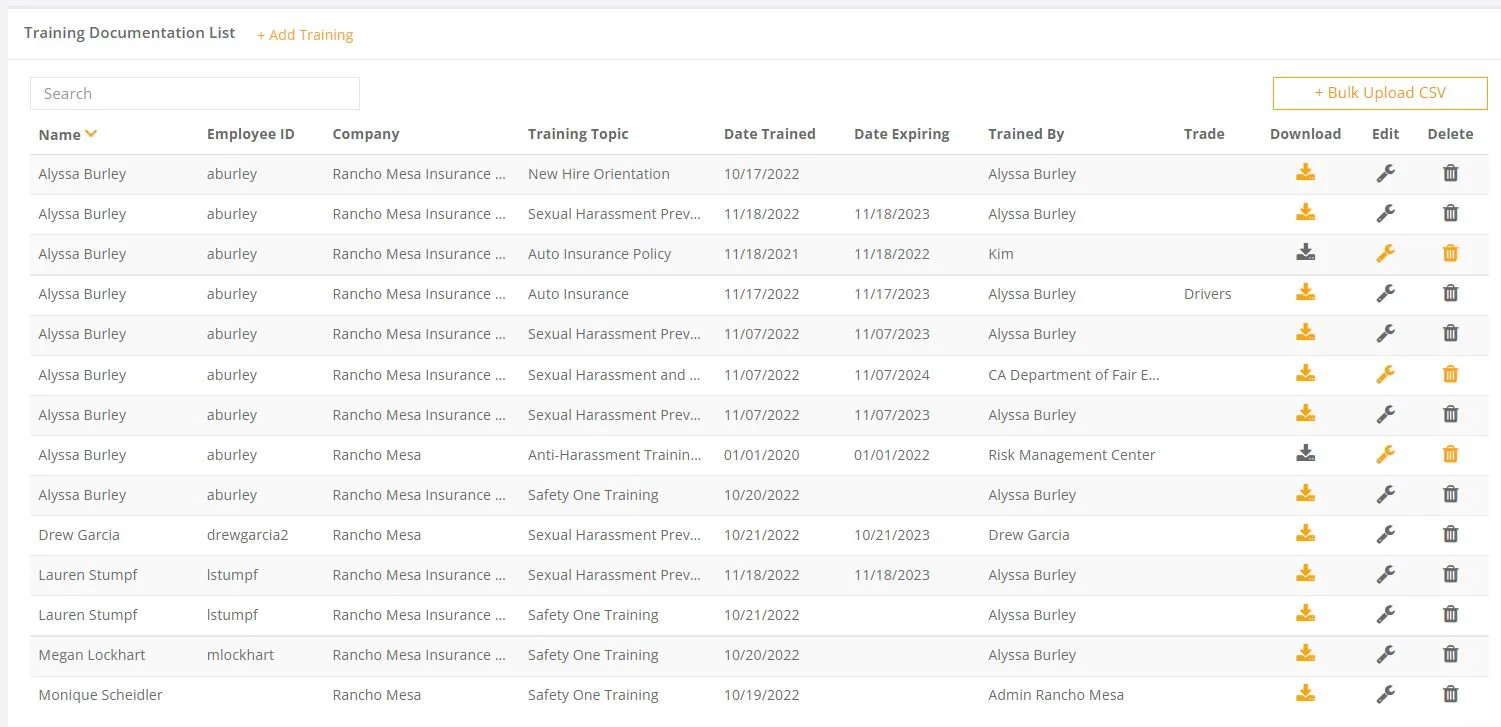
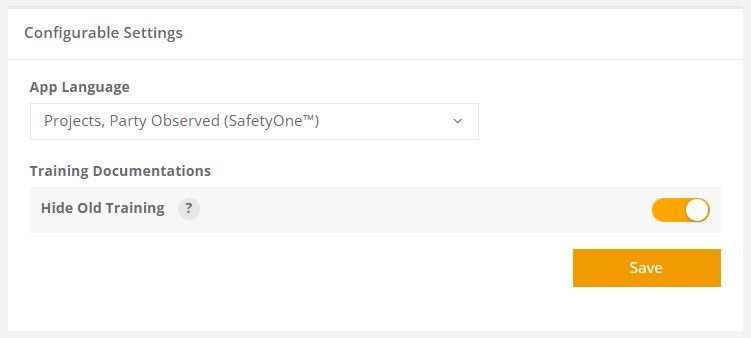
Note, the Training Documentation “Hide Old Training” option will affect if all certifications/trainings are shown or just the most current version.