Can I create a QR Code for a document in the File Cabinet?
While SafetyOne™ currently does not generate QR codes for documents stored within the file cabinet, QR codes can be created using a third-party generator using the document’s URL.
While SafetyOne™ currently does not generate QR codes for documents stored within the file cabinet, QR codes can be created using a third-party generator using the document’s URL.
First, login into the SafetyOne website as an Administrator.
GENERATE URL LINK TO DOCUMENT
Click “SafetyOne” in the navigation panel, then click “File Cabinet.”
Click the down arrow for the folder where your document is saved.
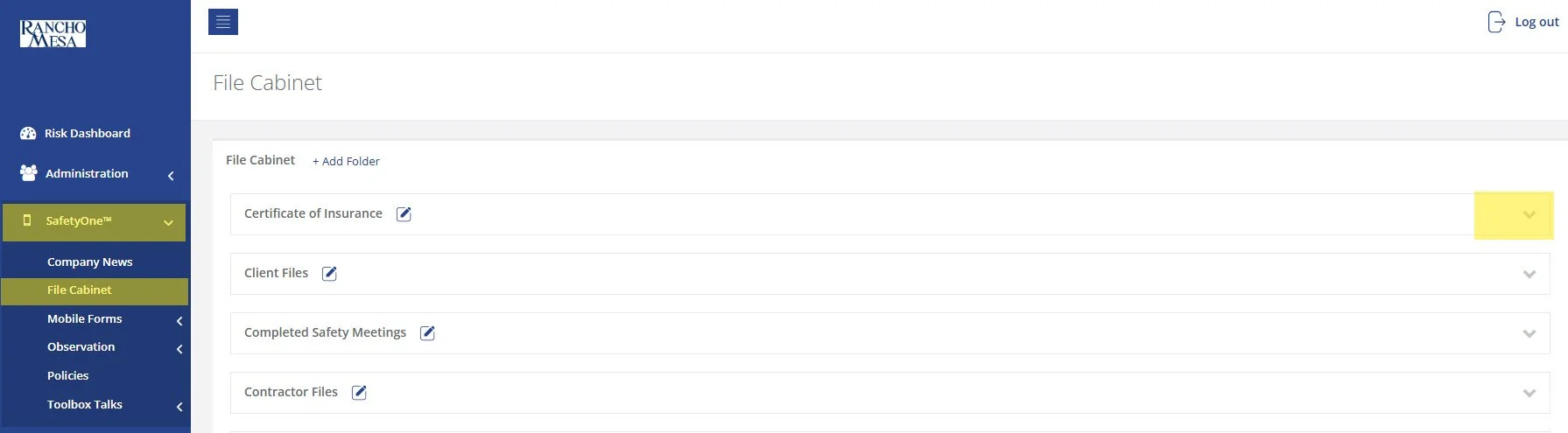
Find your document in the list and click the “Share” icon. This will generate a unique URL link to that document.
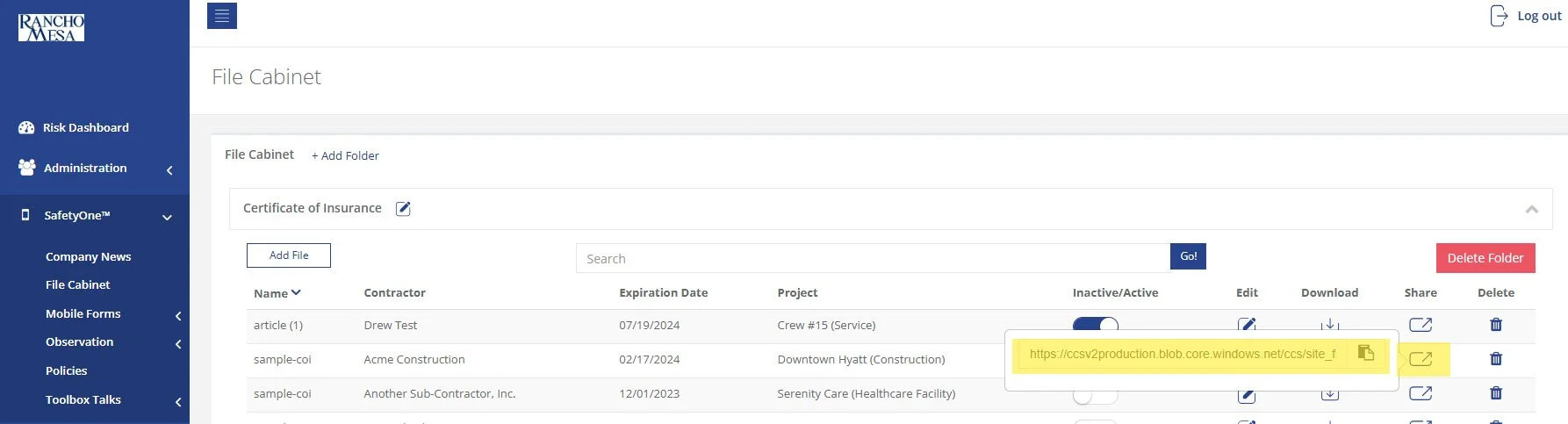
Open a third-party QR code generator. There are many options available online.
Paste the document’s unique URL into your third-party QR Code generator.
Download, print or share the QR Code from the third-party website.
Note: If you replace or update the document in the file cabinet, you will need to create a new QR Code.
How can I create a QR Code for a Mobile Form?
SafetyOne™ administrators can generate QR codes for mobile forms. This is useful when non-mobile app users need to complete a mobile form.
SafetyOne™ administrators can generate QR codes for mobile forms. This is useful when non-mobile app users need to complete a mobile form.
To create a QR Code for a Mobile Form, first log in to your SafetyOne website account as the administrator.
ASSIGN A MOBILE FORM TO PROJECT(S)
In order to generate a mobile form QR code, the mobile form must be assigned to a Project.
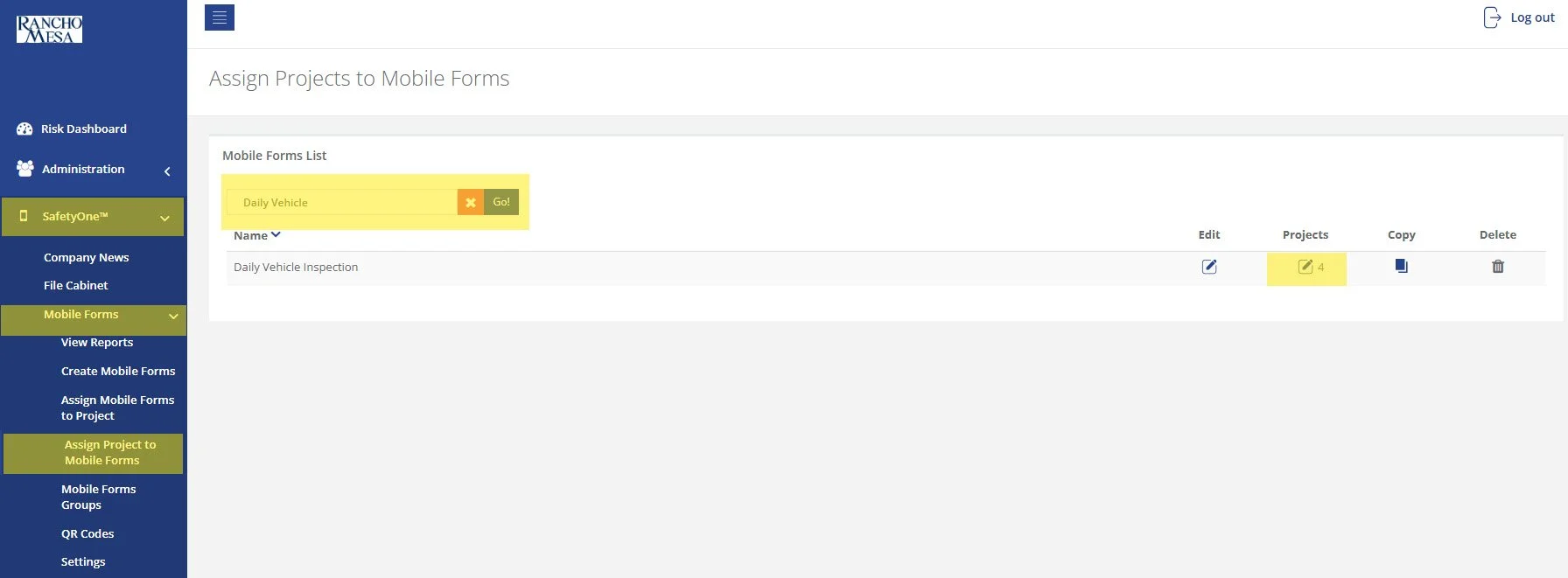
To assign a mobile form to a project, click on “SafetyOne” in the navigation panel, click on “Mobile Forms,” then click on “Assign Project to Mobile Forms.”
Use the search box to locate the specific mobile form(s) you want to assign to a project. Click the pencil icon in the projects column.
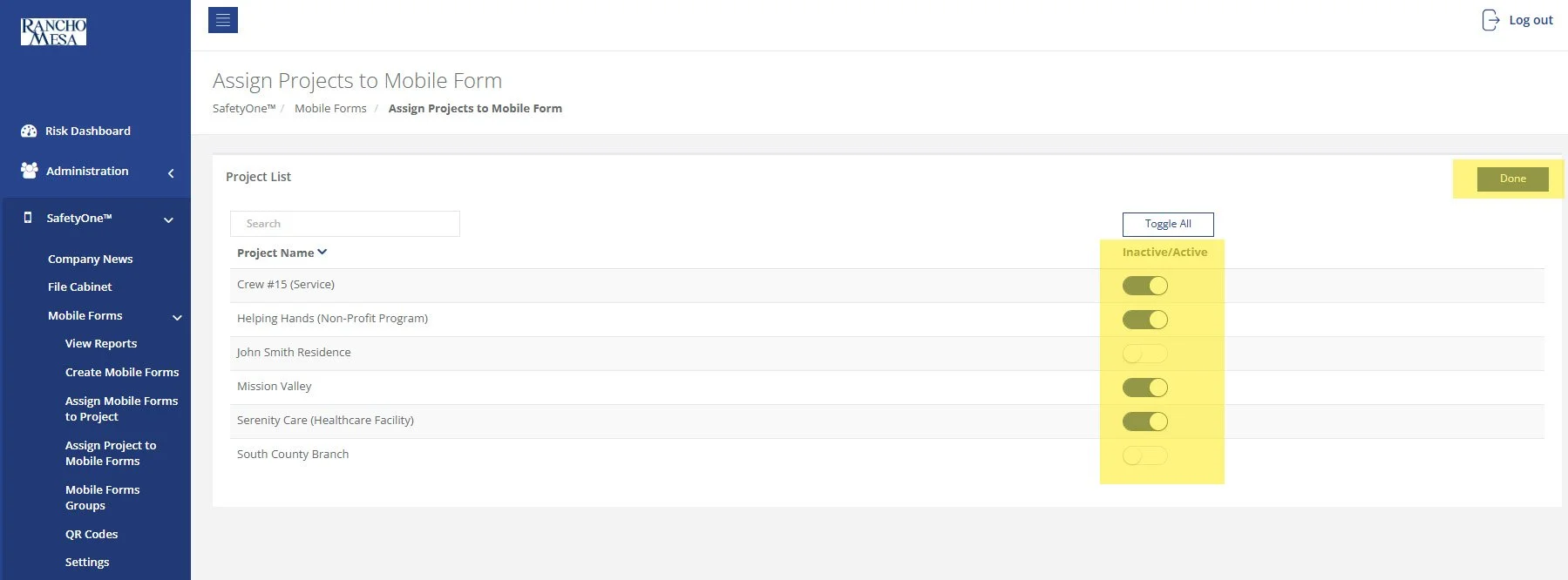
Click the “Inactive/Active” toggle switch for each project in which you want the mobile form assigned. Then click “Done.”
DOWNLOAD THE QR CODE
Now that the Mobile Form has been assigned to a project, the Administrator can download a QR Code that non-app users can use to access the form.
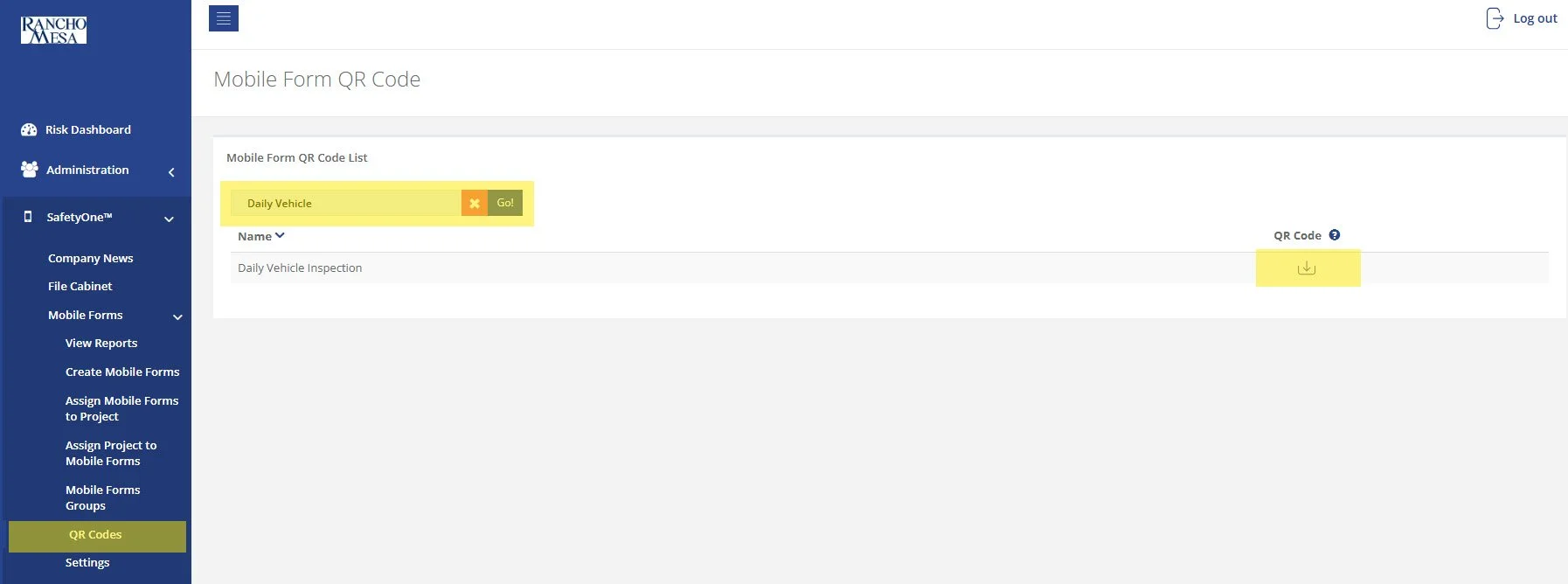
To download the QR Code, click on “QR Codes” in the navigation panel.
Use the search box to locate the Mobile Form.
Click the download button in the QR Code column.
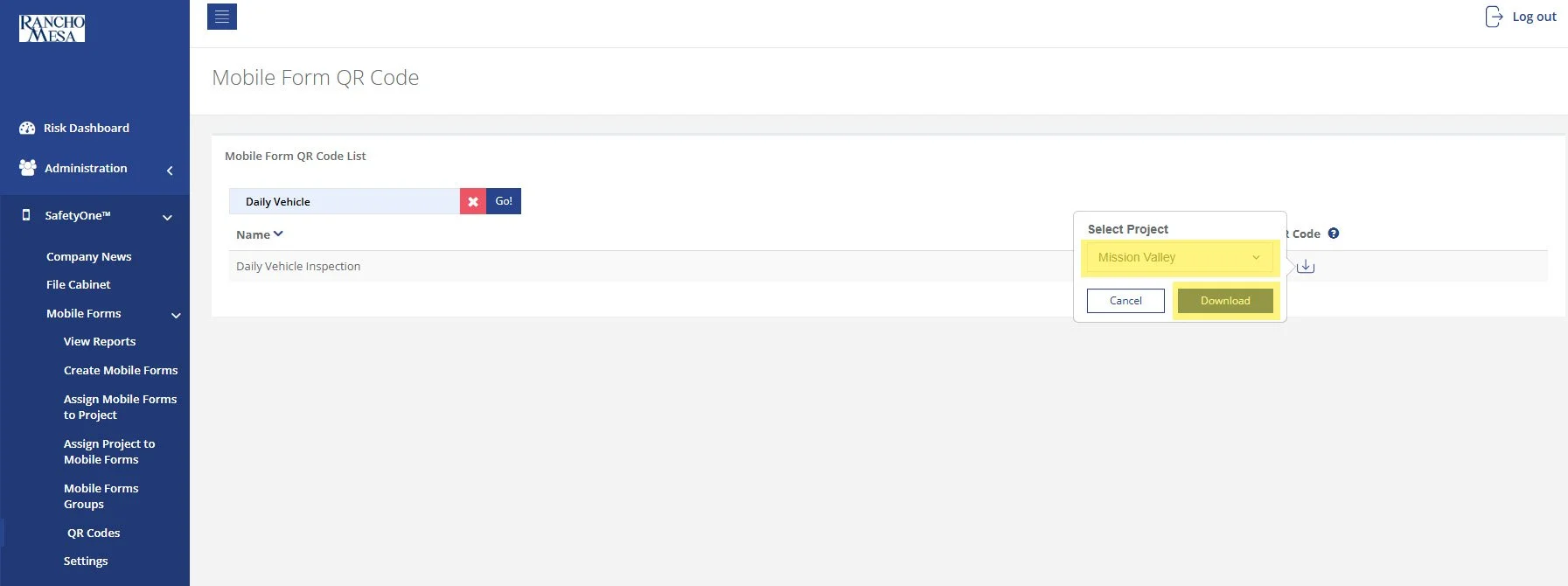
Select the project for the QR Code you want to download. Choosing this project will ensure the data collected from the Mobile Form will be associated to the project that was selected. Then, click “Download.”
The QR Code will be downloaded onto your computer and it can now be printed or shared.
How do I generate QR codes to document toolbox talk attendence?
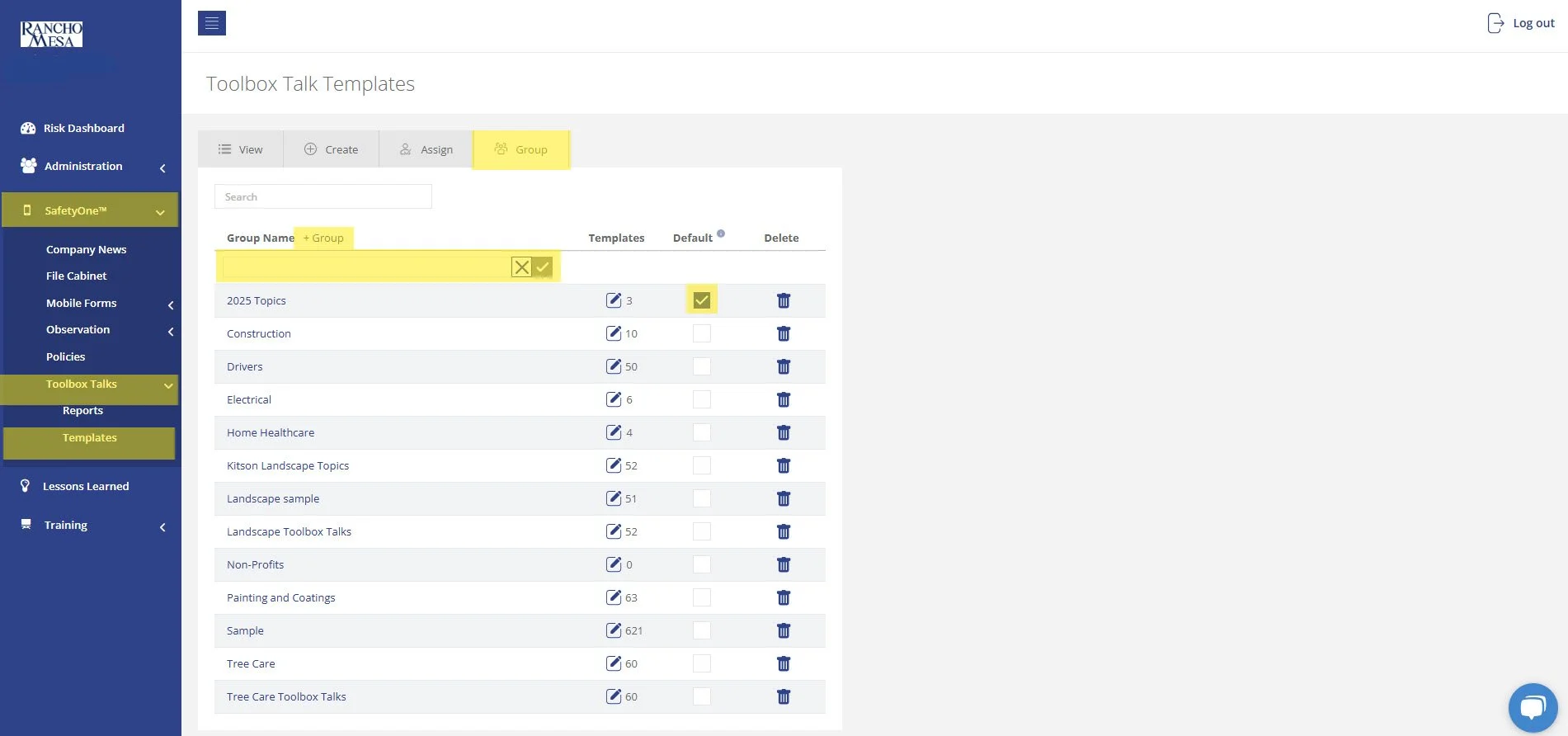
Users can review and sign toolbox talks on their own mobile device by receiving a link or scanning a QR code. Once you open a toolbox talk on your mobile device or tablet, tap the button “invite others'' that appears at the bottom of the toolbox talk screen. You will have the option to either email or text a link to employees, or generate a QR code for the toolbox talk that can be scanned.
Users can review and sign toolbox talks on their own mobile device by receiving a link or scanning a QR code.
Once you open a toolbox talk on your mobile device or tablet, tap the button “invite others'' that appears at the bottom of the toolbox talk screen. You will have the option to either email or text a link to employees, or generate a QR code for the toolbox talk that can be scanned.
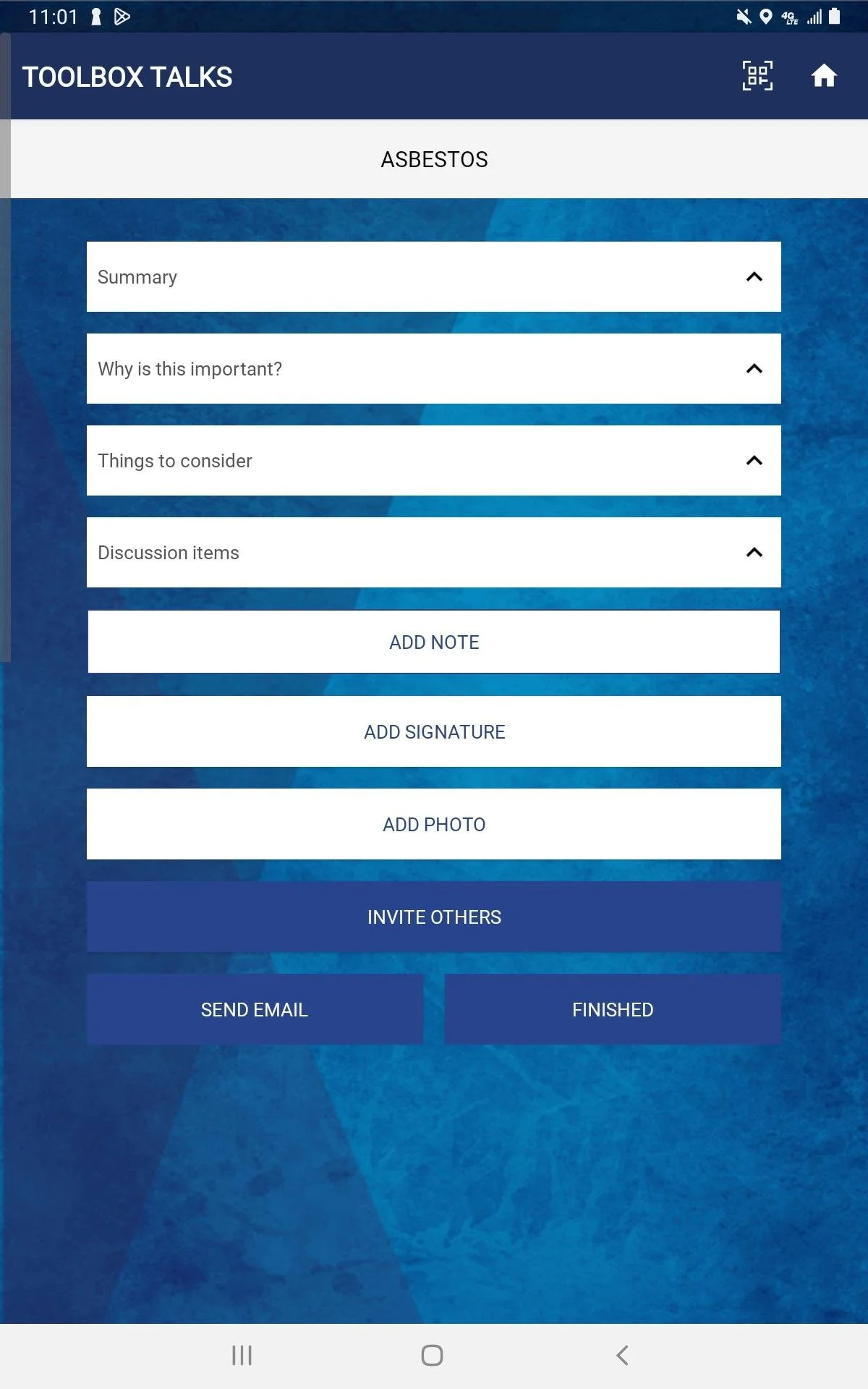
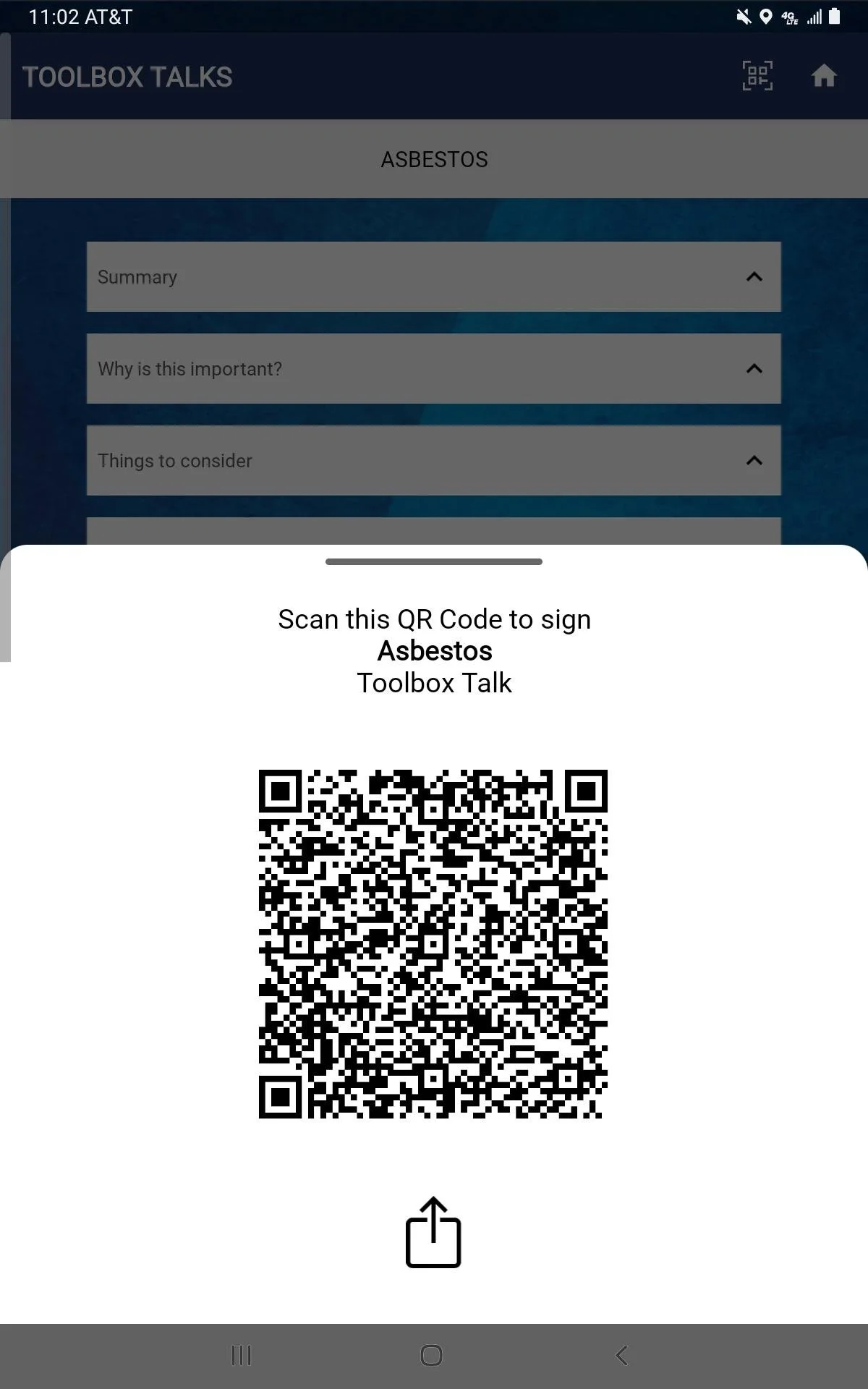
Once the employees receive the link or scan the QR code, they can then review the lesson’s information and sign the toolbox on their device, documenting their attendance/participation.
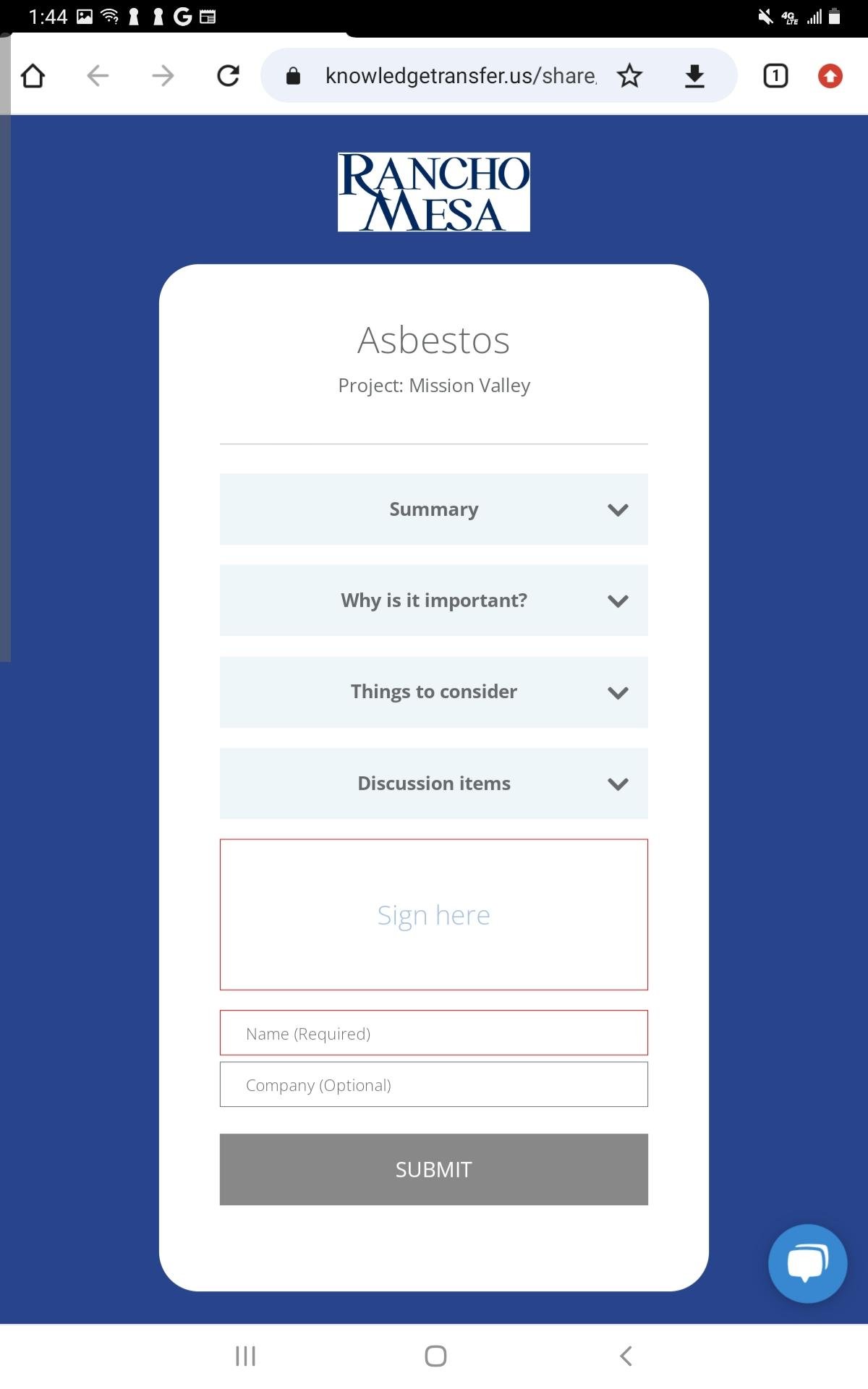
This features contribute to the ease and accessibility of SafetyOne’s mobile app, allowing for quick attendance and information distribution while in the field.
Contact your Client Technology Coordinator for additional questions.
Can I scan QR Codes from the SafetyOne™ mobile app?
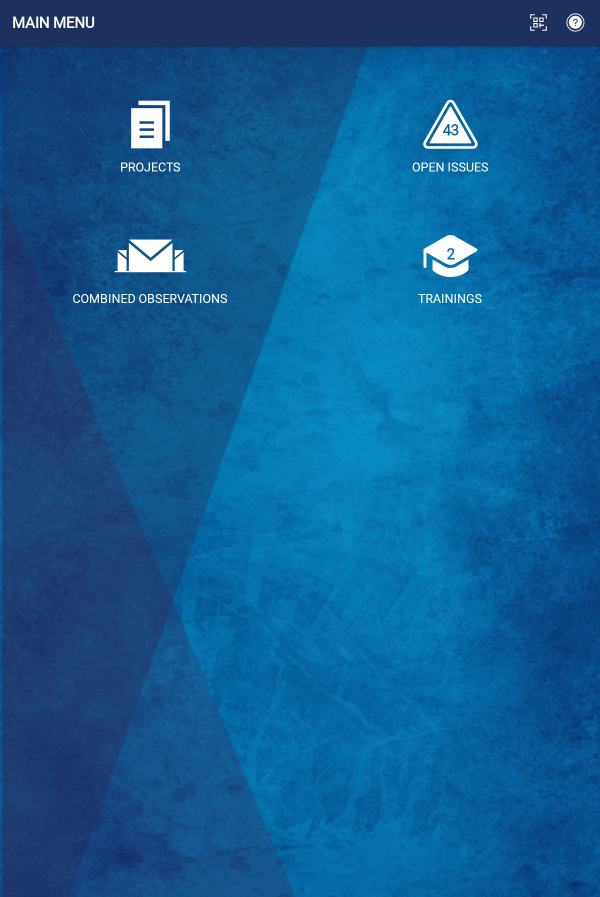
In the upper right corner of all the SafetyOne™ mobile app screens, there is a QR icon. Click the icon to open a QR Code reader. This can be used to scan any QR Codes.
In the upper right corner of all the SafetyOne™ mobile app screens, there is a QR icon. Click the icon to open a QR Code reader. This can be used to scan any QR Codes.

Why aren't my employee's Certifications showing up when we scan their QR Code?
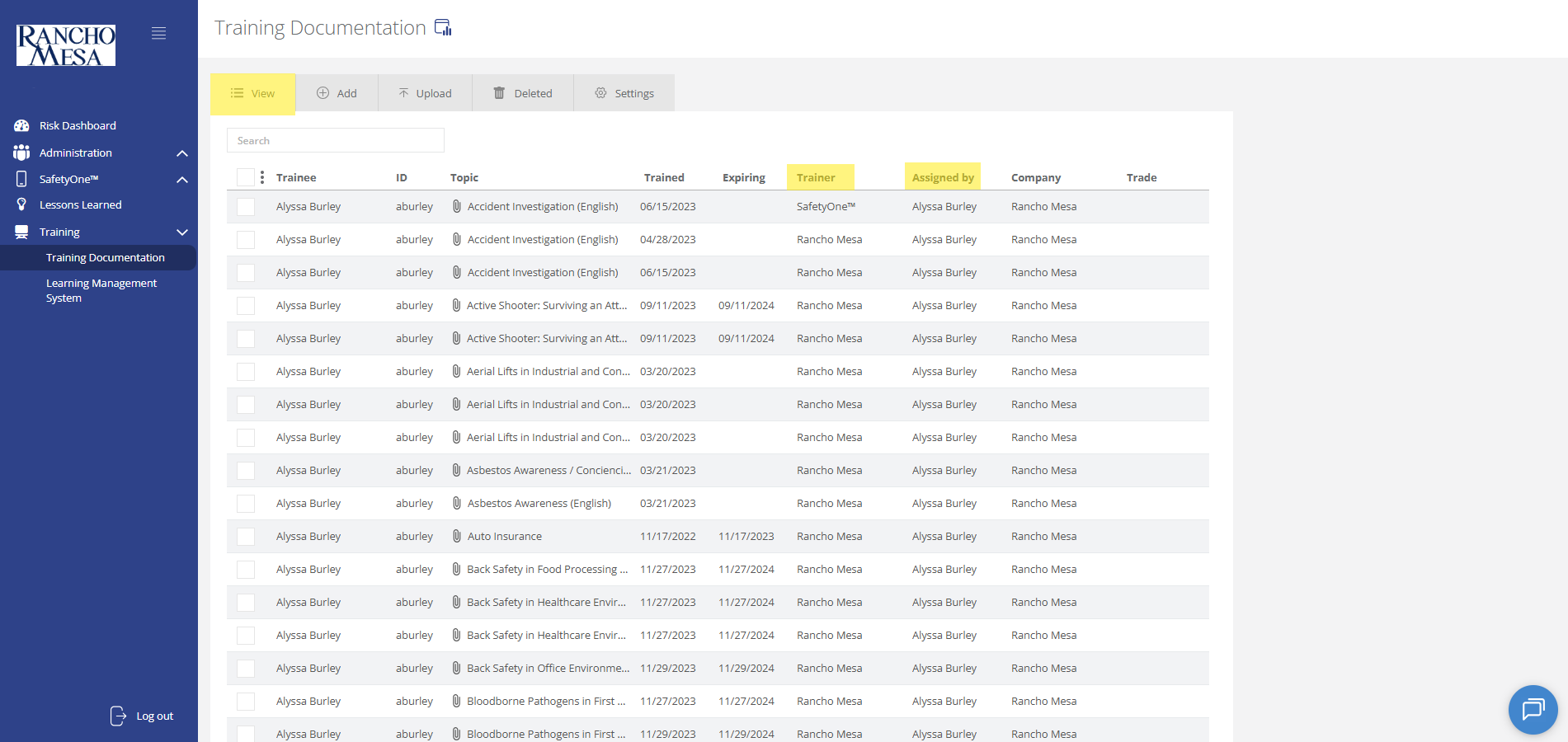
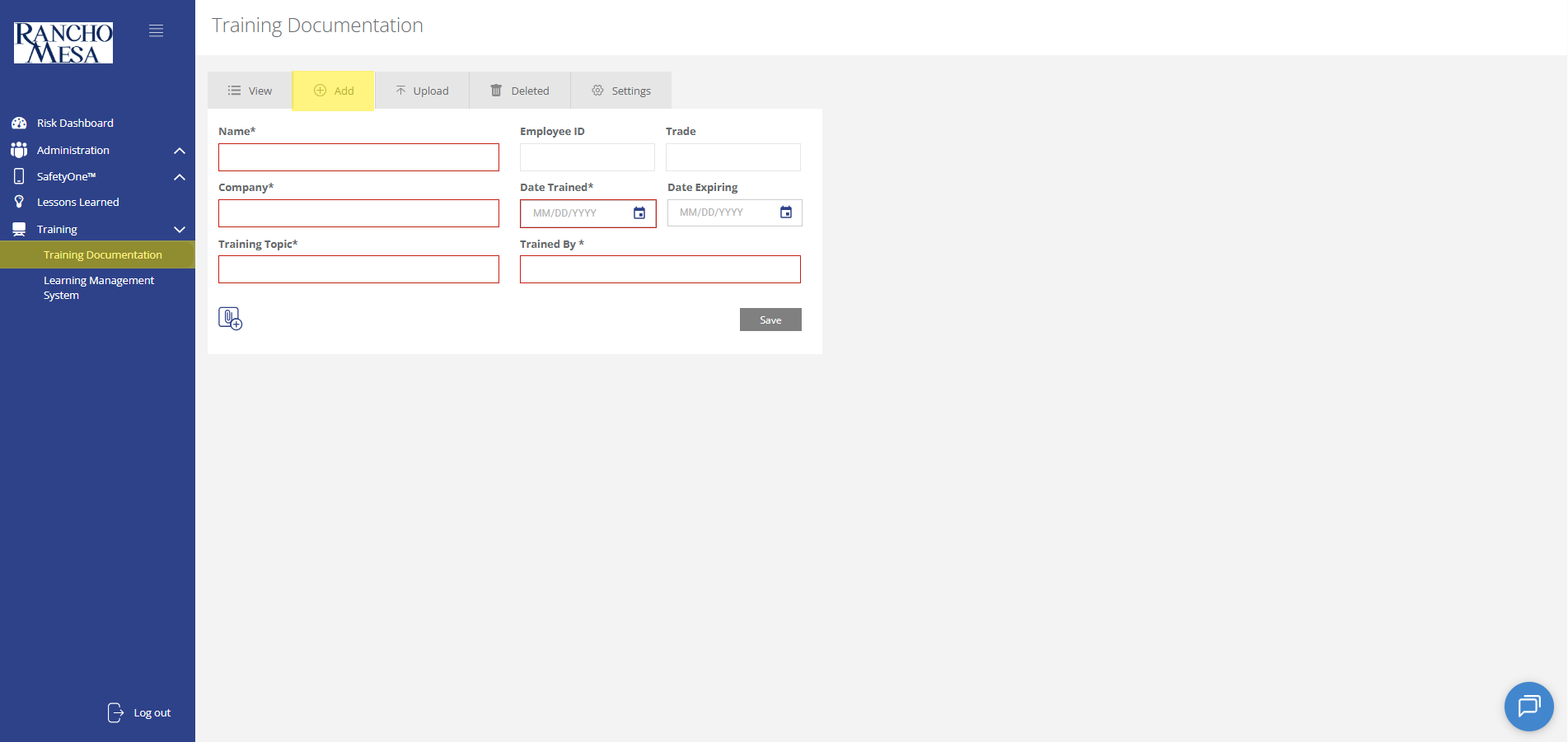
The employee certifications and training history is available via the employee’s individual QR codes when the employee has an employee ID entered on the desktop administrator website and the certification/training record is in the Training section of the desktop administrator website.
The employee certifications and training history is available via the employee’s individual QR codes when the employee has an employee ID entered on the desktop administrator website and the certification/training record is in the Training section of the desktop administrator website.
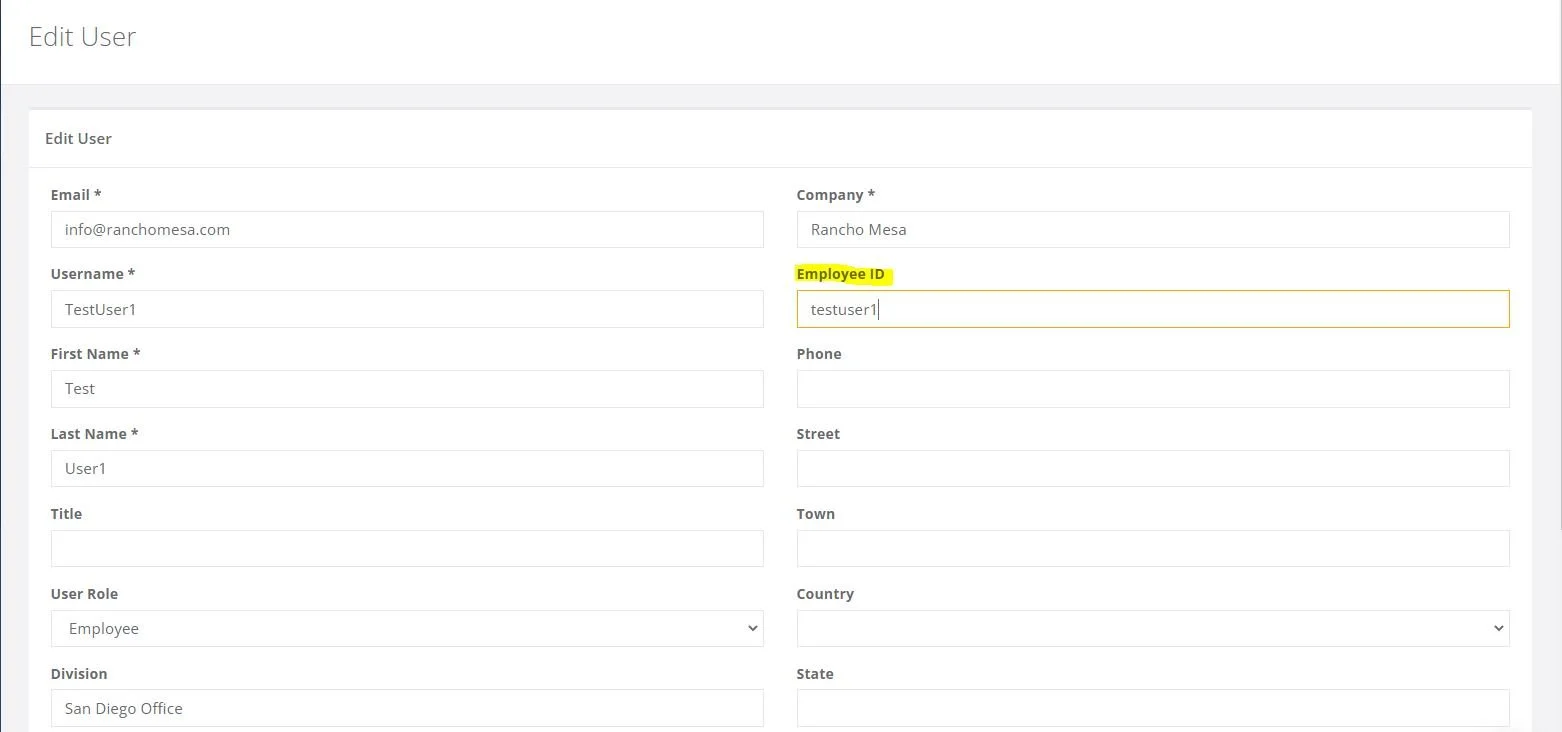
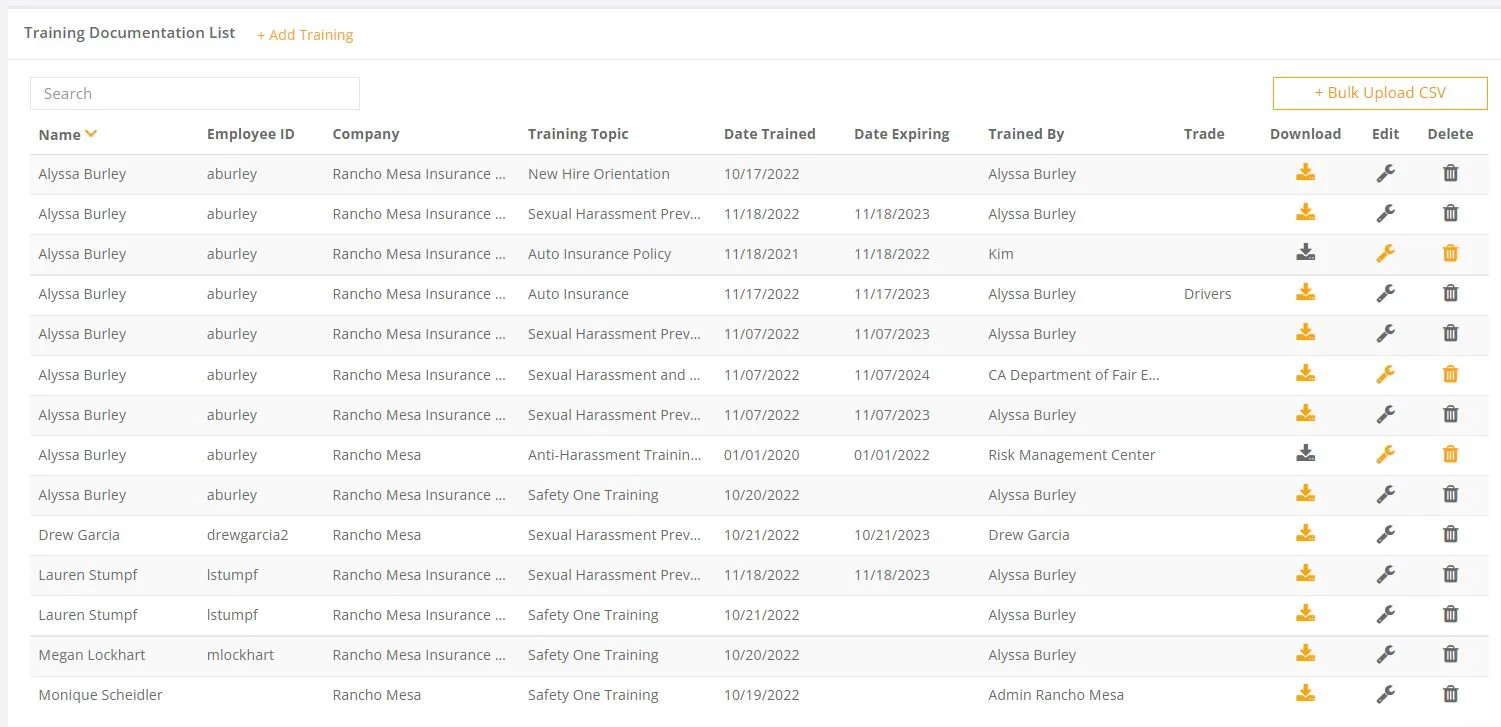
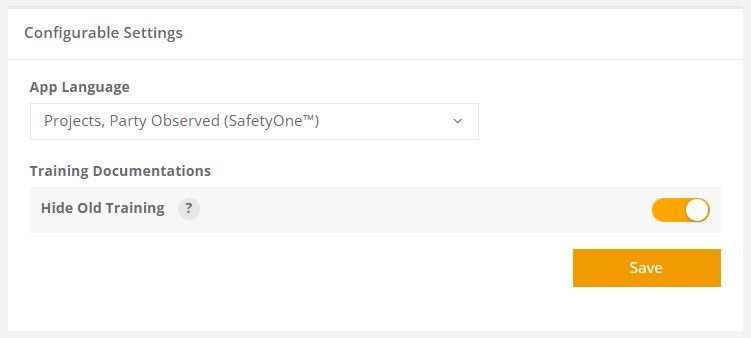
Note, the Training Documentation “Hide Old Training” option will affect if all certifications/trainings are shown or just the most current version.