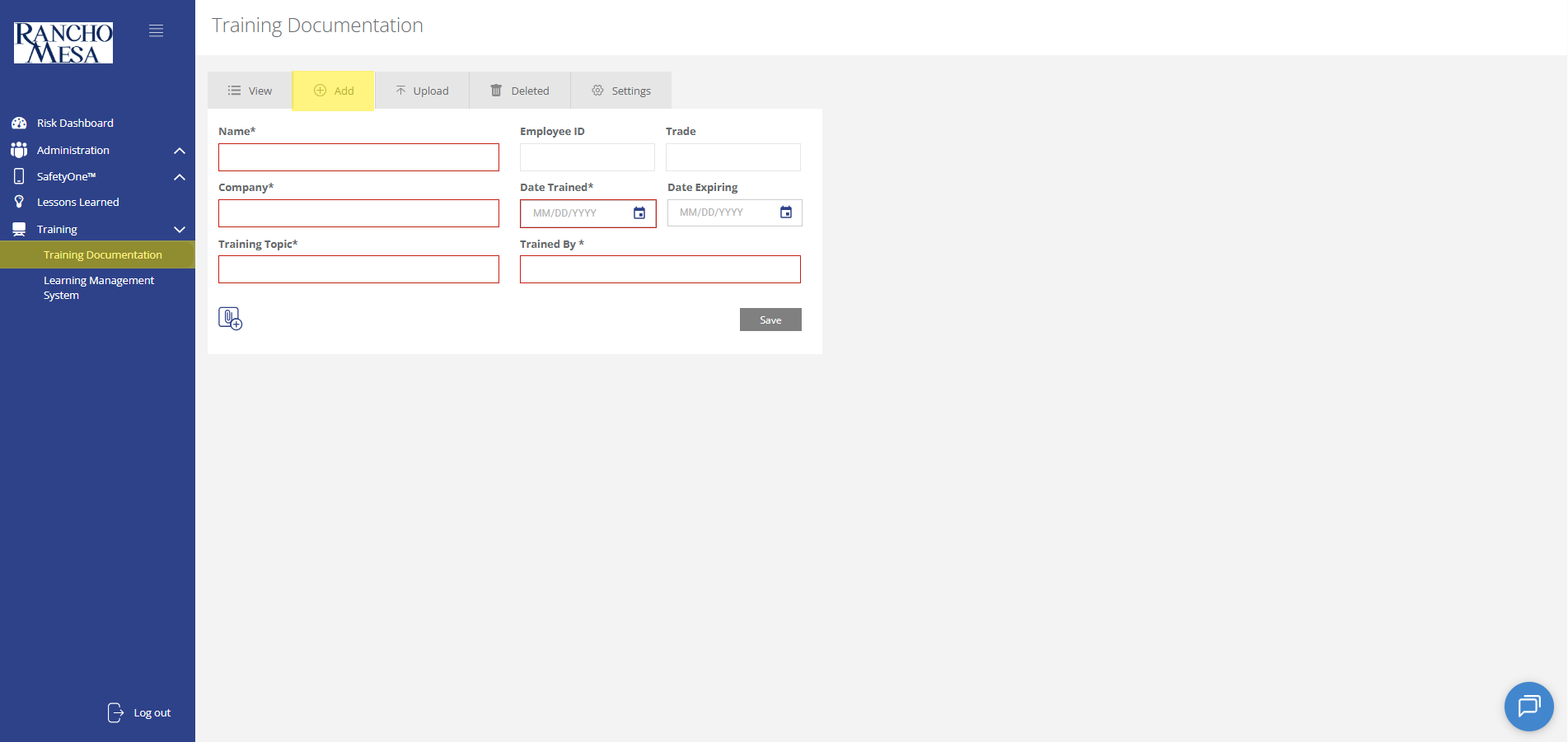
How do I upload third-party training documentation?
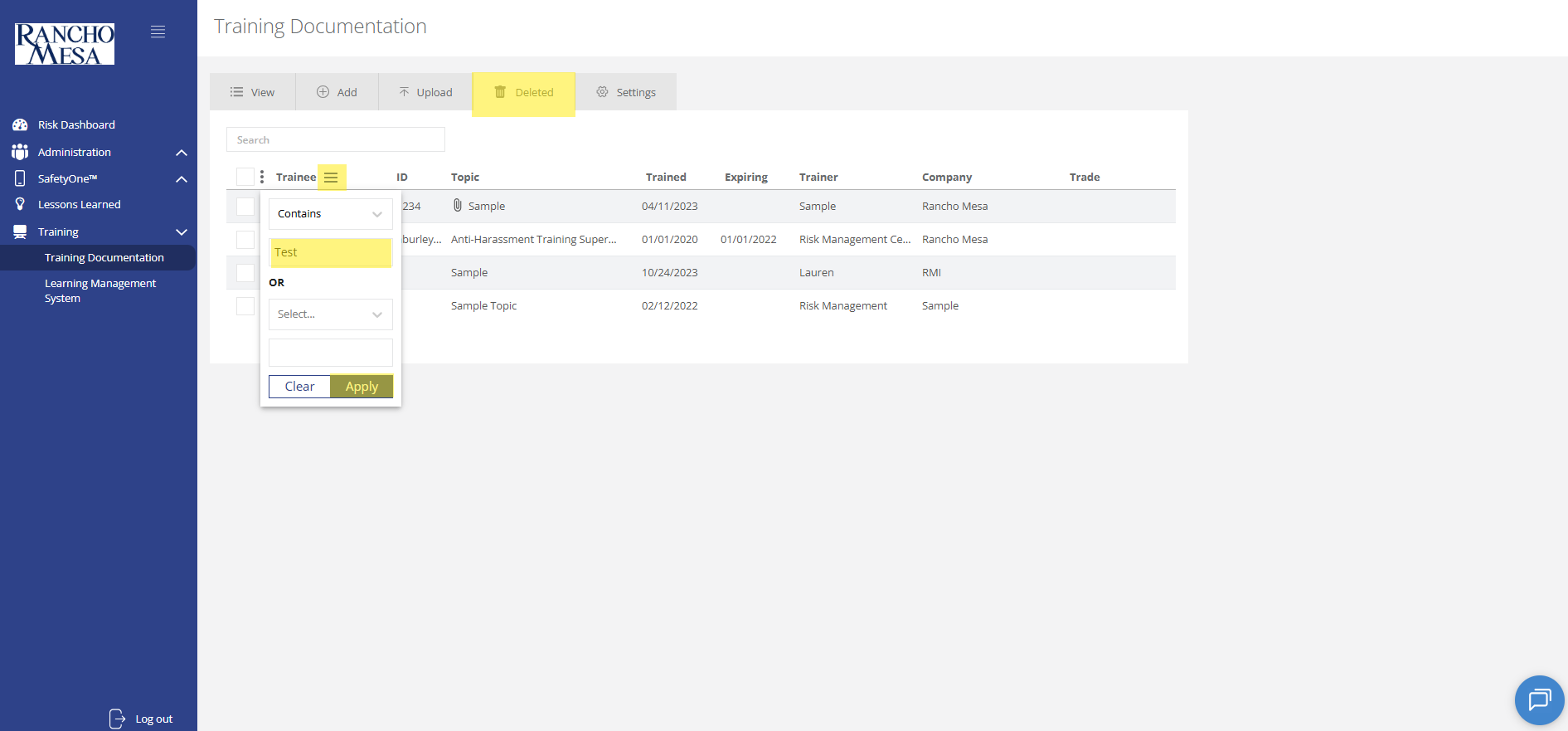
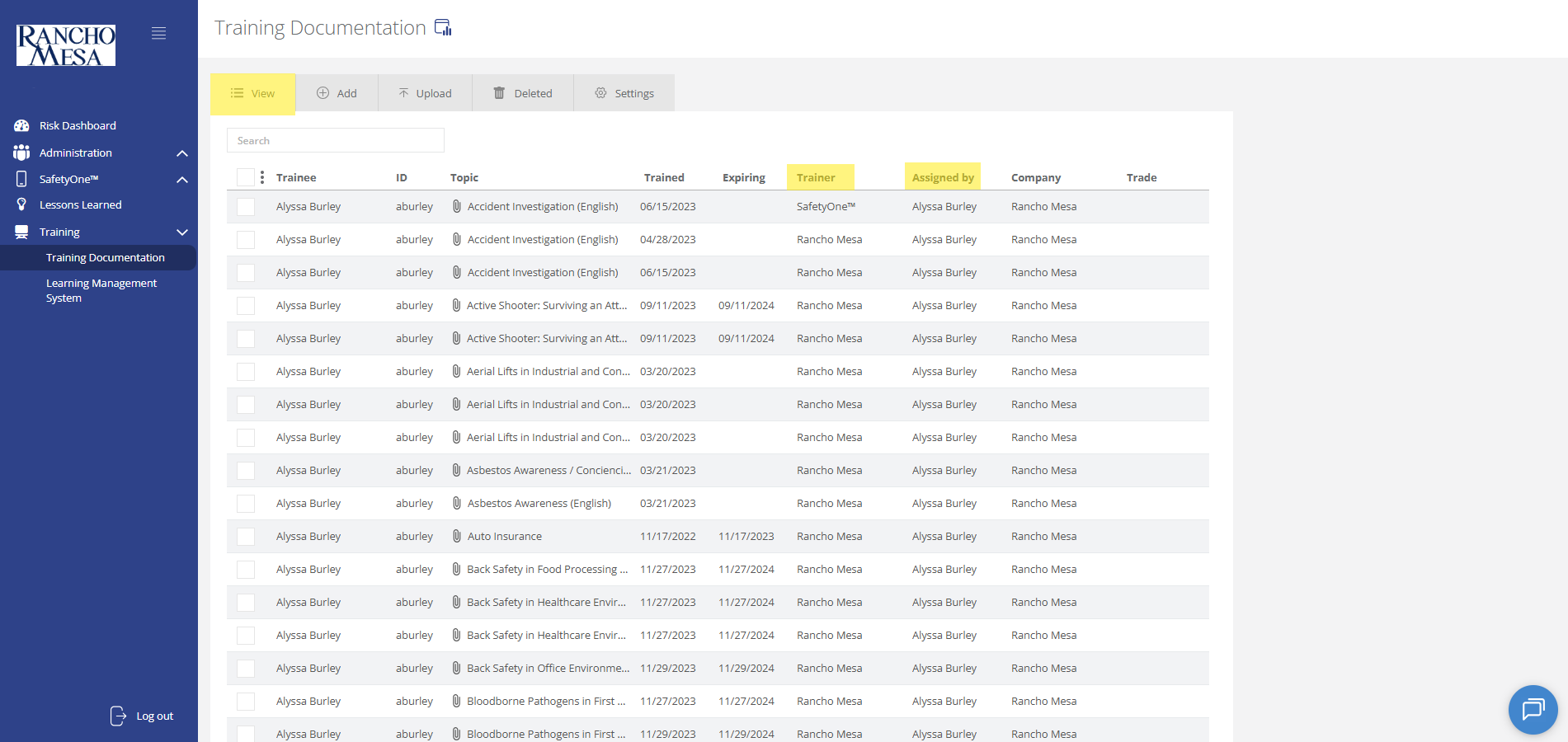
Administrators can use the SafetyOne™ website to document in-person and third-party employee training.
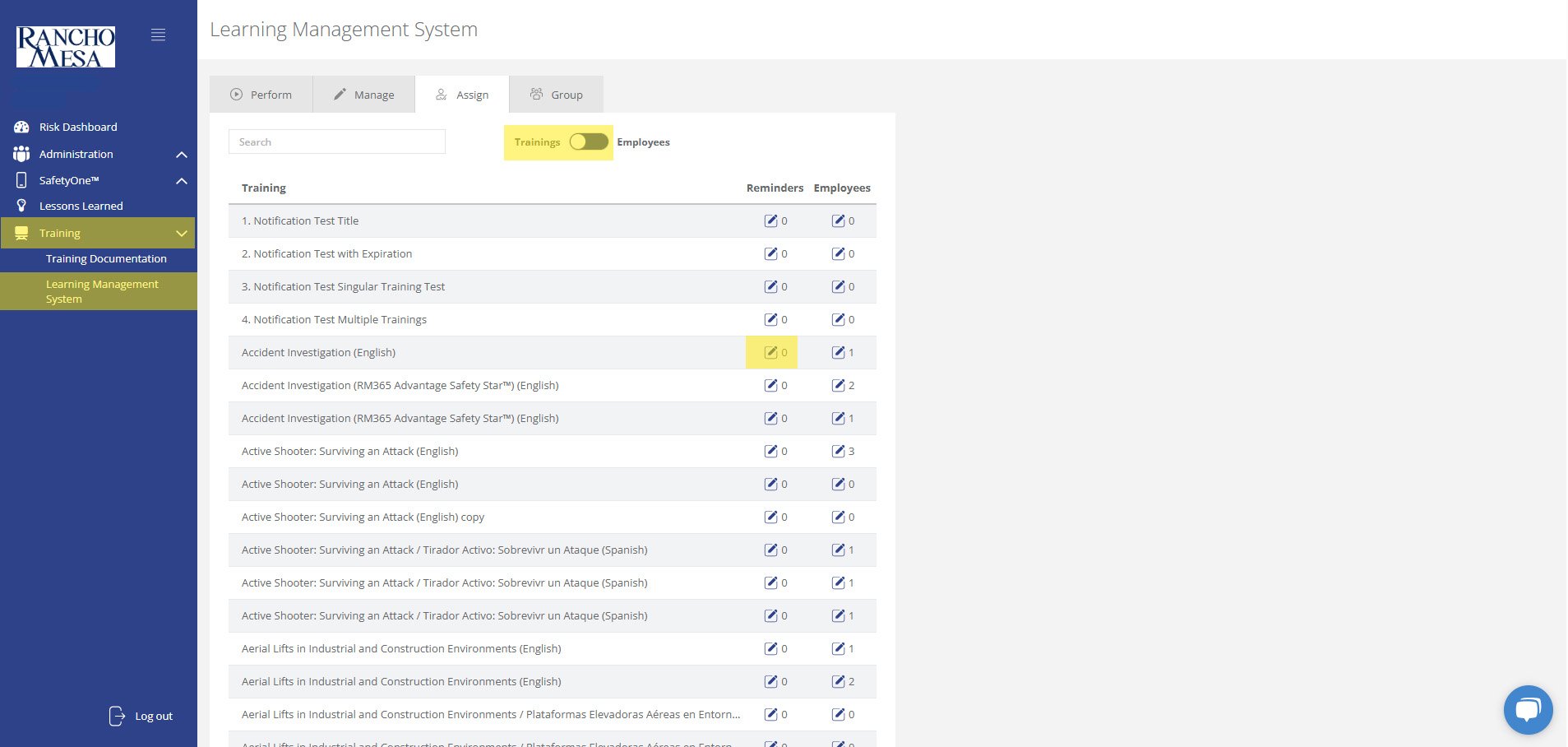
How do I schedule online training reminder emails?
Administrators can schedule training reminder emails through the SafetyOne™ website to help keep employees up-to-date with their necessary safety trainings.
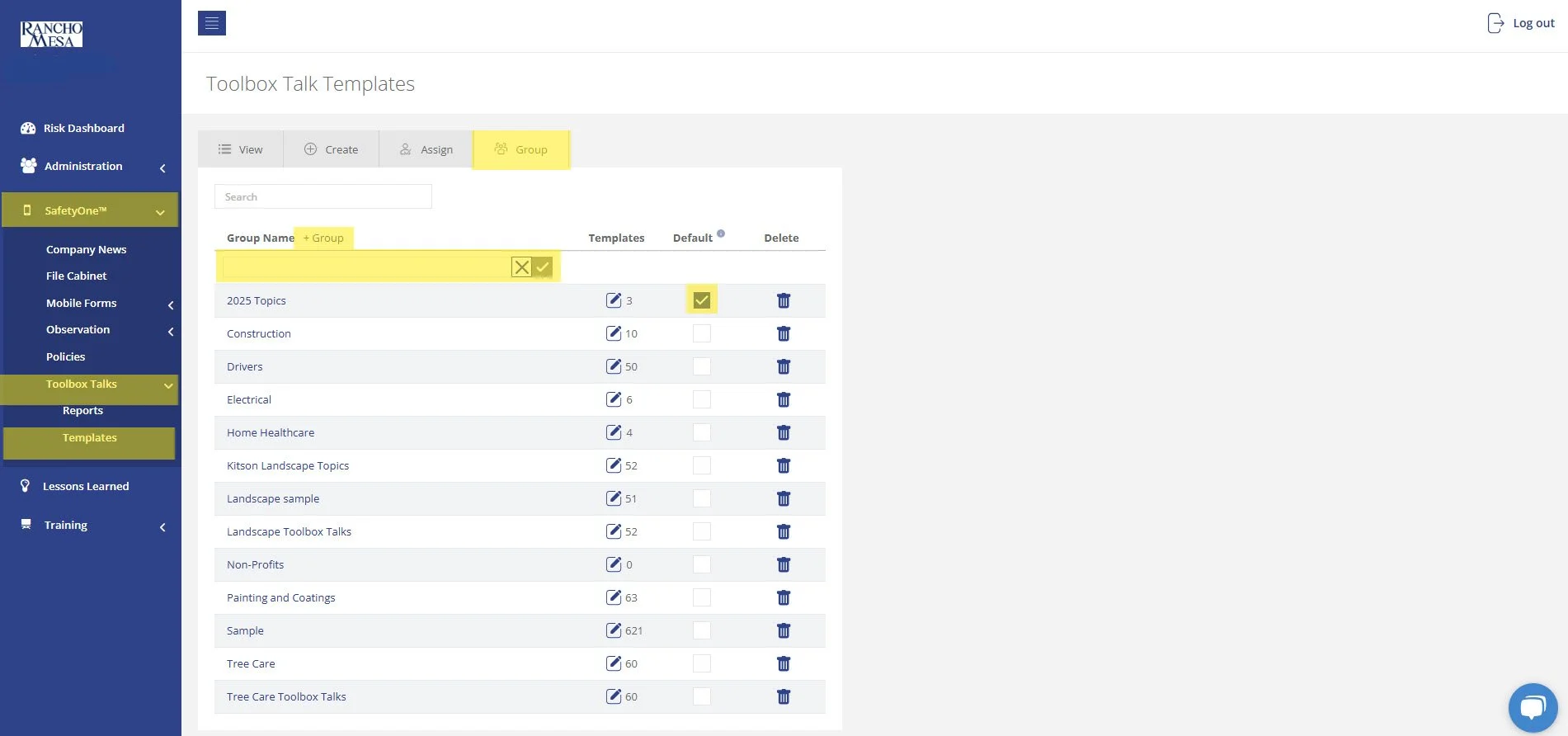
How can I create a driver-specific toolbox talk group in SafetyOne™?
The driver-specific toolbox talks are available in your SafetyOne™ account. To make them accessible via the mobile app, you will need to assign them to a project/crew.
Can I create a QR Code for a document in the File Cabinet?
While SafetyOne™ currently does not generate QR codes for documents stored within the file cabinet, QR codes can be created using a third-party generator using the document’s URL.
How can I create a QR Code for a Mobile Form?
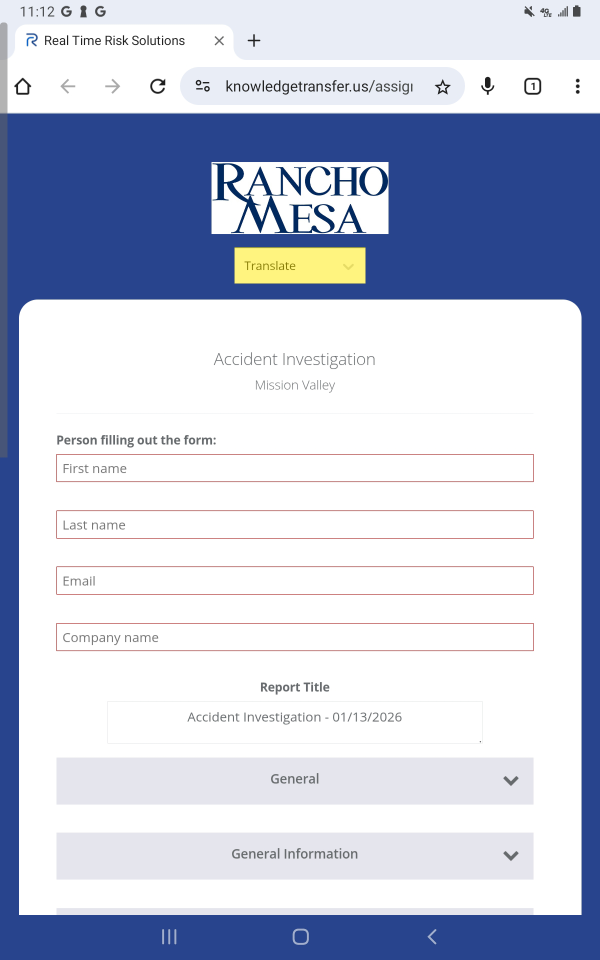
SafetyOne™ administrators can generate QR codes for mobile forms. This is useful when non-mobile app users need to complete a mobile form.
How can I Setup SafetyOne™ Toolbox Talks?
To begin setting up your SafetyOne™ account to utilize Toolbox Talks in the mobile app, as an Administrator, log in to your SafetyOne website account.
How can I give Supervisors the ability to add new users in SafetyOne™?
In order to allow Supervisors to add new users to SafetyOne™, an Administrator will need to turn on Custom Permissions.
I assigned a training to a Trainee user, how do they recover their login information if they have forgotten their username/password?
If your employee does not remember their SafetyOne™ username or password, they will need to navigate to the login screen and click on the “Forgot Username / Password” links.
How can I access tree care-specific toolbox talks?
The tree care-specific toolbox talks are available in your SafetyOne™ account. To make them accessible via the mobile app, you will need to assign them to a group.
However, it is a best practice to first, create a toolbox talk group in the administrator website, then assign 52 toolbox talks to the group. This will allow you to easily assign the entire group of toolbox talks to future projects/crews.
How can I access landscape-specific toolbox talks?
The Landscape-specific toolbox talks are available in your SafetyOne account. To have them accessible from the mobile app, you’ll need to assign them to a project or crew.
We recommend, first, creating a toolbox talk group. This will make assigning future crews or projects the same set of toolbox talks much easier.
I assigned a training to a Trainee user, how do they receive their login information to access the training?
Once a user has been added as a Trainee in the administrator website, they will receive a welcome email with a link to setup their password. Once they setup their password, they will be able to login to the platform and access their assigned training.
Can I create generic user accounts that are shared between multiple people for the SafetyOne platform?
No, Rancho Mesa’s user agreement requires that each SafetyOne™ user (i.e., Administrator, Supervisor, Employee, Field Employee, Training Manager, and Trainee) has their own individual username and password to ensure data integrity. Sharing generic logins is not permitted.
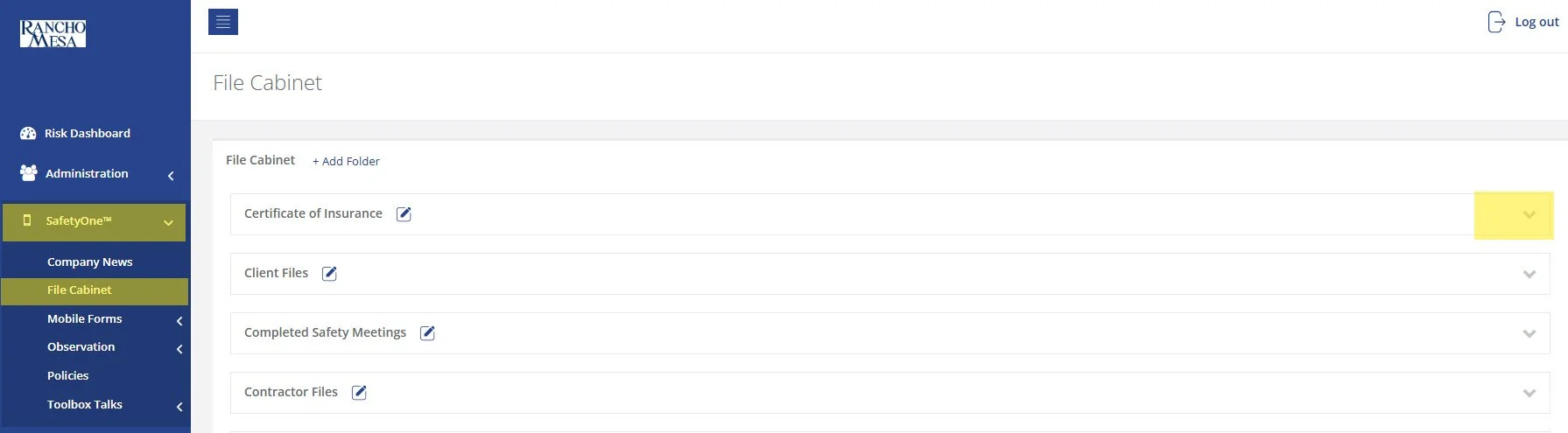
How do I collect and manage Certificates of Insurance from my sub-contractors?
The SafetyOne™ platform can be used to collect and manage certificates of insurance for both the organization and it’s sub-contractors.
How should I use job groups when assigning training?
Job training groups work the same way as employee groups, only you group trainings together rather than employees. This allows you to choose a list of trainings that need to be done within a group rather than having to make each training active when you assign training to employees.
How should I use employee groups when assigning online training?
Employee groups can be set up when there are employees that are categorized the same way and take the same training. This makes it easier to assign training to a group of people rather than assign them one at a time.
What is the difference between an Employee and Field Employee?
The Employee role provides access to perform tasks from the mobile device, but they are unable to delete or edit information from the website. They are only able to view any information that they generated from the website as well as access the their online trainings.
Field Employees are able to perform tasks from their mobile devices and only access their online trainings.
What role should I select for employees who only need training?
The Trainee permission structure allows users to only perform Training and generate a certificate of completion. They cannot log into the mobile application.
Can the observation reports be fully customized to match our company branding?
There are four standard report templates to choose from that display your company’s logo and custom footer text (i.e., disclaimer).
If additional customization like a specific font and color scheme is desired, it can be done for a fee to cover the development costs.
Is there the ability for conditional formatting in mobile forms?
Yes, within the mobile form creator, a “Nested Option” provides a way for companies to provide specific follow-up questions depending on the answers chosen for that specific question.
Are you able to track individual mobile users’ data to determine who has completed forms on time and who hasn’t?
From the administrator website, completed mobile forms can be filtered and/or sorted by the name of the user who completed the form along with the date the mobile form was completed.
For SafetyOne™ Pro Analytics users, Daily Form Completion Checks, along with custom alerts, can be used to notify a user when an analytical condition exists. These can be used when certain thresholds are not being met or when specific conditions merit further analysis.