
How do I generate QR codes to document toolbox talk attendence?
Users can review and sign toolbox talks on their own mobile device by receiving a link or scanning a QR code. Once you open a toolbox talk on your mobile device or tablet, tap the button “invite others'' that appears at the bottom of the toolbox talk screen. You will have the option to either email or text a link to employees, or generate a QR code for the toolbox talk that can be scanned.
Why aren't I receiving push notifications on my lock screen?
In order to receive push notifications on your device’s lock screen sent by your system administrator, you must be logged into the SafetyOne™ app. The app doesn’t need to open, you just need to be logged into the app.
If you’re logged into the SafetyOne app and you are still not receiving the push notifications, it is likely a setting on your device.
Consult the instructions for enabling push notifications from your device’s manufacturer.
Can specific data (i.e., address, contact information, etc.) be auto-populated on a mobile form when a name or company is selected on a field?
No, the SafetyOne™ App does not auto-populate data on one field based on what is entered on another field.
However, to streamline the data entry process, use the “Copy Mobile Form” feature to copy a previously generated form and make whatever changes are needed to the new form. This is helpful on daily reports where only minor information may change from day to day.
Are users able to save mobile forms and observations before they are completed?
Yes, incomplete mobile forms and observations are automatically saved, so users may return to the complete them at any time.
Is spell-check available when completely field in an observation or mobile form?
Yes, the SafetyOne™ App uses the device’s spell check capabilities, if available. Users can also utilize voice dictation to complete fields.
Does the SafetyOne™ App use Geolocation tracking?
Yes, if GPS is enabled on the device for the SafetyOne App, then the app will track the user’s location. This is useful when adding the location of the an observation or toolbox talk.
Can I scan QR Codes from the SafetyOne™ mobile app?
In the upper right corner of all the SafetyOne™ mobile app screens, there is a QR icon. Click the icon to open a QR Code reader. This can be used to scan any QR Codes.
Why can't I login when I'm offline?
When you first login to the SafetyOne™ mobile app, you’ll need to have an internet connection. This allows the mobile app to verify your login credentials and download the appropriate data to your device.
However, when you are offline (without an internet connection) you can use the SafetyOne™ mobile app as long as you did not previously login out.
Depending on your organization's configuration, Administrators may create reusable AI prompts to standardize analyses, summaries, and reports across the organization using a Google Drive or equivalent.
SafetyOne AI operates within your organization's security boundaries and respects user permissions by leveraging private agents.
SafetyOne AI is designed to provide helpful summaries and recommendations based on the information available.
AI responses are generated using your organization's authorized data and respect user permissions.
SafetyOne AI analyzes the information available within your organization's SafetyOne dashboard during each request to generate relevant responses.
Supervisors can review, edit, expand, or customize any Toolbox Talk before adding it to the platform and distributing it to employees.
SafetyOne AI can analyze hundreds or thousands of safety observations and identify recurring themes.
SafetyOne AI can create customized Toolbox Talks using information from your organization's own data.
SafetyOne AI can identify trends within observations, inspections or incidents and recommend training topics that may help reduce future risk.
Rancho Mesa now offers GPT-5.1-powered SafetyOne™ AI analysis capabilities across the following modules: Observations and Mobile Forms. AI analysis for Toolbox Talks and Trainings will be available in future releases.
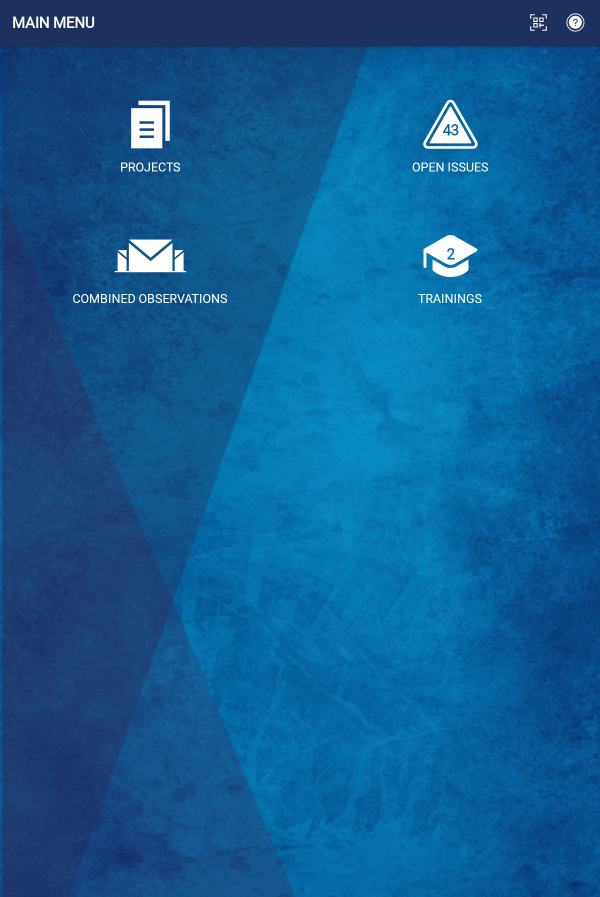
The Training icon allows mobile app users to quickly access the Learning Management System within the SafetyOne™ platform.
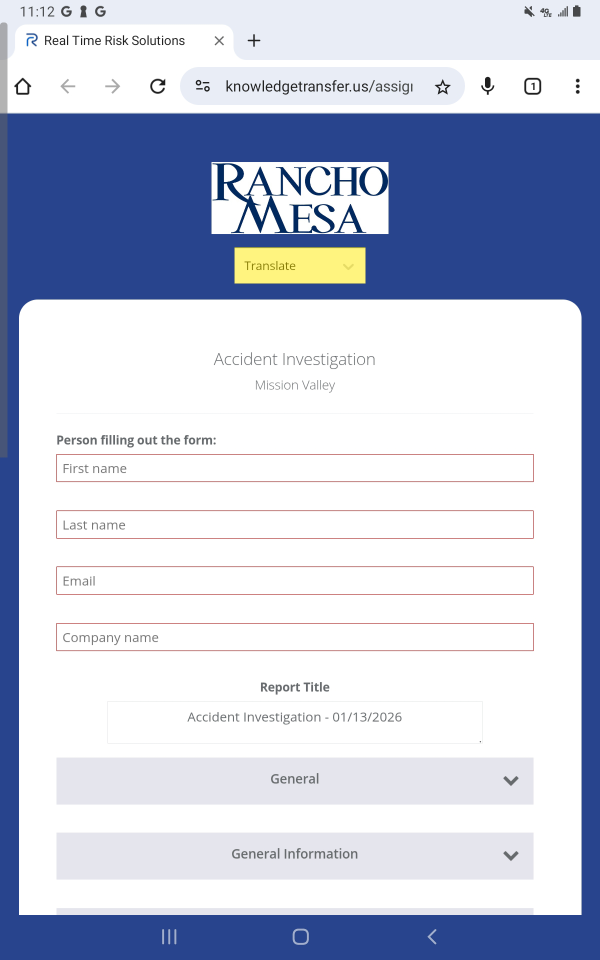
Mobile Forms and Toolbox Talks from the SafetyOne™ platform can be easily translated into multiple languages when accessed via QR code or a URL.
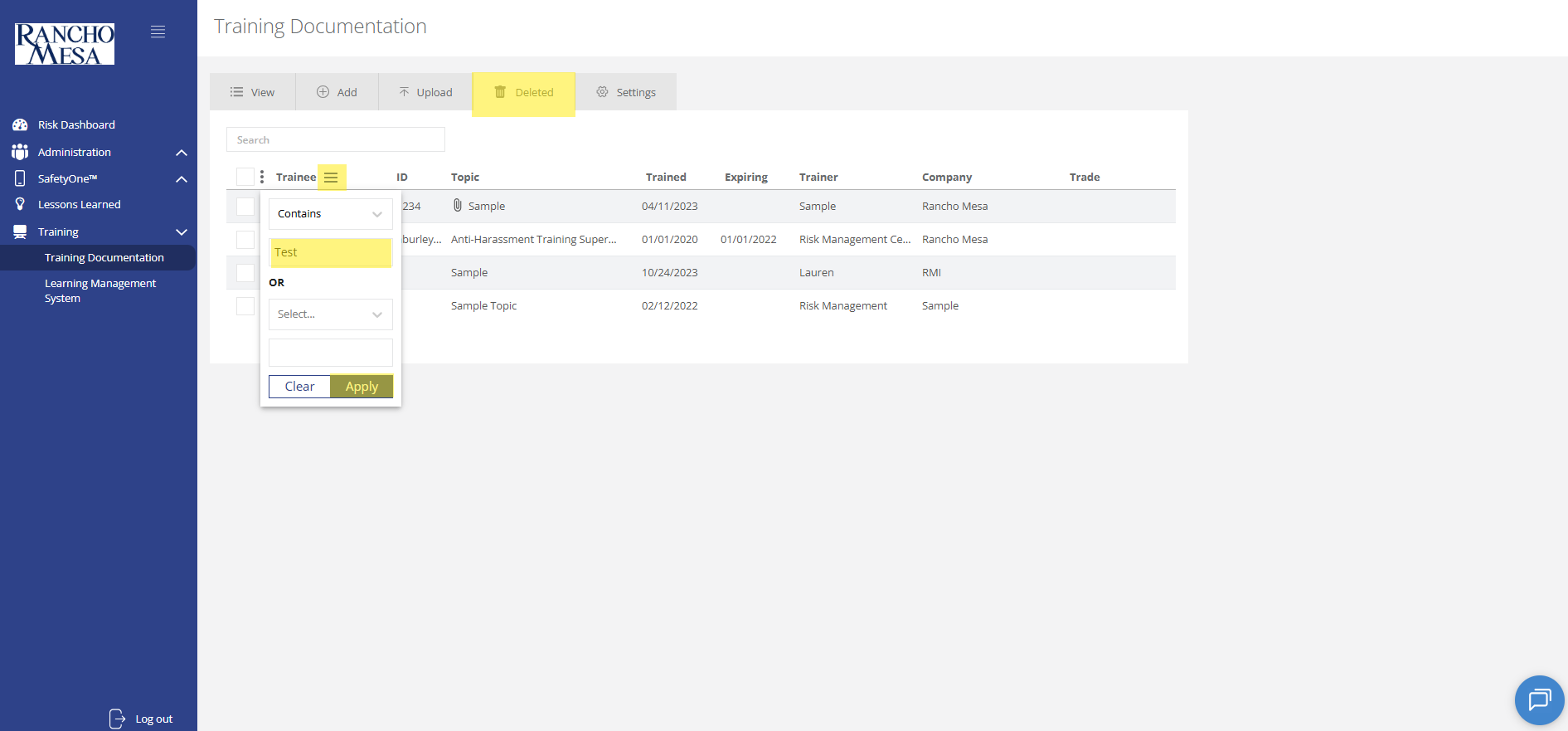
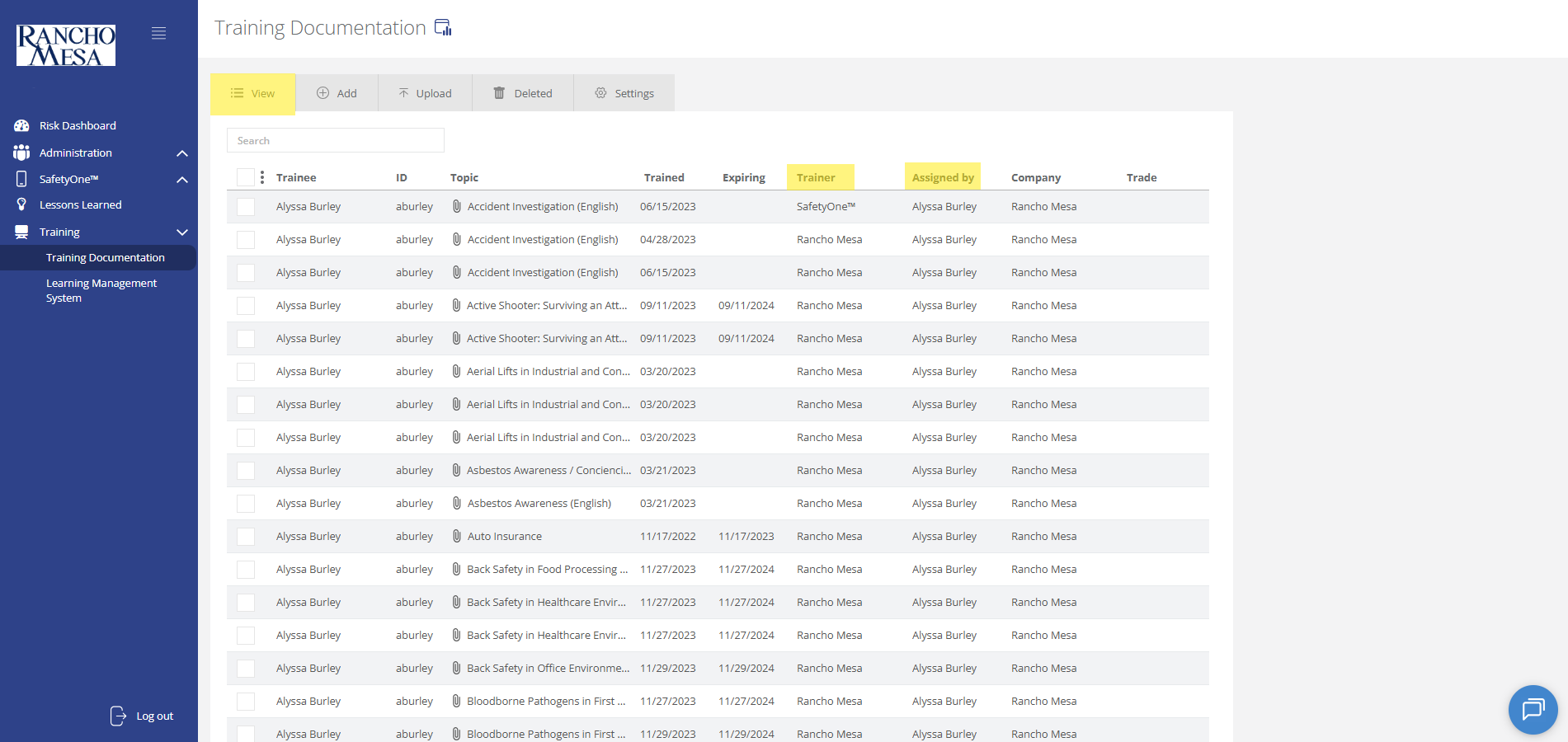
To view training documentation, click on the “Training” section in the navigation panel. Then, click on “Training Documentation.”
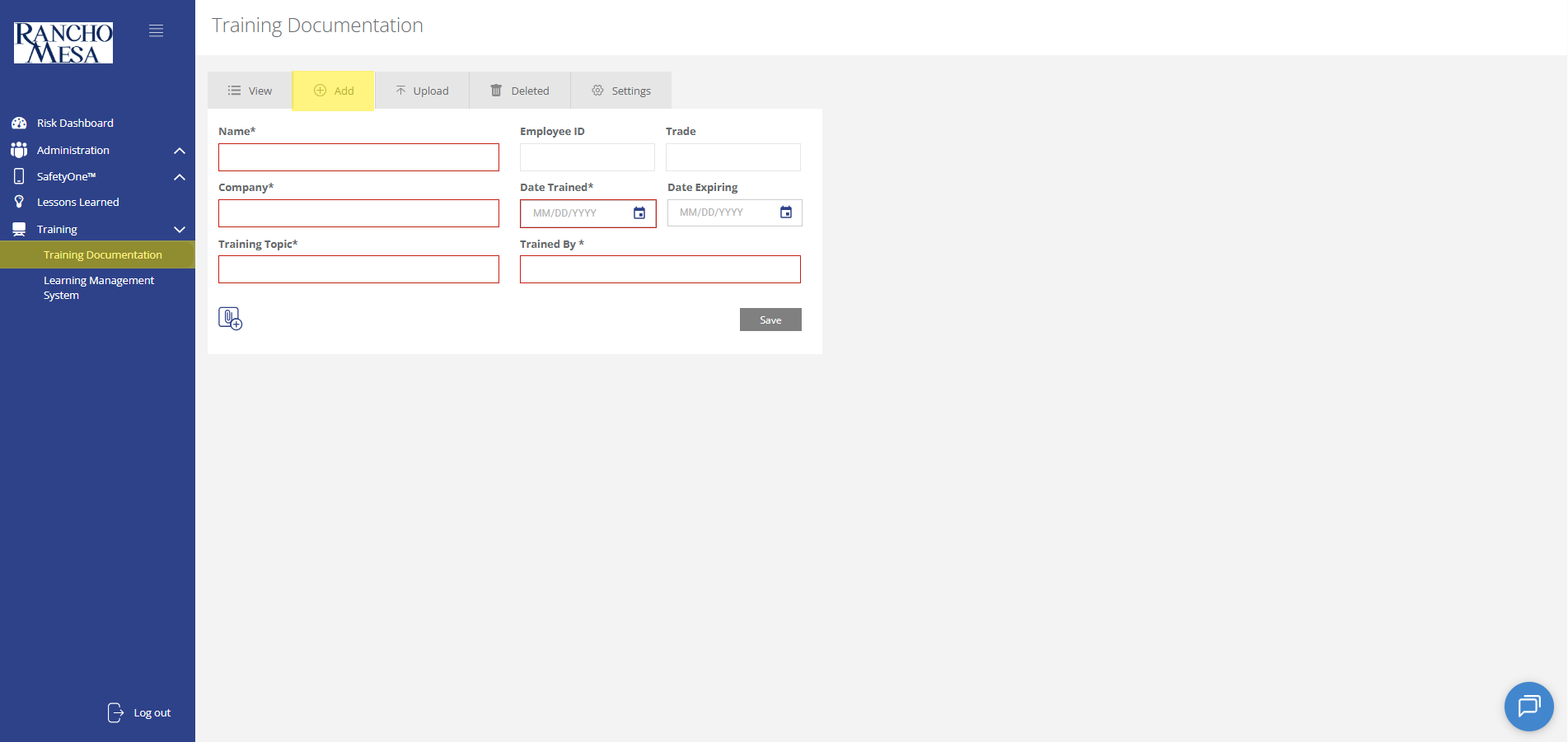
Administrators can use the SafetyOne™ website to document in-person and third-party employee training.
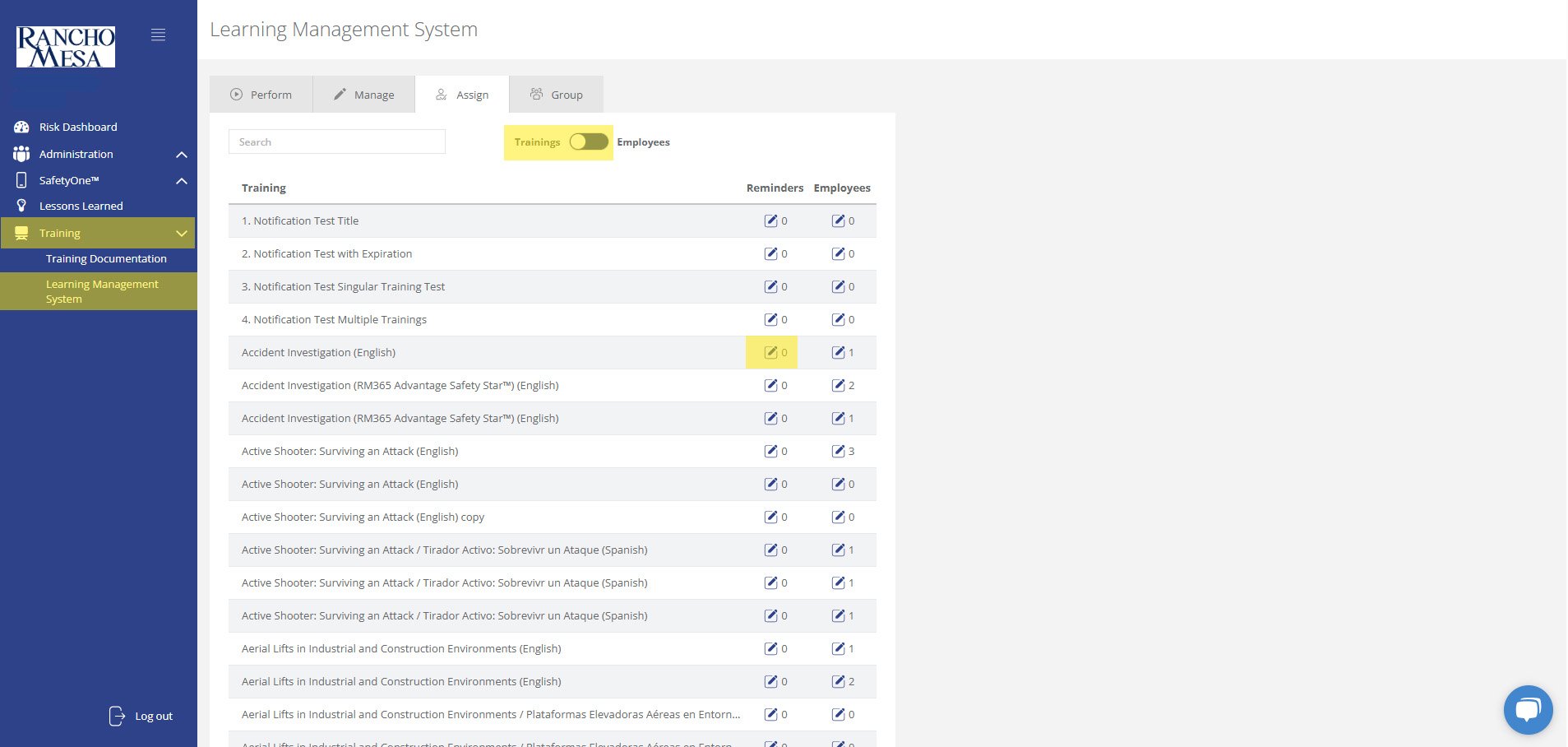
Administrators can schedule training reminder emails through the SafetyOne™ website to help keep employees up-to-date with their necessary safety trainings.
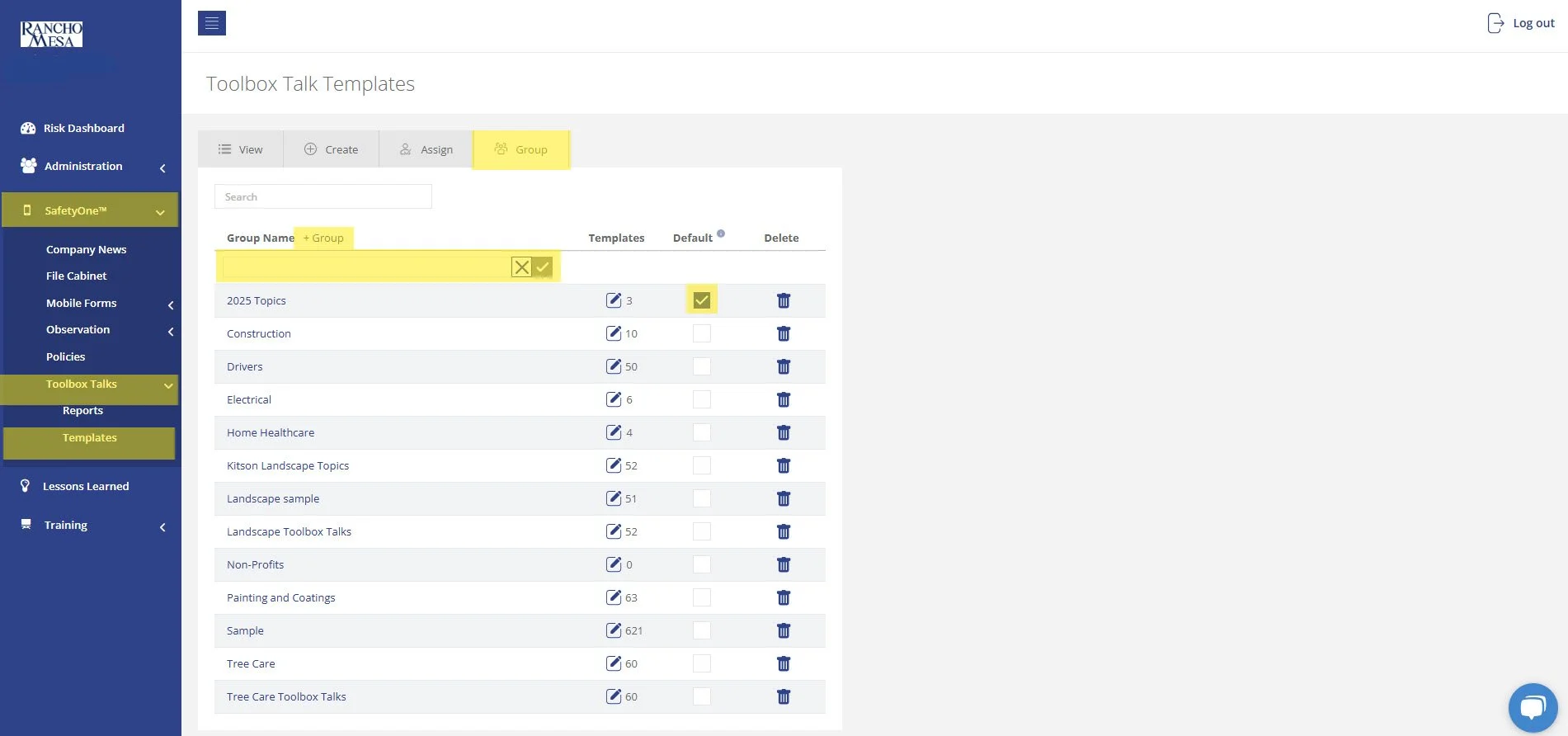
The driver-specific toolbox talks are available in your SafetyOne™ account. To make them accessible via the mobile app, you will need to assign them to a project/crew.
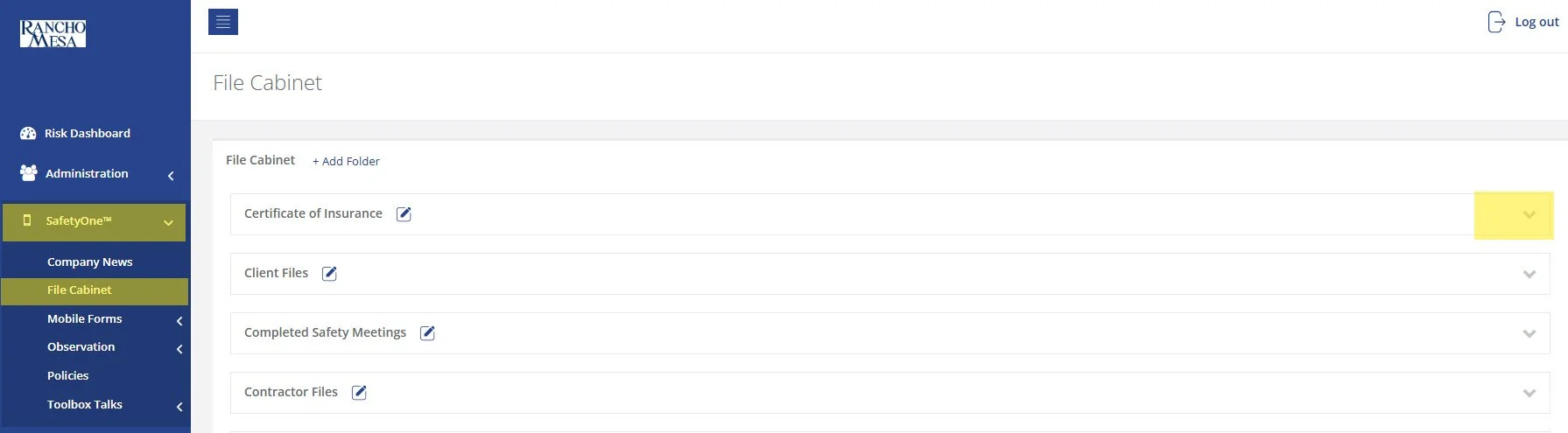
While SafetyOne™ currently does not generate QR codes for documents stored within the file cabinet, QR codes can be created using a third-party generator using the document’s URL.
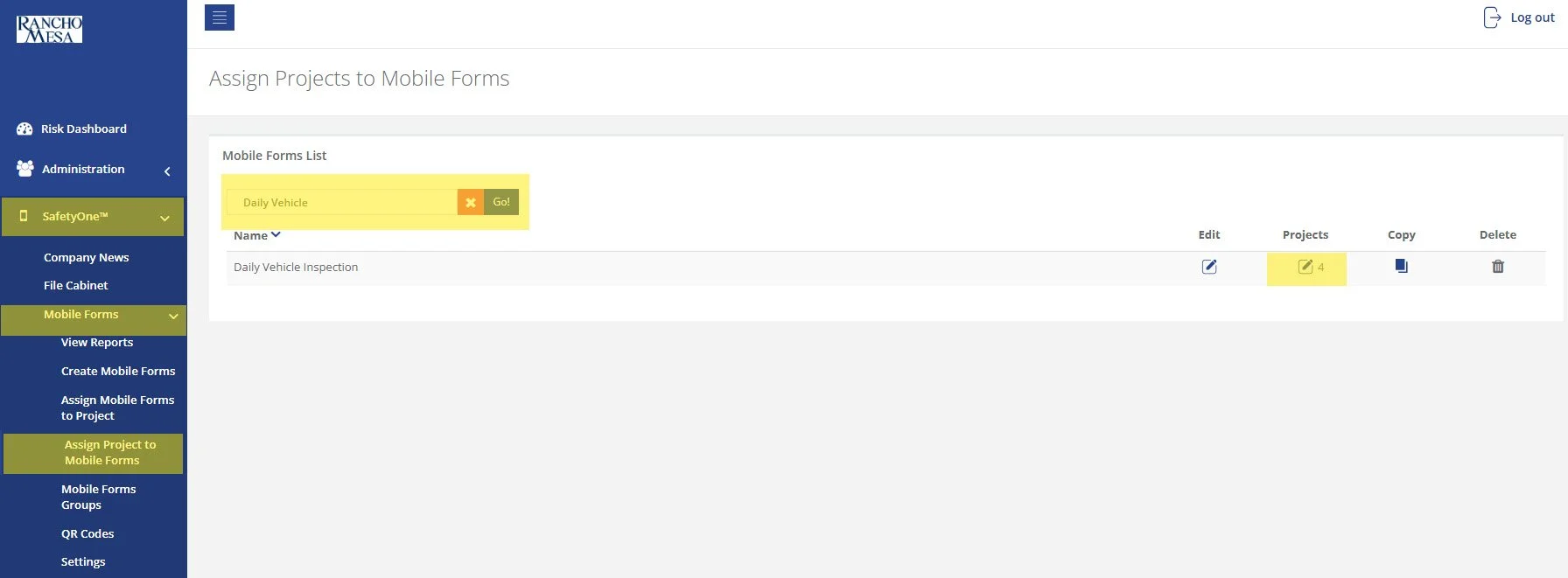
SafetyOne™ administrators can generate QR codes for mobile forms. This is useful when non-mobile app users need to complete a mobile form.
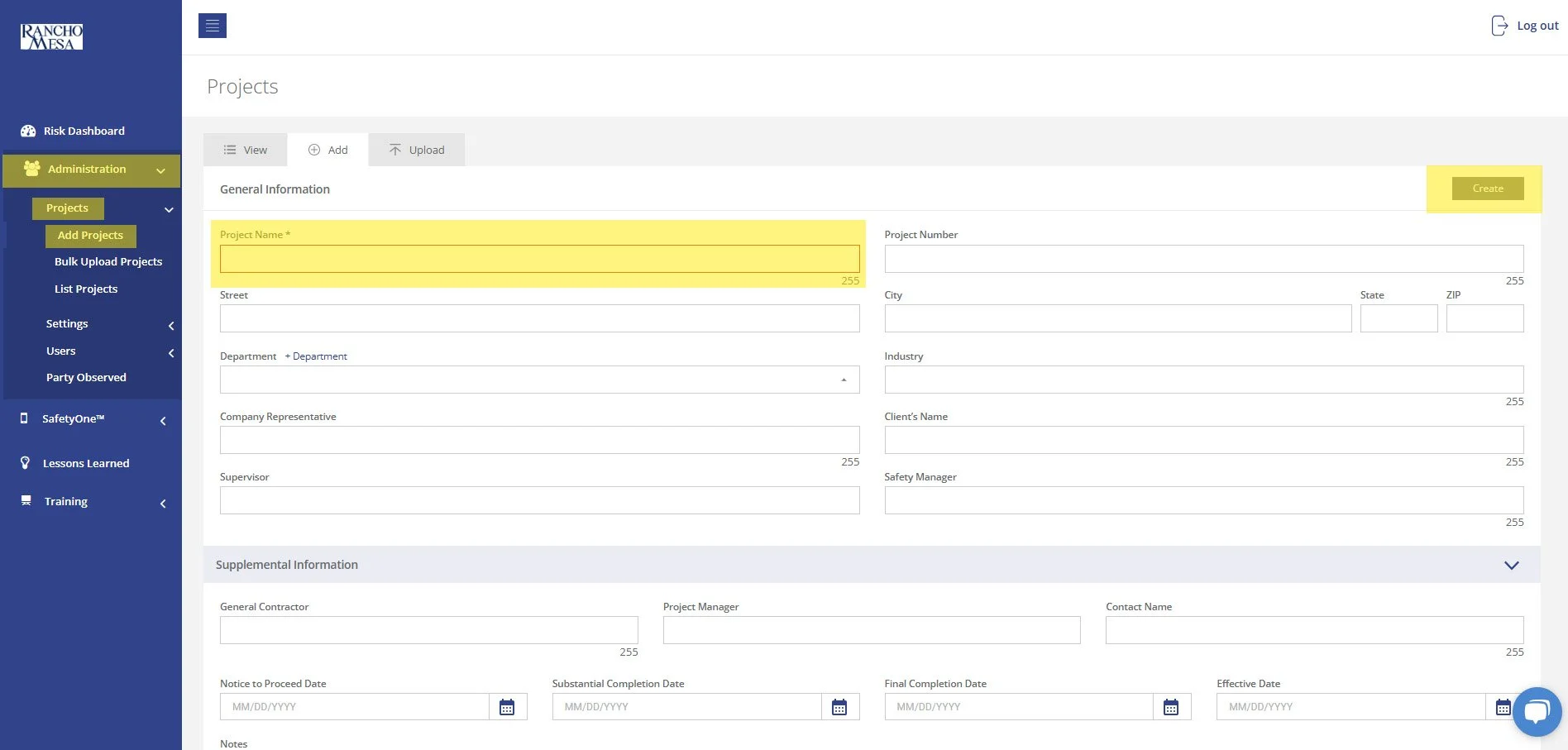
To begin setting up your SafetyOne™ account to utilize Toolbox Talks in the mobile app, as an Administrator, log in to your SafetyOne website account.
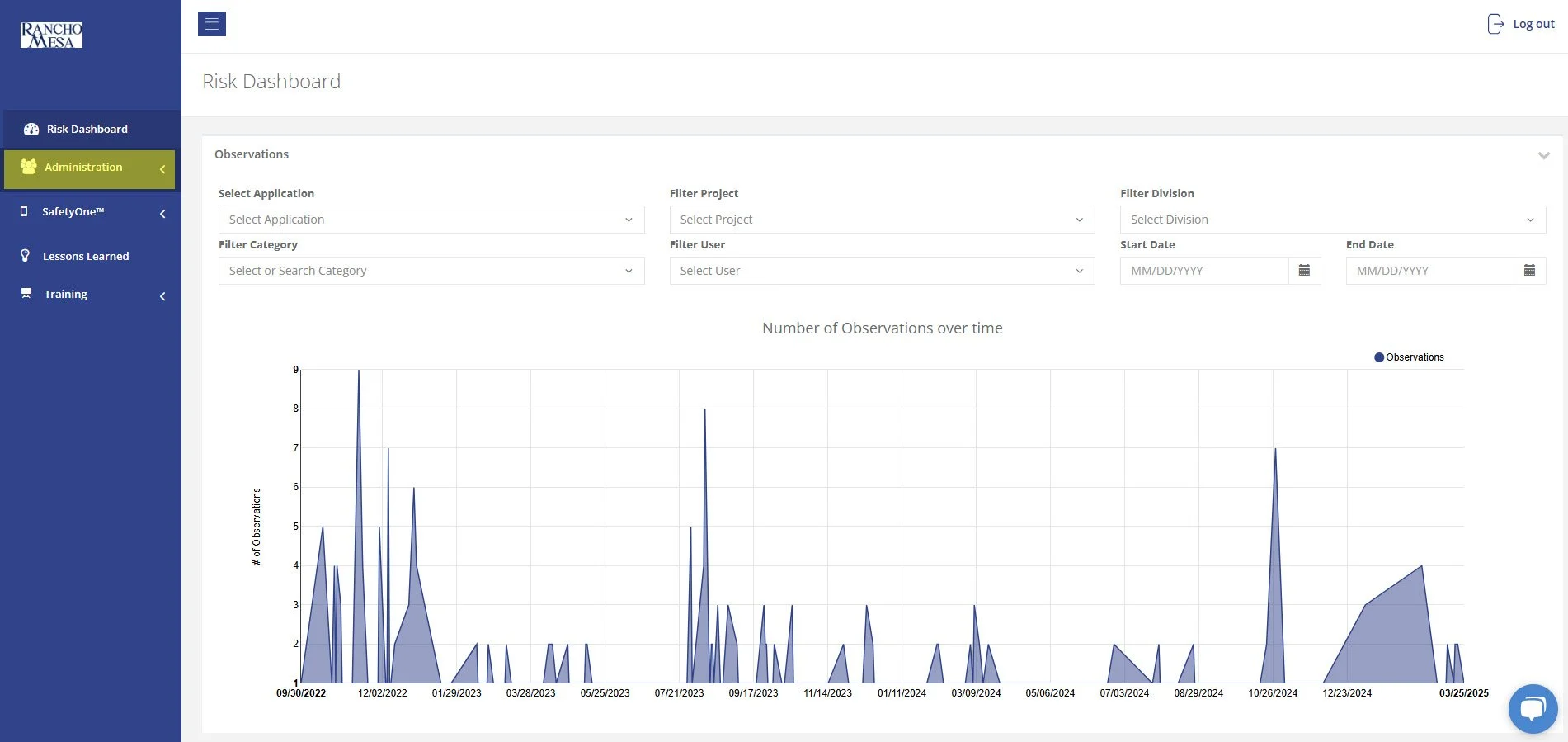
In order to allow Supervisors to add new users to SafetyOne™, an Administrator will need to turn on Custom Permissions.
A person with a Supervisor user license is someone who manages one or more projects, crews, facilities, or programs. The Supervisor role might also be used by a safety manager or project manager in a construction company, a facility director in a home health care company, or a program director in a non-profit organization.