
How should I use job groups when assigning training?
Job training groups work the same way as employee groups, only you group trainings together rather than employees. This allows you to choose a list of trainings that need to be done within a group rather than having to make each training active when you assign training to employees.
How should I use employee groups when assigning online training?
Employee groups can be set up when there are employees that are categorized the same way and take the same training. This makes it easier to assign training to a group of people rather than assign them one at a time.
Depending on your organization's configuration, Administrators may create reusable AI prompts to standardize analyses, summaries, and reports across the organization using a Google Drive or equivalent.
SafetyOne AI operates within your organization's security boundaries and respects user permissions by leveraging private agents.
SafetyOne AI is designed to provide helpful summaries and recommendations based on the information available.
AI responses are generated using your organization's authorized data and respect user permissions.
SafetyOne AI analyzes the information available within your organization's SafetyOne dashboard during each request to generate relevant responses.
Supervisors can review, edit, expand, or customize any Toolbox Talk before adding it to the platform and distributing it to employees.
SafetyOne AI can analyze hundreds or thousands of safety observations and identify recurring themes.
SafetyOne AI can create customized Toolbox Talks using information from your organization's own data.
SafetyOne AI can identify trends within observations, inspections or incidents and recommend training topics that may help reduce future risk.
Rancho Mesa now offers GPT-5.1-powered SafetyOne™ AI analysis capabilities across the following modules: Observations and Mobile Forms. AI analysis for Toolbox Talks and Trainings will be available in future releases.
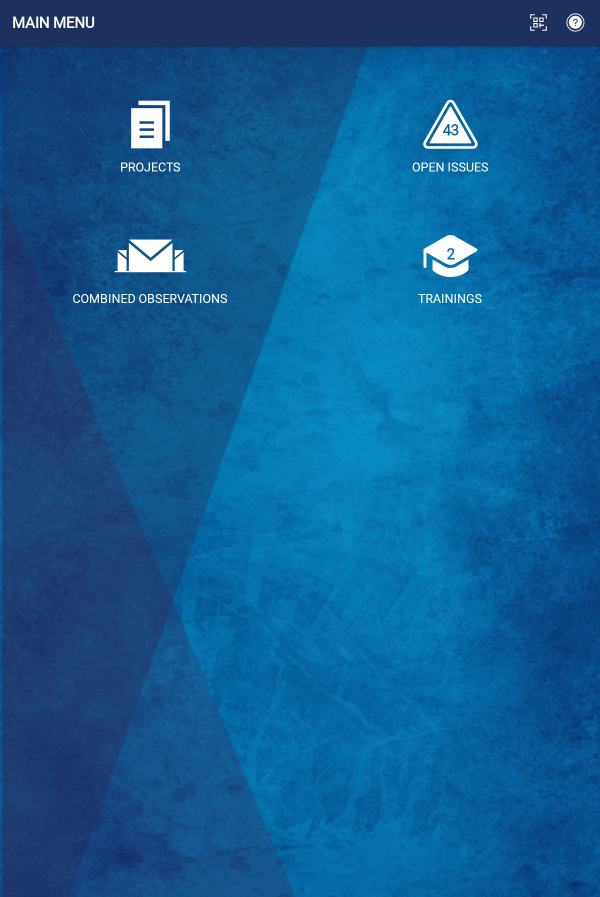
The Training icon allows mobile app users to quickly access the Learning Management System within the SafetyOne™ platform.
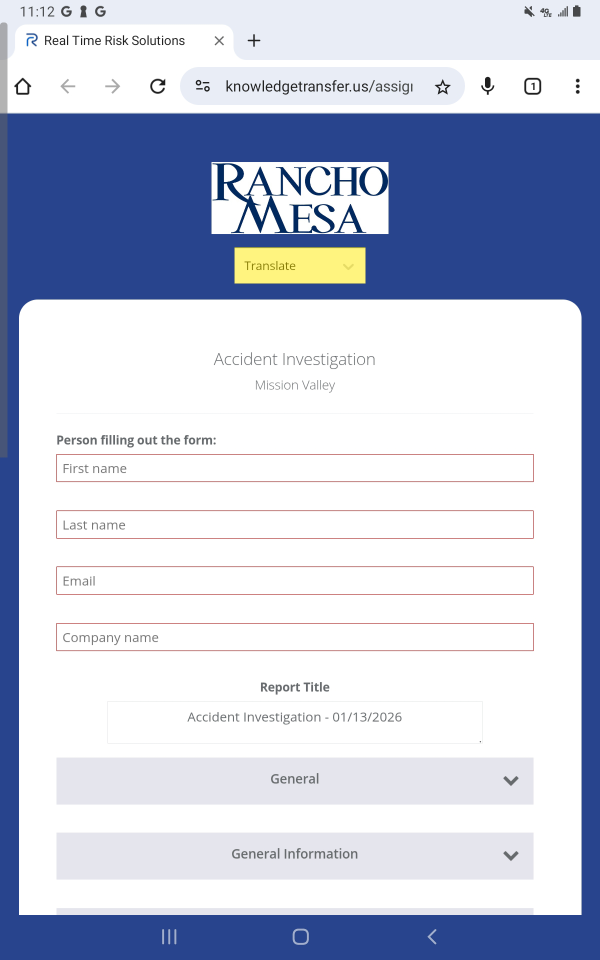
Mobile Forms and Toolbox Talks from the SafetyOne™ platform can be easily translated into multiple languages when accessed via QR code or a URL.
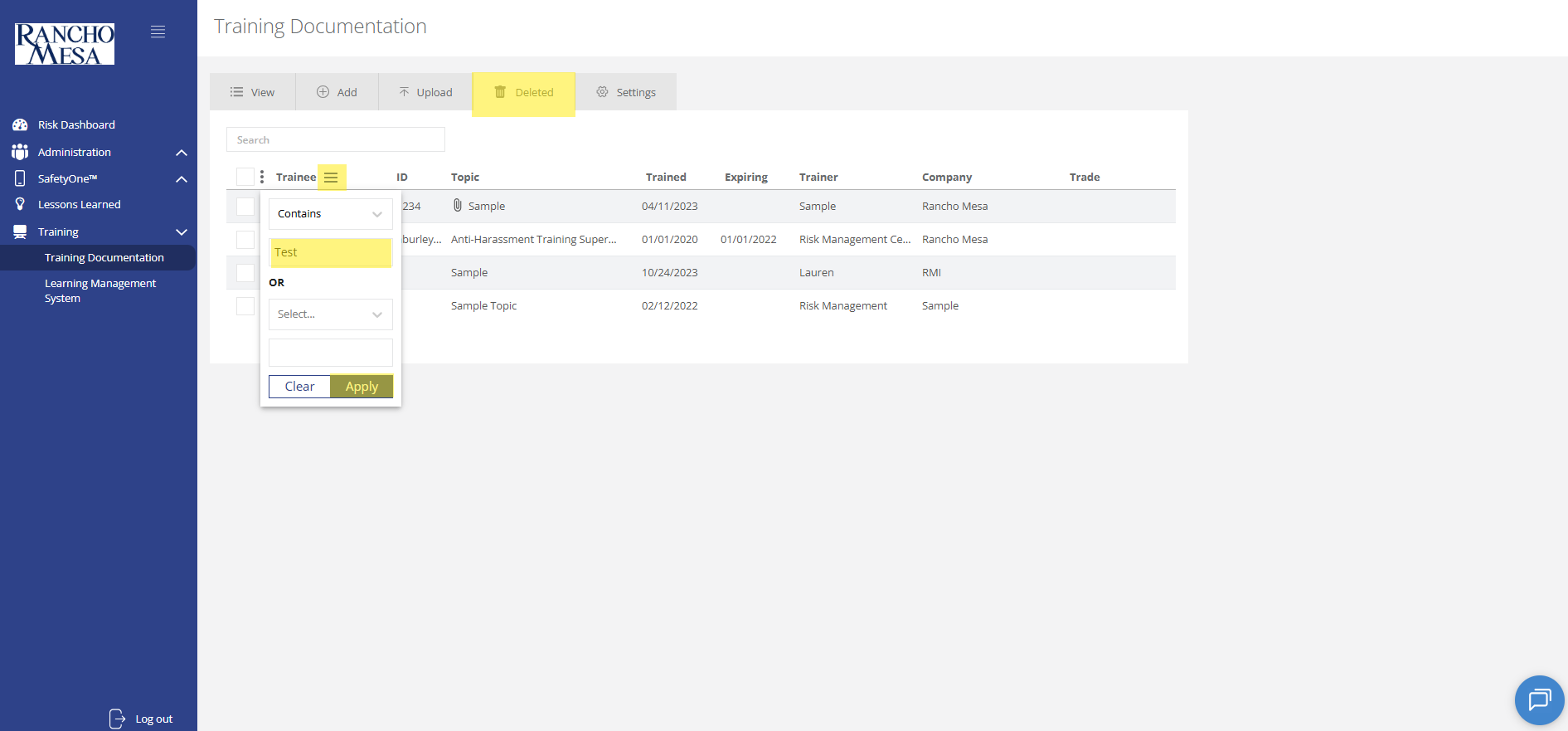
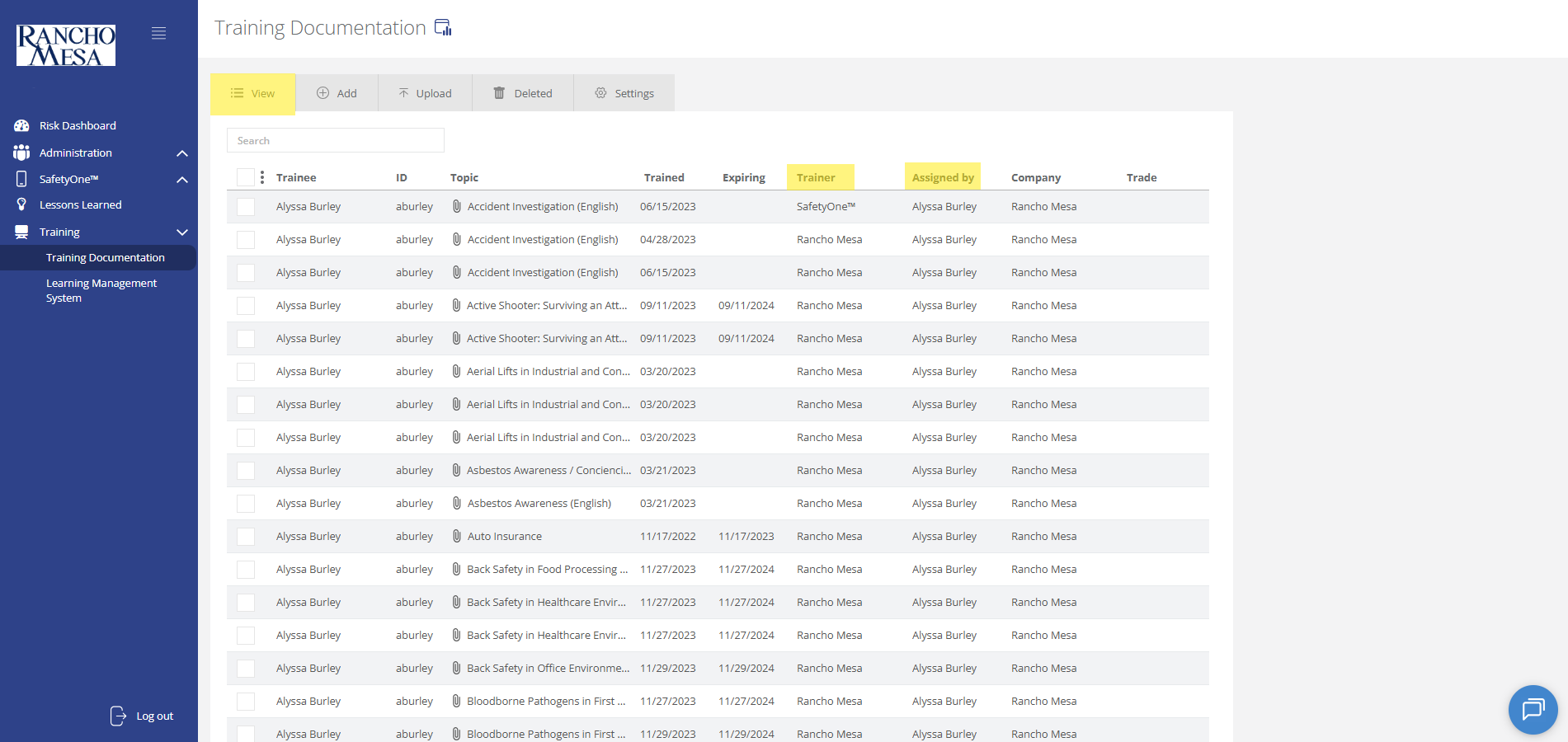
To view training documentation, click on the “Training” section in the navigation panel. Then, click on “Training Documentation.”
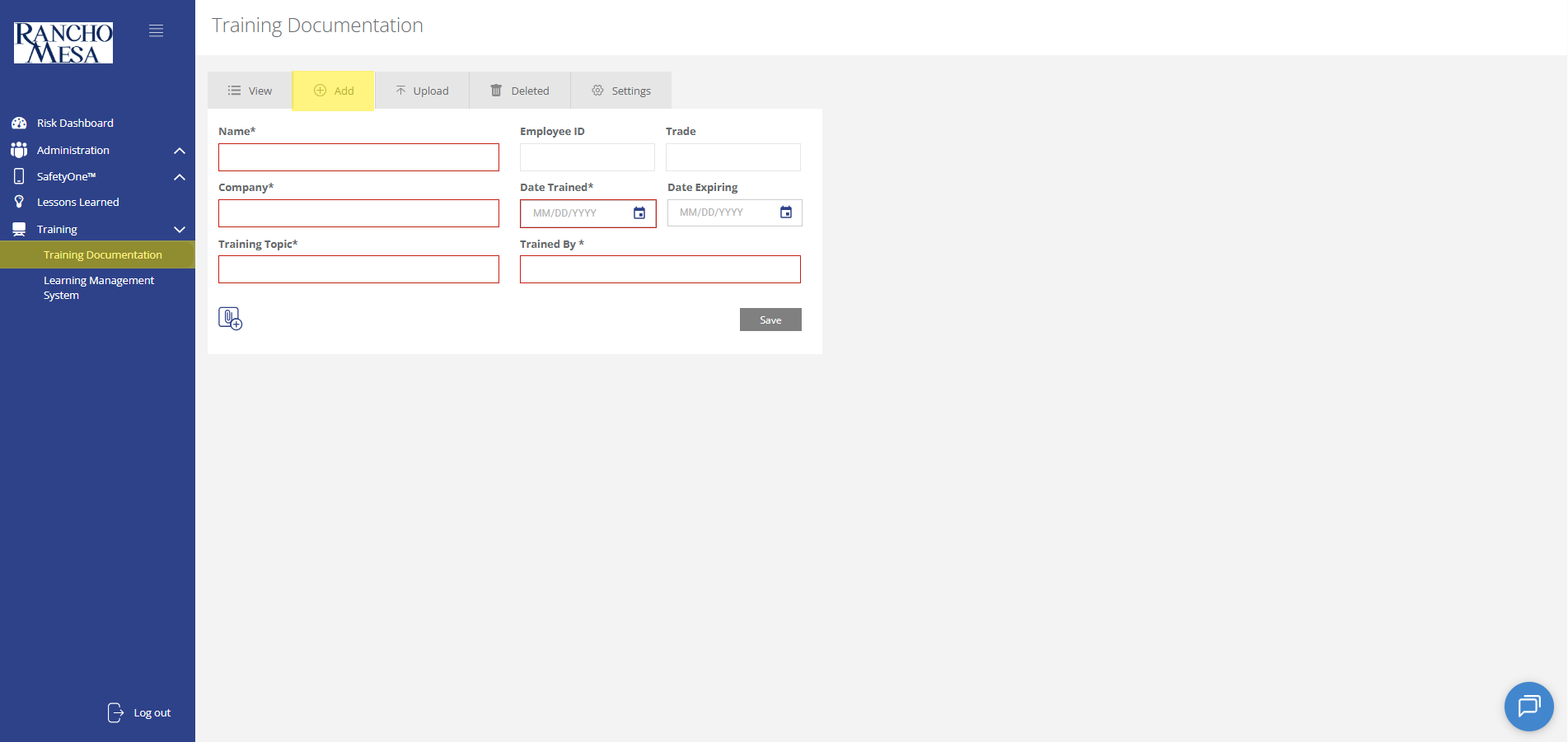
Administrators can use the SafetyOne™ website to document in-person and third-party employee training.
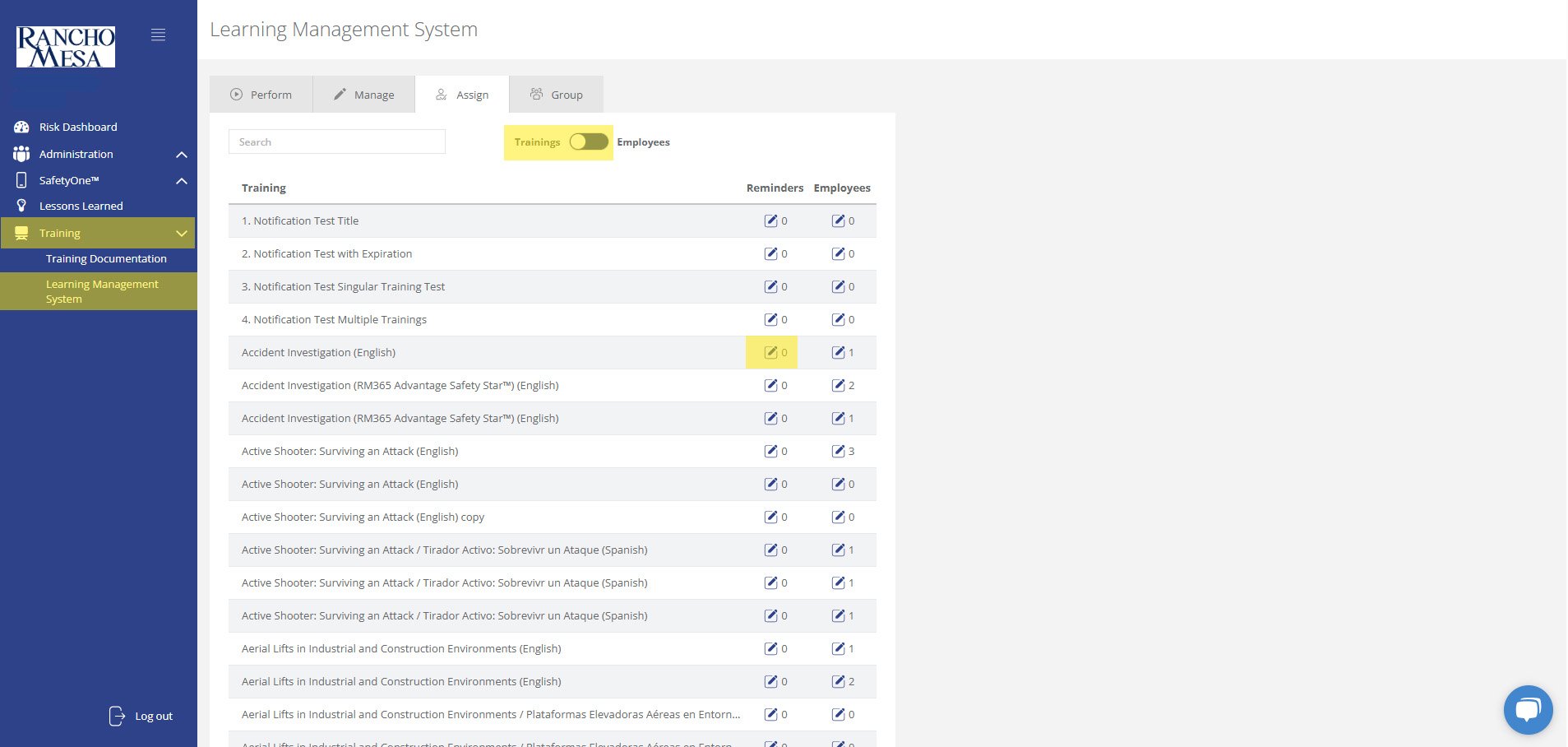
Administrators can schedule training reminder emails through the SafetyOne™ website to help keep employees up-to-date with their necessary safety trainings.
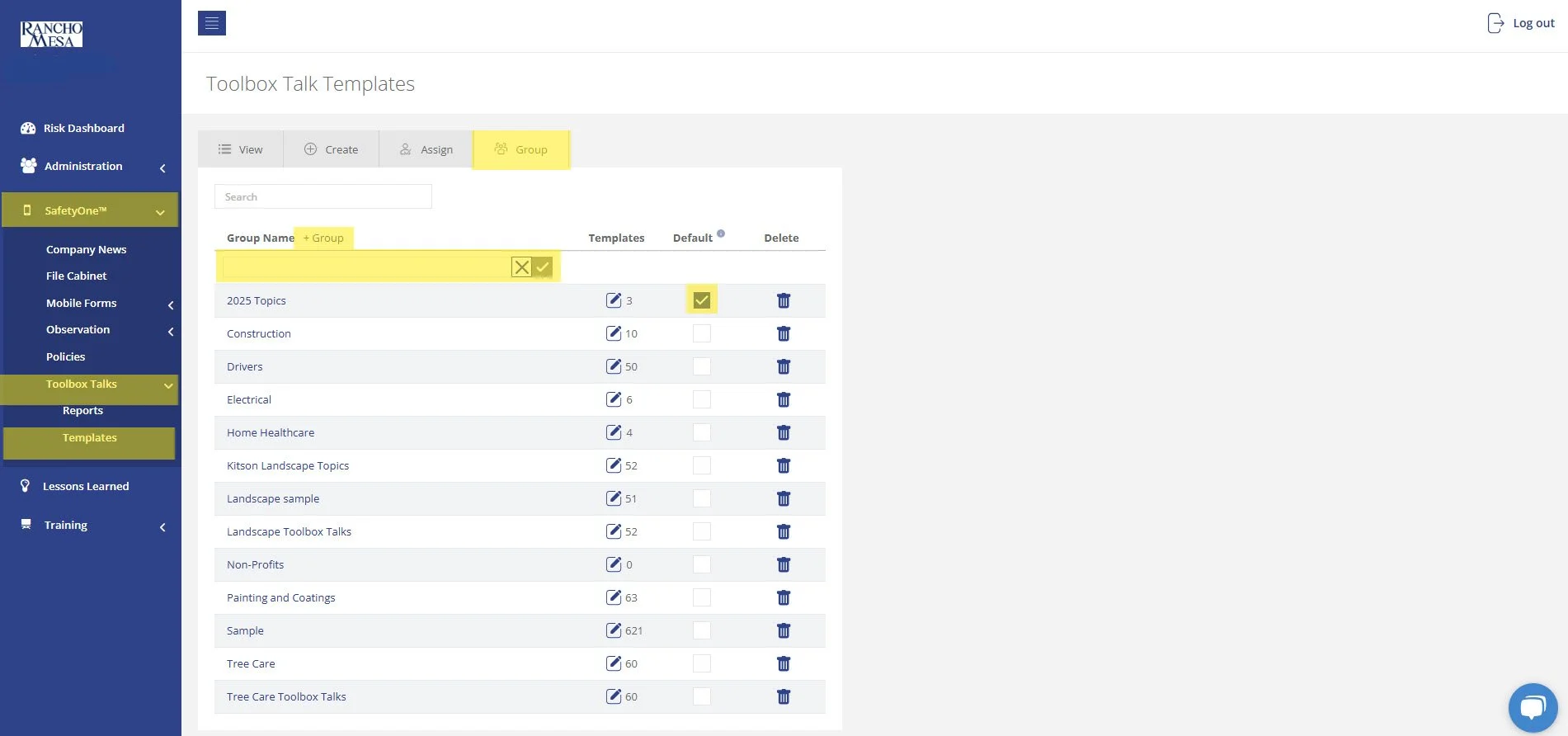
The driver-specific toolbox talks are available in your SafetyOne™ account. To make them accessible via the mobile app, you will need to assign them to a project/crew.
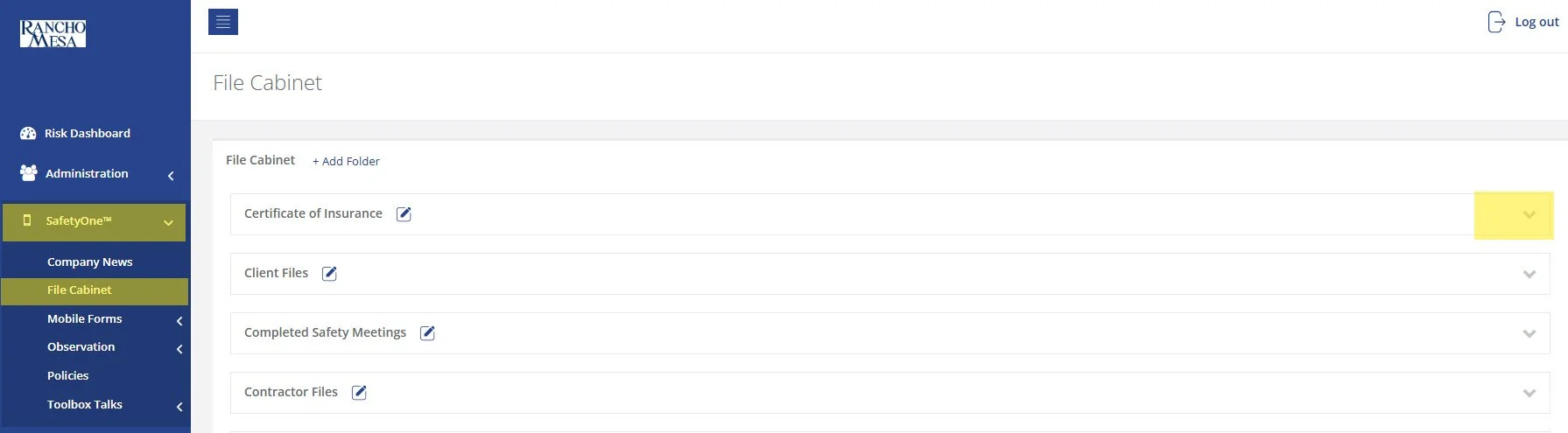
While SafetyOne™ currently does not generate QR codes for documents stored within the file cabinet, QR codes can be created using a third-party generator using the document’s URL.
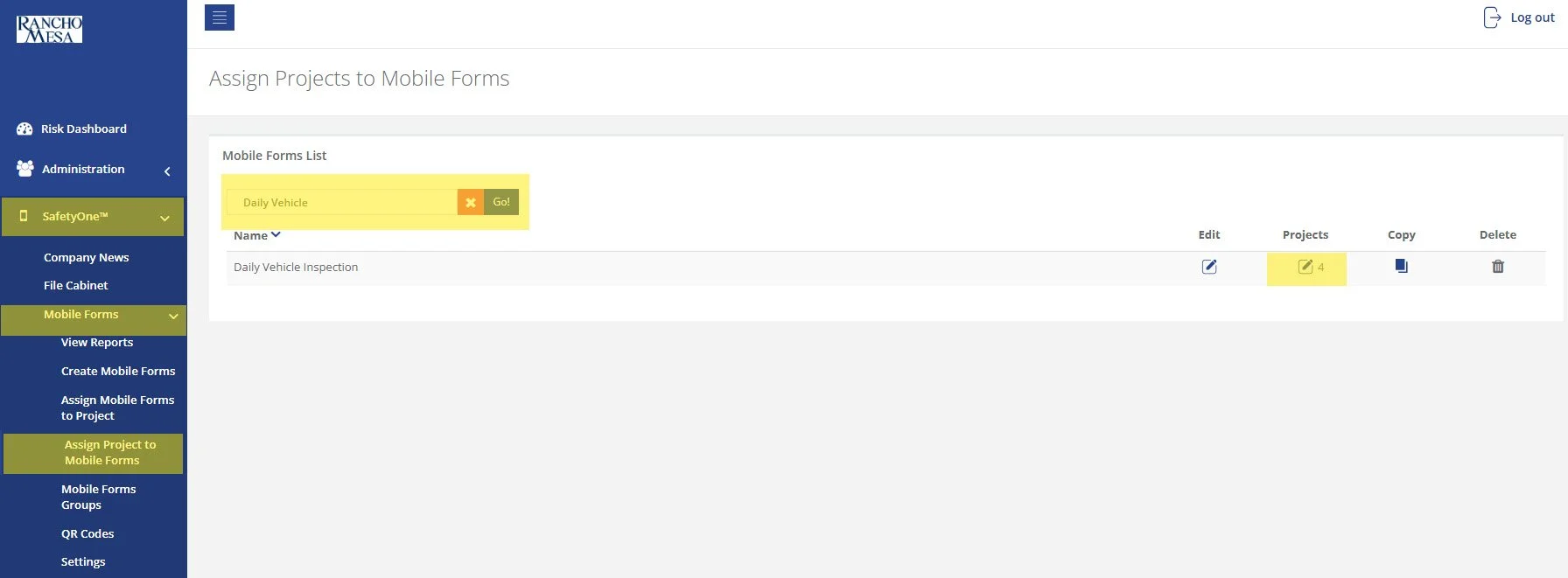
SafetyOne™ administrators can generate QR codes for mobile forms. This is useful when non-mobile app users need to complete a mobile form.
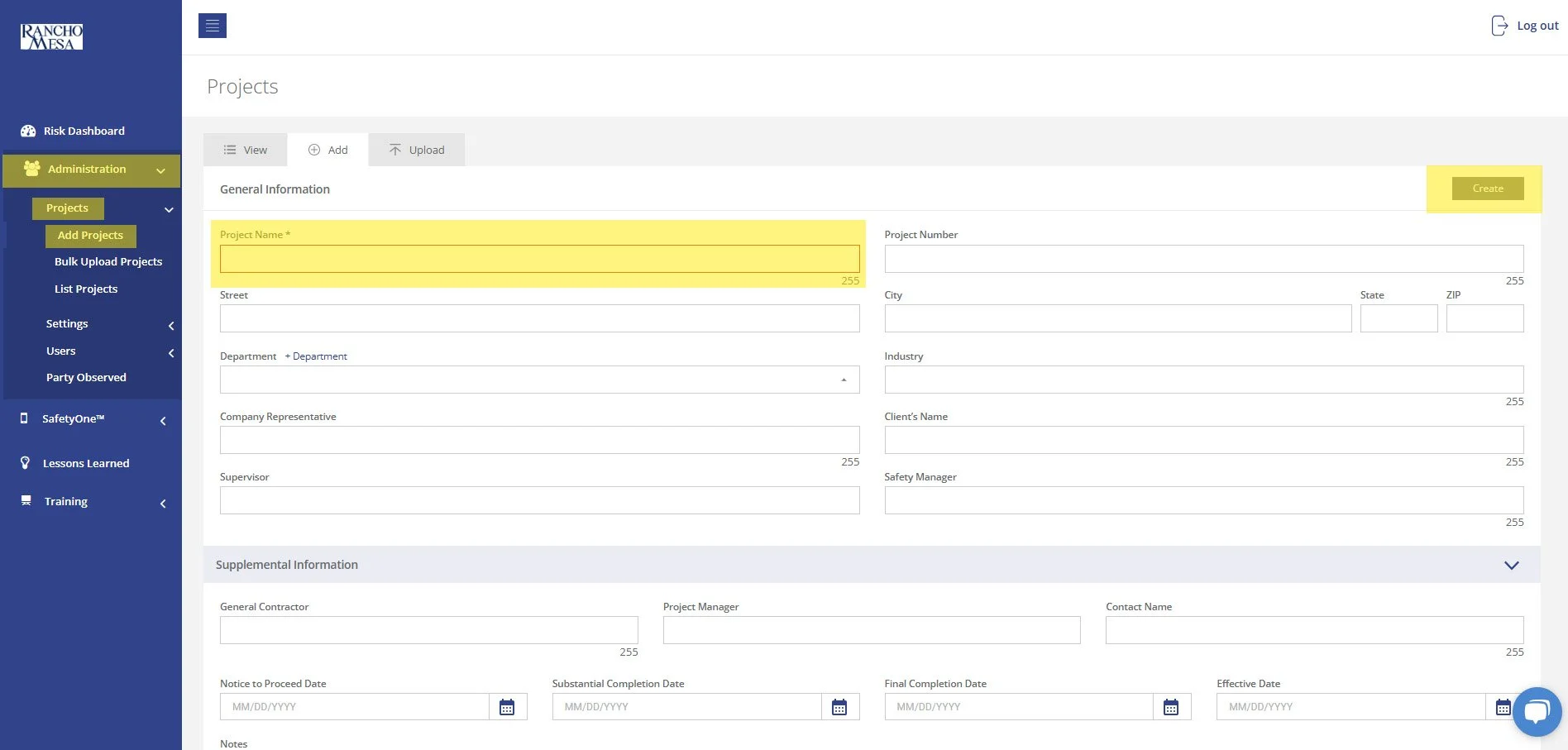
To begin setting up your SafetyOne™ account to utilize Toolbox Talks in the mobile app, as an Administrator, log in to your SafetyOne website account.
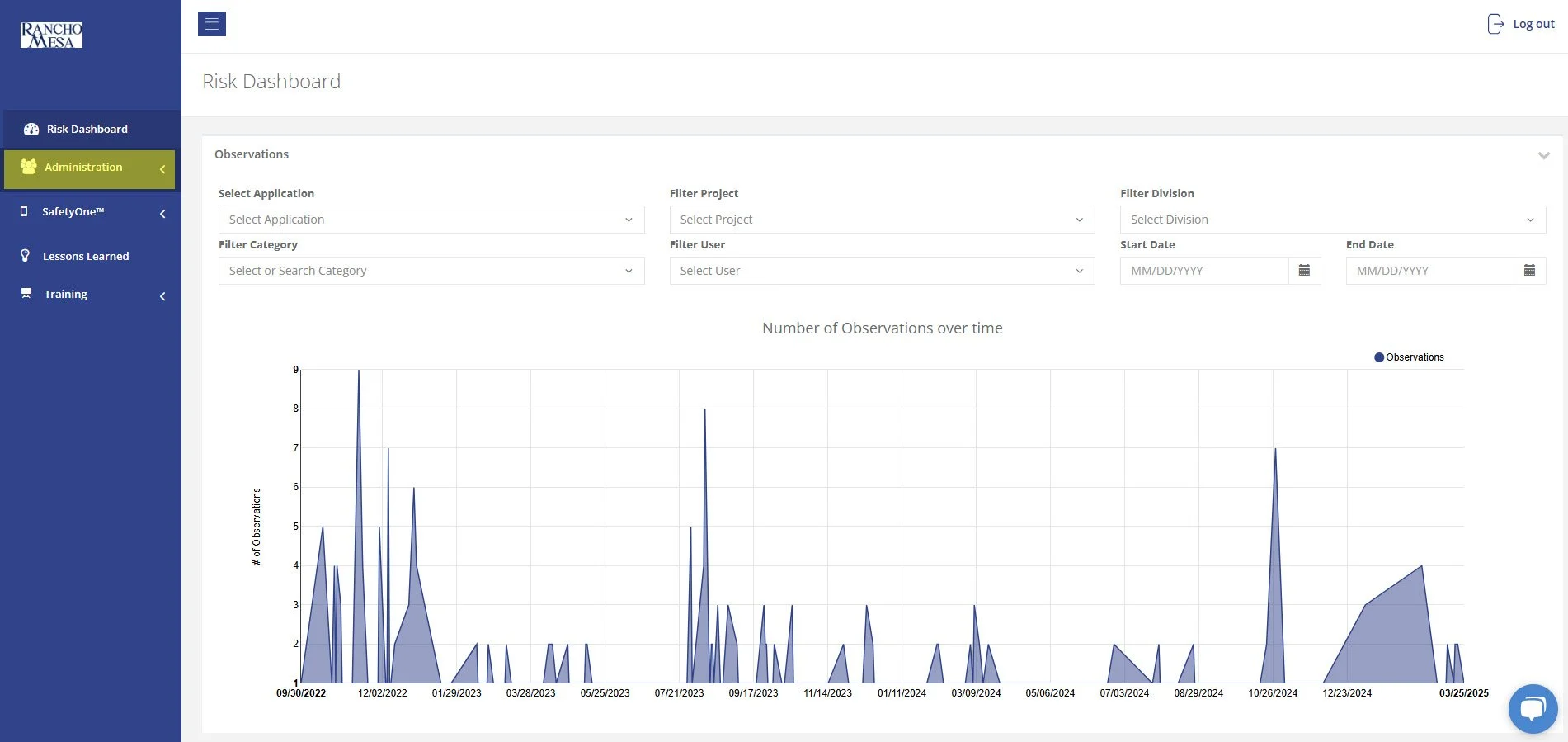
In order to allow Supervisors to add new users to SafetyOne™, an Administrator will need to turn on Custom Permissions.
A person with a Supervisor user license is someone who manages one or more projects, crews, facilities, or programs. The Supervisor role might also be used by a safety manager or project manager in a construction company, a facility director in a home health care company, or a program director in a non-profit organization.