SAFETYONE™ APP
User Guide

Toolbox Talks in Mobile App
Performing toolbox talks through the SafetyOne™ mobile app is easy, and includes many features to help document these meetings in the field.
Performing toolbox talks through the SafetyOne™ mobile app is easy, and includes many features to help document these meetings in the field.
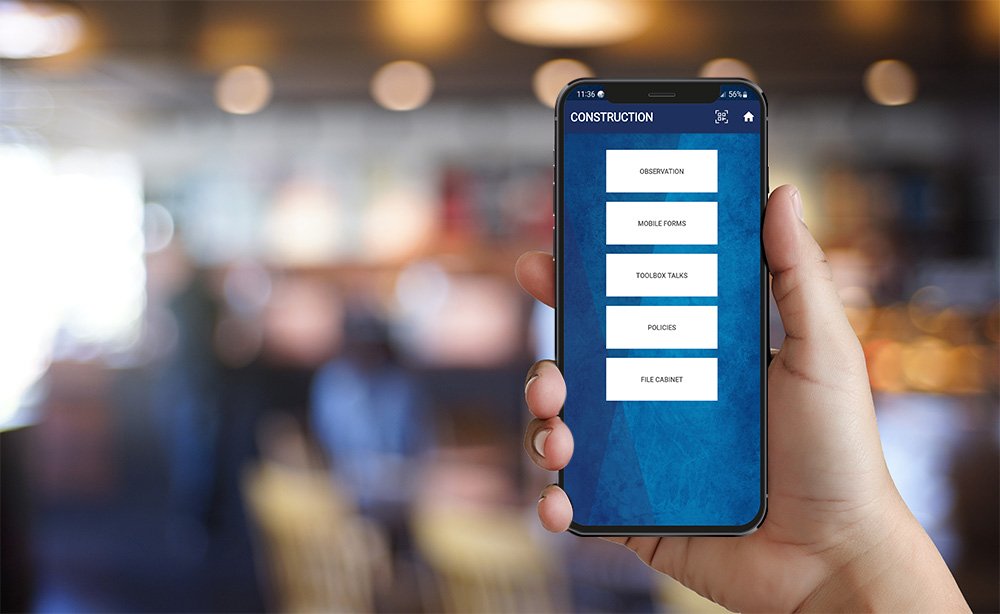
To perform a Toolbox Talk, click the Projects icon, click on your Project, click “Toolbox Talks,” then click “New.”
The app will now display a list of toolbox talks that have been assigned to this project by your organization’s administrator.
Use the search field to find topics by a keyword or scroll through the list to pick a topic. Click the topic. The app will open the toolbox talk details.
Each of the four sections of the toolbox talk should be expanded to guide you through the toolbox talk. A best practice is to stop periodically and ask your crew questions about the toolbox talk to ensure they are engaged.
Towards the bottom of the toolbox talk, organizations can add a note by clicking “Add Note.”
Organizations use the note section to annotate the toolbox talk with discussions made during the meeting or anything specific you want to document. These notes can either be input by voice dictation or via keyboard. After each note is added, the date and time stamp as well as the user’s name who added the note is documented.
Some organizations will take a photo of the crew participating in the toolbox talk.
To add a photo, click on the “Add Photo” button and choose the camera option, take the photo and click “Use Photo.”
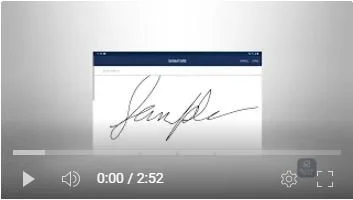
Organizations are also able to gather signatures from toolbox talk participants electronically. To do this, click “Add Signature,” type your name and employee ID number (if applicable), then use your finger to sign the signature pad on the mobile device.
Once a person types in their name for the first time on a specific mobile device, the device will remember the name (unless you have logged out) to make it easier to type in names in the future. Use an employee ID after the employee’s name to ensure individual employees with the same or similar names can easily be identified.
Then use your finger to sign the signature pad on the mobile device.
Then, click “Done.”
To add in multiple signatures, click “Add Signature” again and follow the same steps.
You can also have others follow along and complete their signature on their own device. To do this, click on “Invite Others” at the bottom of the screen. A QR Code will pop up. Any other employee with a device that has a camera, can scan the QR Code and follow along on their device, as well as add their signature to show they participated in the Toolbox Talk.
Organizations can email a copy of the completed toolbox talk report directly from their device. Click “Send Email” and the app will use the device’s existing email settings to send the toolbox talk report. The email will contain a link to the completed toolbox talk report. This link will always contain the most current information from the toolbox talk. So, if additional names are added later, the link will always have the most current information.
Lastly, click “Finished.” This will send the data back to your organization’s database, where your administrator will be able to access the report.