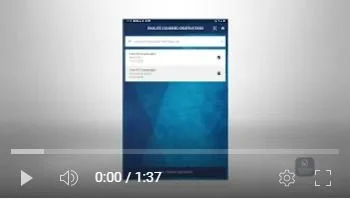
Combined Observations in Mobile App
Combined observations provide a way for organizations to combine multiple observations into a single report. This is useful when users want to combine various reports into a single report rather than sending off multiple reports.
To create a combined observation, click on the Home icon in the top right corner of any mobile app screen.
Then, click on the “Combined Observations” icon.
Use the dropdown options at the top of the screen to filter the list of observations.
Leave the filters blank to see a list of all the Observations you’ve created.
Click the box next to each observation you would like to combine.
When done, click the “Combine Observations” button at the bottom.
When you combine observations, you can also break down the observations by specific “Party Observed.” Party Observed is an optional field that organizations can input when a question is answered in an observation.
It could be the name of the person who is being observed, a trade, or a contractor name.
To combine observations for a specific party observed, use the pull down to choose from the list.
To combine observations for all parties observed, leave the dropdown field blank.
You also have the option to add a Title to the Combined Observation Report at the top of the screen. If you do not want to add a title, leave the field blank.
When complete, click the “Done” button. This will send the report to the Administrator website.
You also have the option to email the report to an individual by clicking on the “Email Report” button. You may get a pop-up with email options. Select the email you’d like to send from. The email will open with a link to the combined report. Enter in the email address for the recipient, and hit send.
Sending the report as a URL link in the email ensures the recipient will be able to access the most up to date information at any time.